

Getting Started
To integrate Exotel with your Rapida application, follow these steps:Prerequisites
- An active Exotel account
- Access to Exotel’s API credentials
Setting Up Provider Credentials
1
Access the Integrations Page
Navigate to the “Integration > Tools” page. Here you’ll see a grid of various external integrations including Exotel.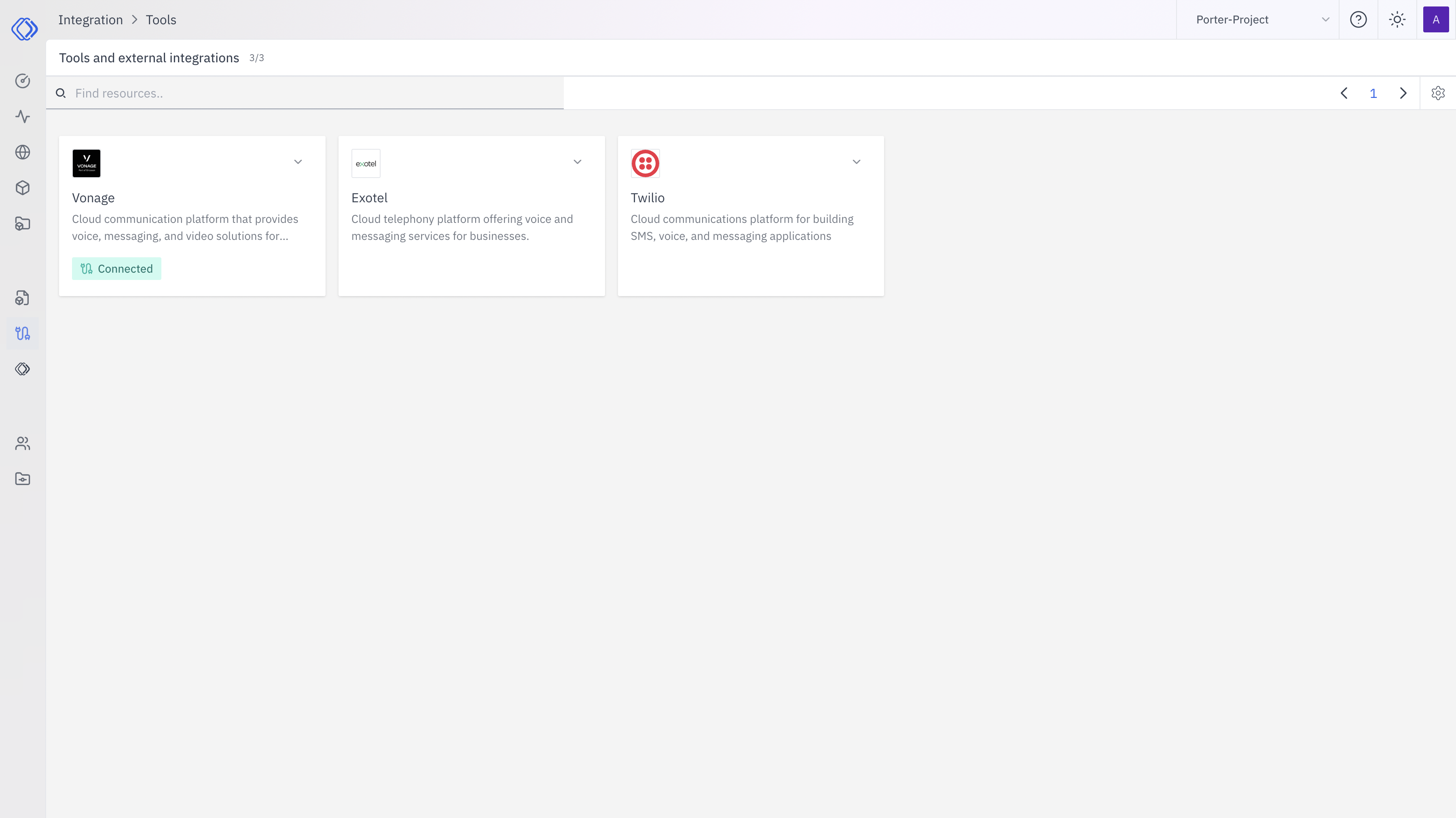
2
Select Exotel
On the Integrations page, find the Exotel card. Click the “Setup Credential” button for Exotel.
3
Create Provider Credential
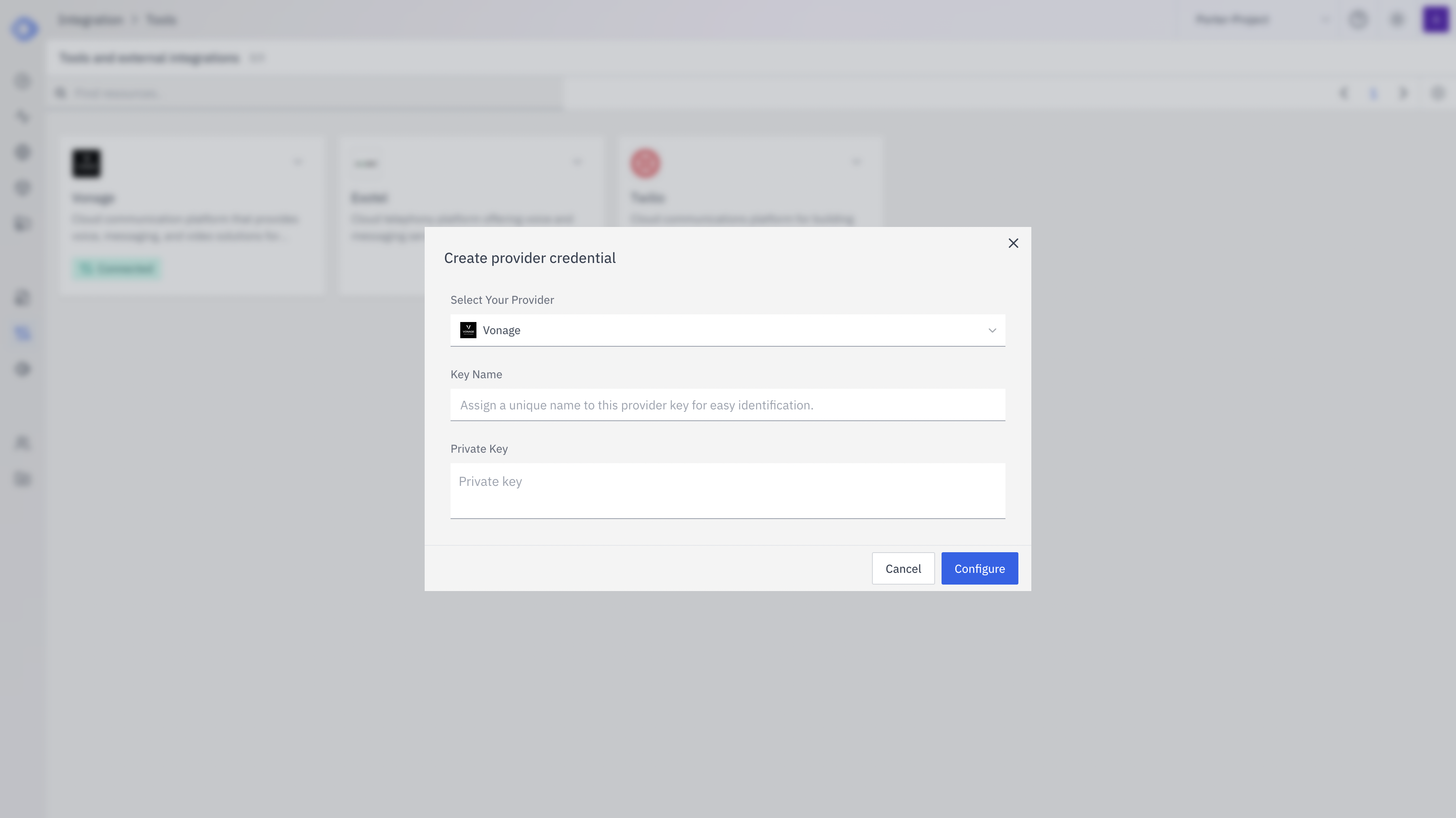
- Ensure Exotel is selected from the dropdown
- Enter a Key Name: Assign a unique name to this Exotel credential for easy identification
- Enter the required credentials:
- Exotel API Key
- Exotel API Token
- Exotel SID (Account SID)
- Click “Configure” to save the credentials
4
Verify Credential Setup
After setting up the credential, you can verify it’s been added:
- The Exotel card should now show “Connected”
- If you click on Exotel, you’ll see a “View provider credential” modal
- This modal displays the credential name, when it was last updated, and options to delete or close
Features
Exotel integration provides the following features:- Voice Calls: Make outbound calls and receive inbound calls
- SMS: Send and receive text messages
- Number Masking: Protect customer and agent phone numbers
- Call Recording: Record and store call conversations
- IVR (Interactive Voice Response): Set up automated phone systems
Usage Examples
Here are some common use cases for Exotel integration:- Customer Support: Set up a cloud-based call center for your support team
- Appointment Reminders: Send automated voice or SMS reminders to customers
- Two-Factor Authentication: Use SMS or voice calls for secure user verification
- Lead Management: Automate outbound calls for sales and marketing campaigns
- Survey Collection: Conduct voice-based surveys for customer feedback