

Overview
In Rapida, effective user management is crucial for maintaining organization security and productivity. The platform allows you to manage users, their roles, and access levels across your organization.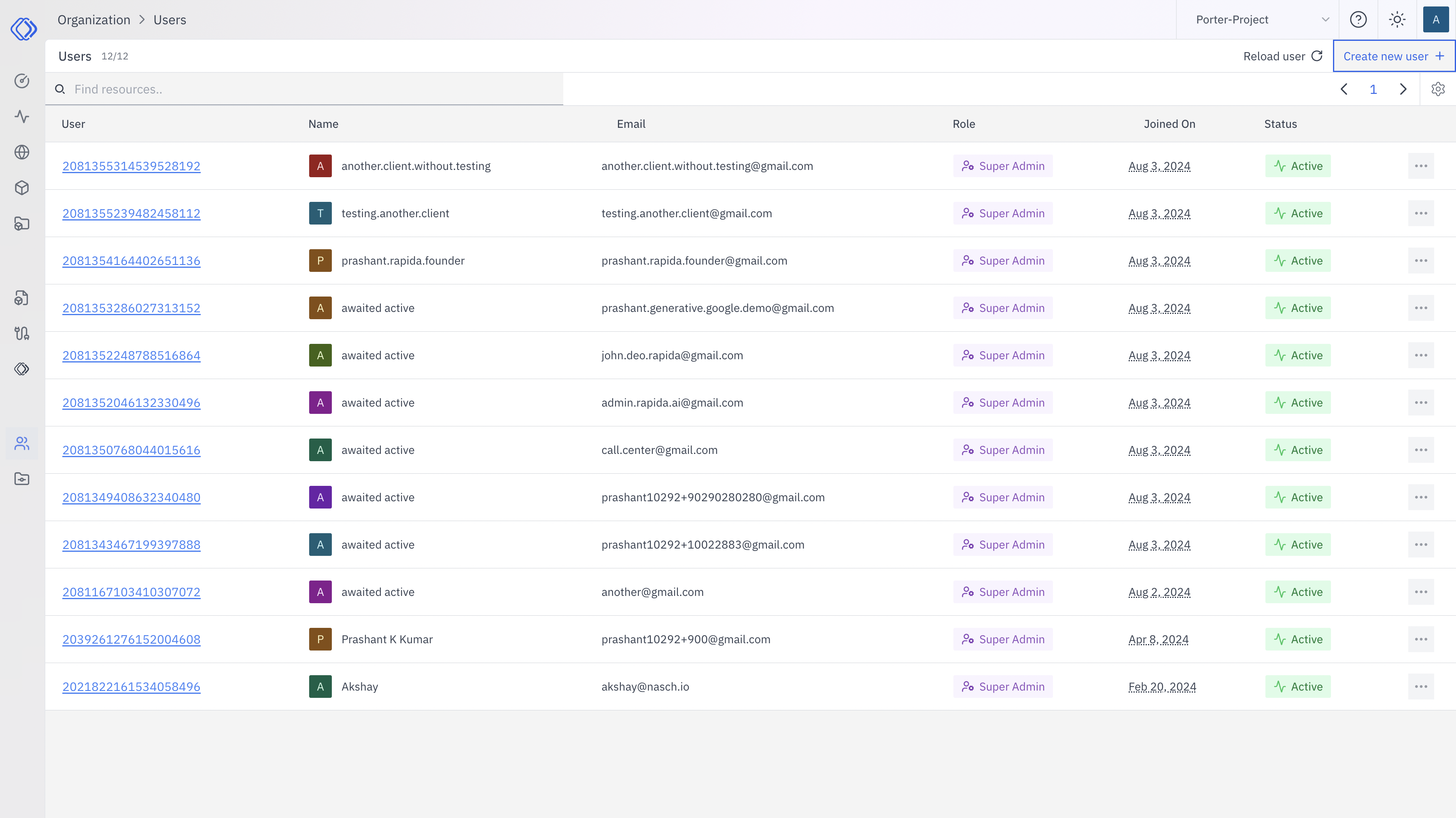
- User ID: Unique identifier for each user
- Name: Display name of the user
- Email: User’s email address
- Role: User’s role within the organization
- Joined On: Date the user joined the organization
- Status: Current status of the user account
User Roles
Rapida uses a role-based access control system:- Super Admin: Full access and control over the organization and all its projects
- Admin: Manage organization resources and users
- Member: Standard user with access to assigned projects
- Viewer: Read-only access to permitted resources
Key Points:
- Roles determine the level of access and permissions a user has
- All users shown in the image have the “Super Admin” role
- Roles can be assigned at the organization or project level
Managing Users
The user management interface allows administrators to:- Add New Users: The “Create new user” button at the top right allows adding new members
- View User Details: Each user entry provides essential information at a glance
- Edit User Information: The ellipsis (…) at the end of each row likely provides options to edit user details
- Activate/Deactivate Users: The “Status” column shows if a user is active or not
User Statuses
Users can have different statuses:- Active: User has full access according to their role
- Inactive: User account is disabled (not shown in the image, but a common option)
Best Practices
- Regularly review user roles and permissions
- Promptly update access for users who change positions or leave the organization
- Use descriptive names and professional email addresses for user accounts
- Implement a process for periodically auditing user accounts and their activities