

1
Access User Management
Navigate to the user management page in your Rapida workspace.
2
Initiate Invitation
Click on the “Create new user” or “Invite new user” button, typically located
at the top right of the user listing.
3
Fill in User Details
In the “Invite new user” dialog that appears, provide the following information: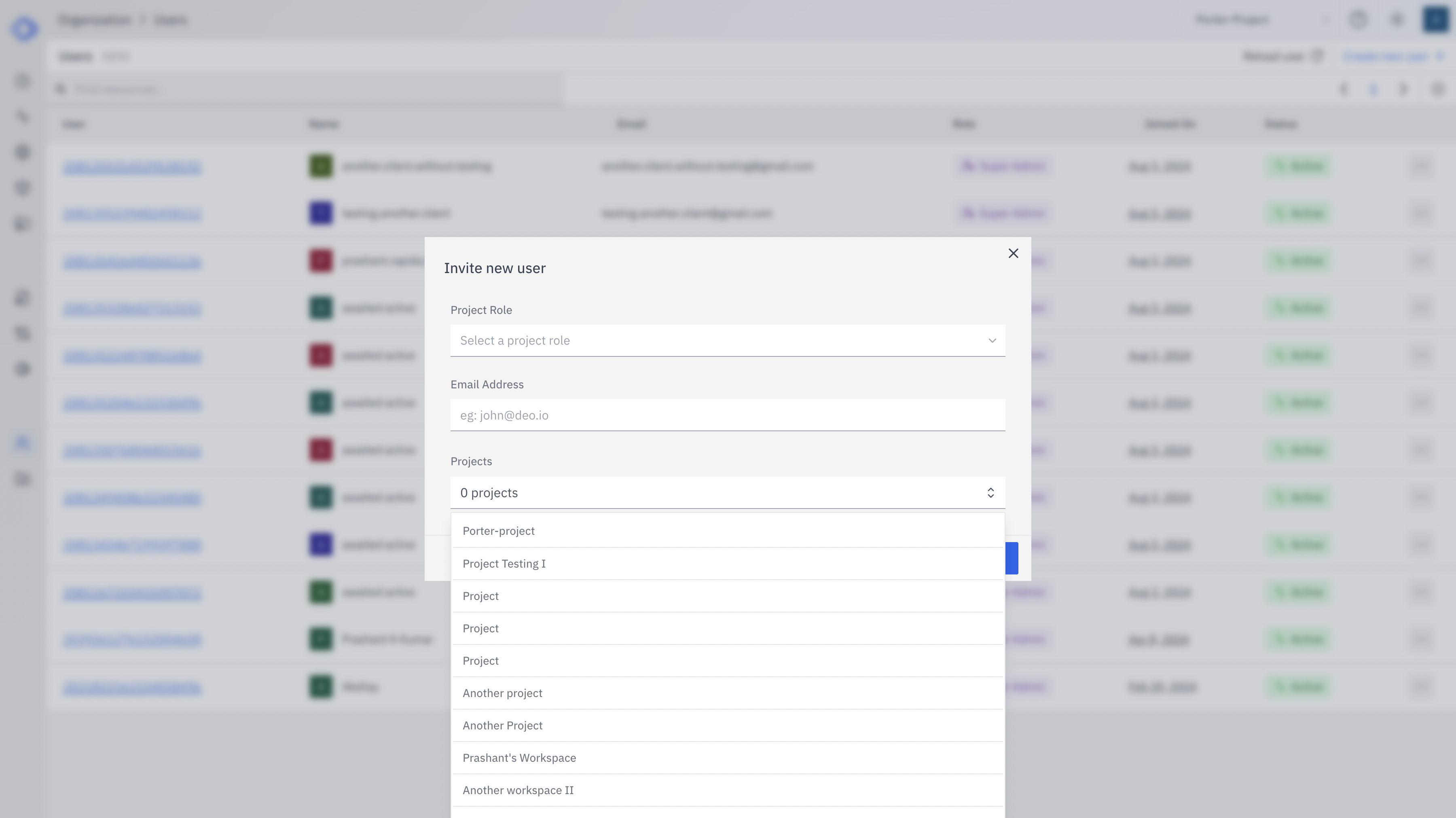
- Project Role: Select the appropriate role from the dropdown (e.g., Super Admin, Admin, Writer, Reader).
- Email Address: Enter the email address of the person you’re inviting.
- Projects: Choose which project(s) to give the new user access to.
4
Set Permissions
Depending on the selected role, you may need to specify additional permissions
or access levels.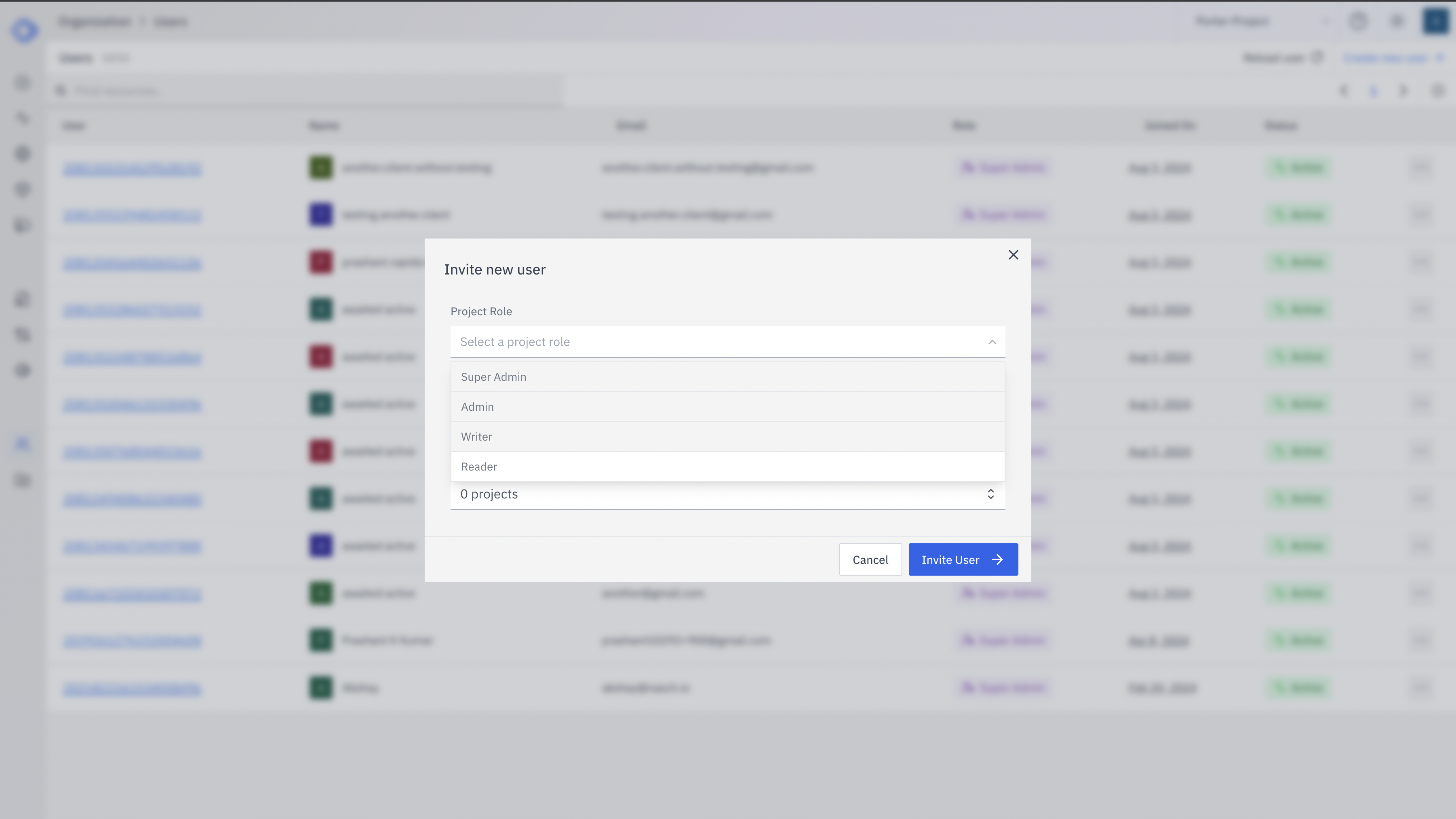
5
Send Invitation
After filling in all required fields, click the “Invite User” button to send the invitation.
User Roles
When inviting a new user, you can assign one of the following roles:- Super Admin: Full access and control over the organization and all its projects
- Admin: Manage organization resources and users
- Writer: Can edit and contribute to assigned projects
- Reader: Read-only access to permitted resources
Important Considerations
- Ensure you’re assigning the appropriate role for the new user’s responsibilities.
- Double-check the email address to avoid sending invitations to the wrong person.
- Be mindful of which projects you’re granting access to, especially for sensitive or confidential work.
After Sending the Invitation
- The invited user will receive an email with instructions to join the workspace.
- They will need to create an account or log in if they already have one.
- Once they accept the invitation, they’ll have access based on the role and projects you’ve assigned.
Best Practices
- Regularly review and update user roles and project access as team responsibilities change.
- Implement a standard onboarding process for new users to familiarize them with your workspace setup and guidelines.
- Periodically audit user accounts to ensure all active users still require access.