

Log Overview
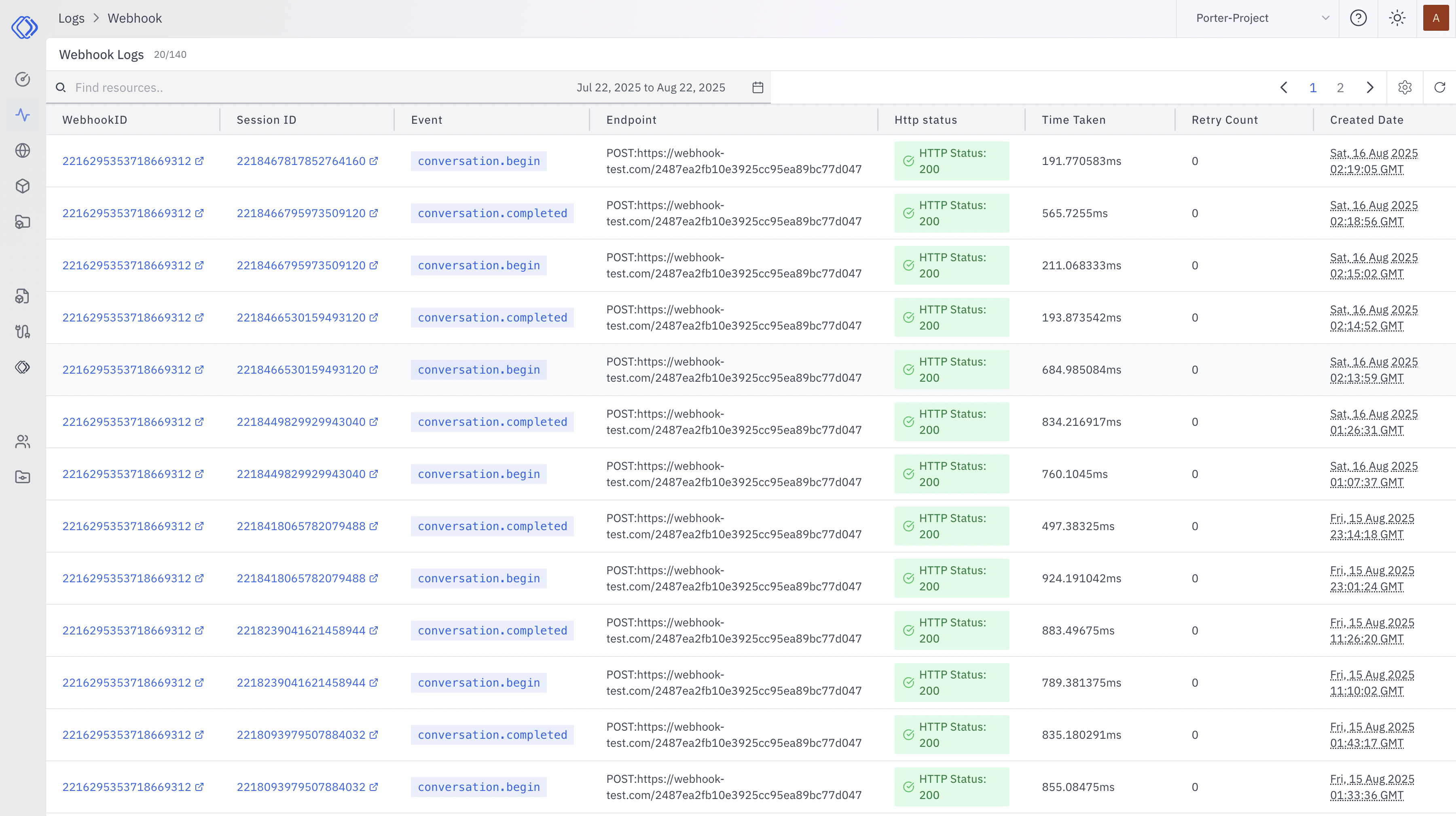
- Webhook ID: Unique identifier for each webhook
- Session ID: Identifier for the session associated with the webhook
- Event: Type of event, such as
call.received,call.ringing,call.ended,webrtc.connected,webrtc.reconnecting,conversation.begin,conversation.completed, orconversation.error - Endpoint: The URL endpoint where the webhook is sent
- HTTP Status: Response status code (e.g., 200 for success)
- Time Taken: Processing time for the request in milliseconds
- Retry Count: Number of retry attempts, if any
- Created Date: Timestamp of when the webhook was triggered
Detailed Log Entry
Clicking on a log entry reveals more detailed information, divided into two tabs:Request
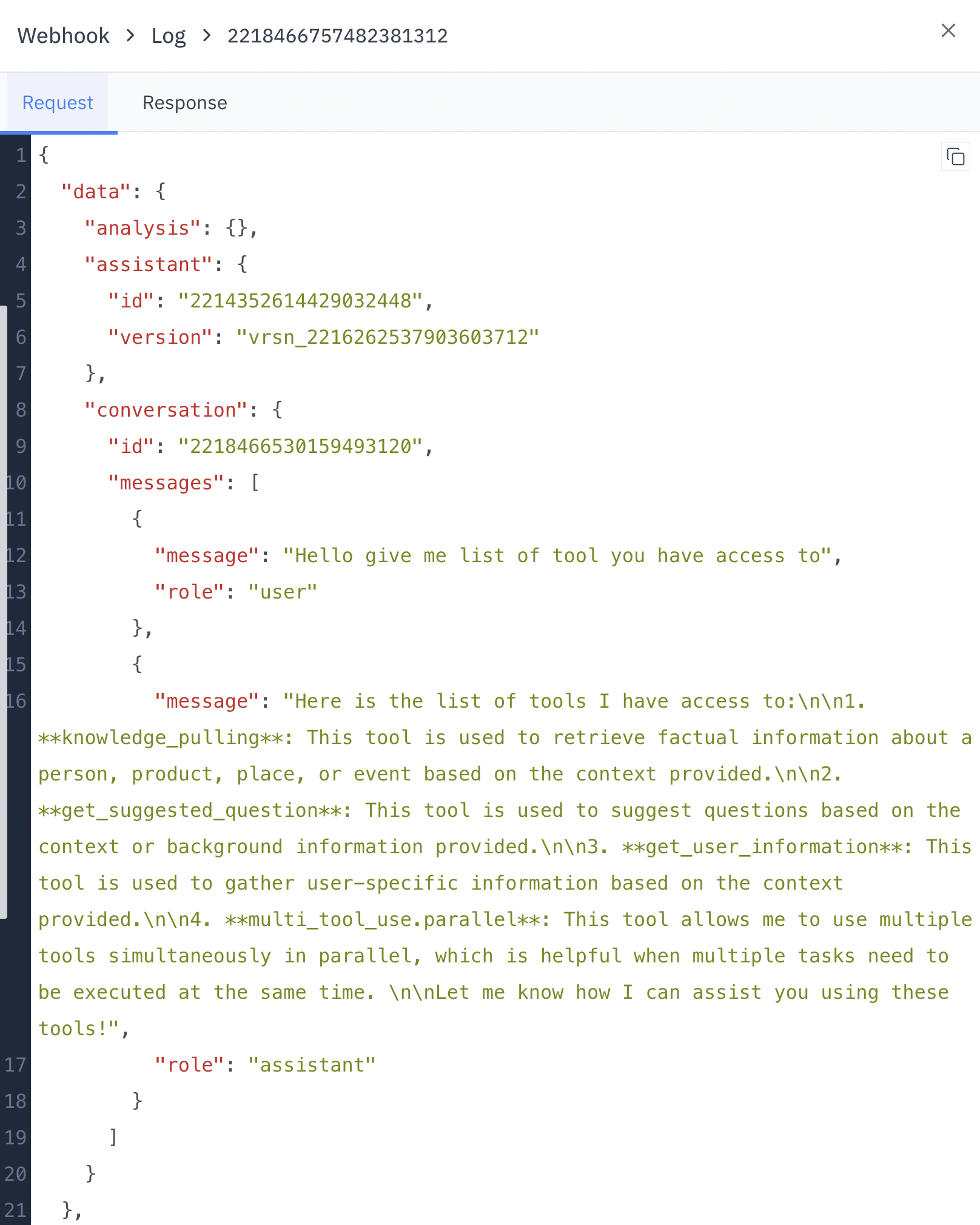
- event: Event name that triggered delivery.
- assistant: Assistant context, including the assistant ID.
- conversation: Conversation context, including the conversation ID when available.
- data: Event-specific data. For call events, this can include call status, provider, direction, context ID, channel UUID, failure reason, or duration when available. For WebRTC events, this can include session ID, media session ID, codec, ICE latency, peer connection state, reconnect reason, or recovery counters when available. For
conversation.completed, this includes:- reason: Completion reason, usually
conversation_completed. - status: Final conversation status.
- messages: Transcript entries with message ID, role, and content.
- metadata: Conversation metadata, including successful analysis results under
analysis.<analysis_name>. - metrics: Conversation metrics recorded during the session.
- reason: Completion reason, usually
Response
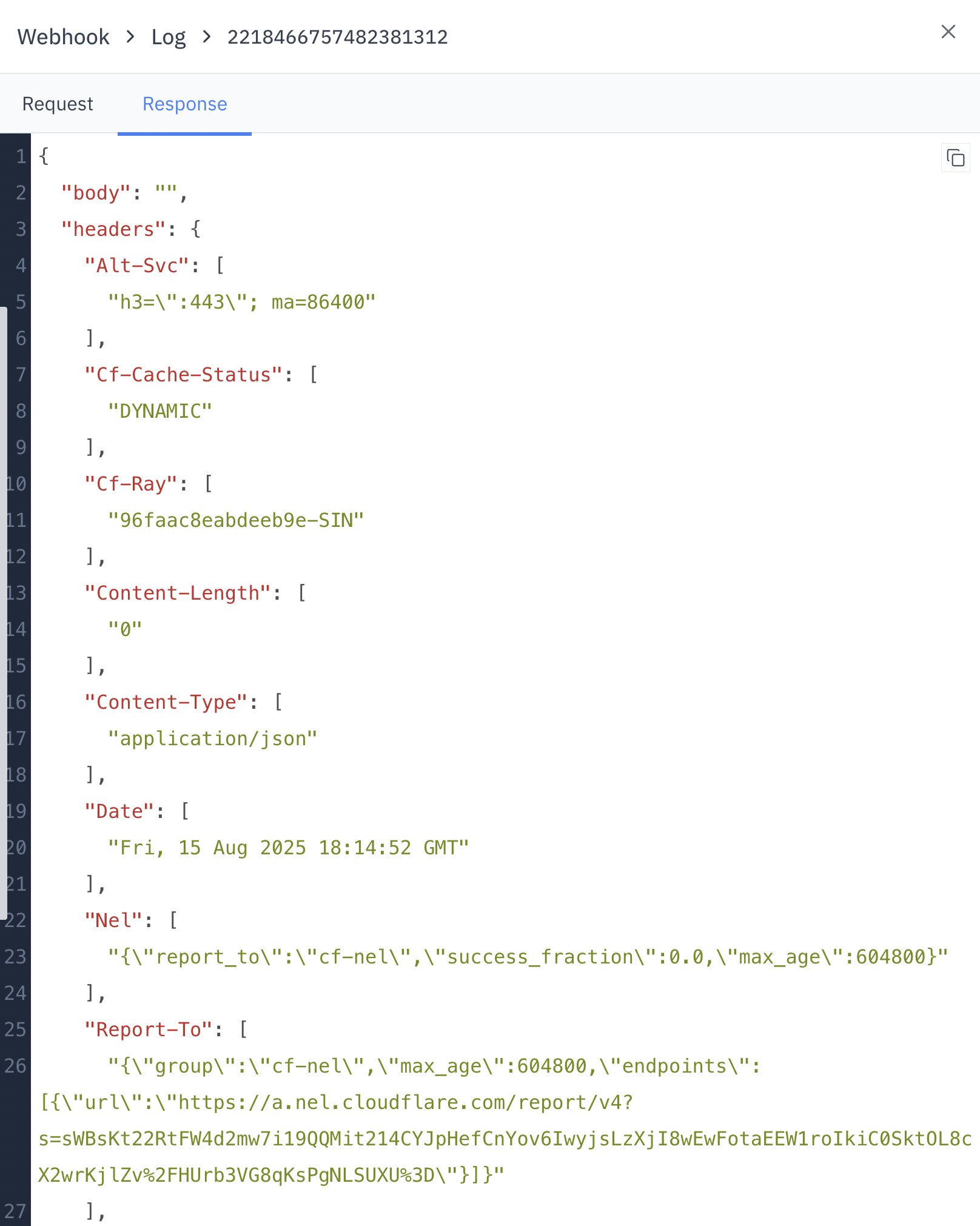
- body: The response body (empty in this example)
- headers: Various HTTP headers in the response
- Alt-Svc: Alternative services information
- Cf-Cache-Status: Cloudflare cache status
- Cf-Ray: Cloudflare Ray ID for the request
- Content-Length: Length of the response content
- Content-Type: MIME type of the response
- Date: Timestamp of the response
- Nel: Network Error Logging information
- Report-To: Reporting API configuration
Using Webhook Logs
- Integration Monitoring: Track successful and failed webhook deliveries to ensure your integrations are working correctly.
- Debugging: Investigate issues by examining the full request and response details for each webhook.
- Performance Analysis: Monitor response times and success rates to optimize your webhook-based processes.
- Security Auditing: Review webhook payloads and endpoints to ensure data is being sent to and received from authorized sources.
Use Cases
Troubleshoot Integrations
Quickly identify and resolve issues with third-party integrations by
examining detailed webhook logs.
Monitor Event Flow
Track call, WebRTC, and conversation events and ensure they are being properly transmitted to
external systems.
Optimize Performance
Analyze response times and success rates to improve the efficiency of your
webhook-based processes.
Ensure Data Integrity
Verify that webhook payloads contain the expected data and are being sent to
the correct endpoints.