

Getting Started
To integrate OpenAI with your Rapida application, follow these steps:Supported Models
OpenAI offers a variety of models that can be used with this integration. Here’s a table of the supported models:
These models offer various capabilities and performance levels. Choose the appropriate model based on your specific use case and requirements.
In addition to the language models, OpenAI also provides embedding models. Here’s a table of the supported embedding models:
These embedding models are designed to convert text into numerical vectors, which can be used for various natural language processing tasks such as semantic search, clustering, and similarity comparisons.
Prerequisites
- Go to the OpenAI platform at https://platform.openai.com.
- Sign up or log in to your OpenAI account.
- Navigate to the API section.
- Click on “Create new secret key” to generate your API key.
- Copy the API key (make sure to save it securely, as it won’t be shown again).
Setting Up Provider Credentials
1
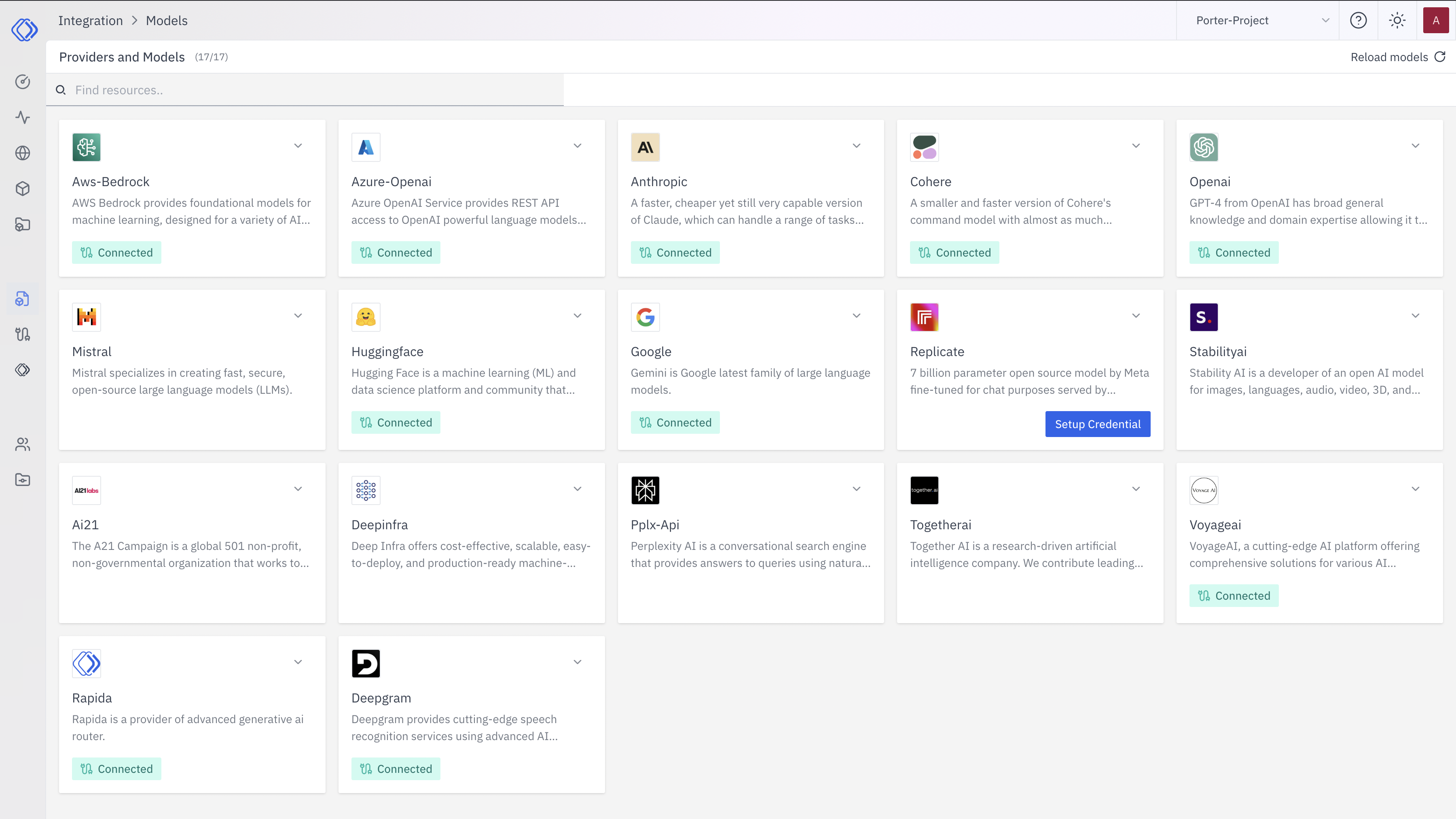
Access the Integrations Page
2
Select a Provider
On the Integrations page, find the provider you want to set up credentials for. Each provider card shows a brief description and a “Connected” or “Setup Credential” button.Click the “Setup Credential” button for your chosen provider.
3
Create Provider Credential
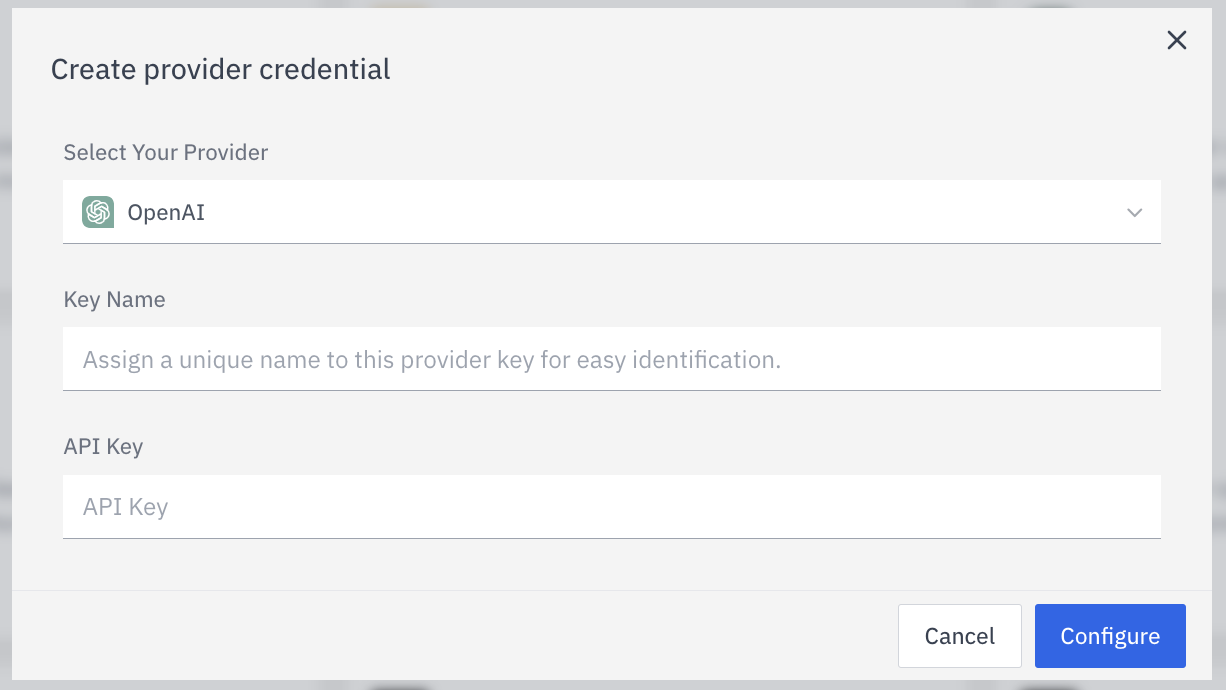
- Select Your Provider from the dropdown (if not already selected)
- Enter a Key Name: Assign a unique name to this provider key for easy identification
- Enter the Key: Input the actual API key or credential for the provider
- Click “Configure” to save the credential
4
Verify Credential Setup
After setting up the credential, you can verify it’s been added:
- The provider card should now show “Connected”
- If you click on the provider, you’ll see a “View provider credential” modal
- This modal displays the credential name, when it was last updated, and options to delete or close