

Getting Started
To integrate AWS Bedrock with your Rapida application, follow these steps:Supported Models
AWS Bedrock offers several advanced language models that can be used with this integration. Here’s a table of some supported models:
Note: AWS Bedrock may add or update models over time. Check the AWS Bedrock documentation for the most up-to-date list of available models.
Prerequisites
- Have an AWS account with access to AWS Bedrock.
- Set up your AWS credentials and permissions to use Bedrock.
- Ensure you have the necessary IAM permissions to access Bedrock and its models.
Setting Up Provider Credentials
1
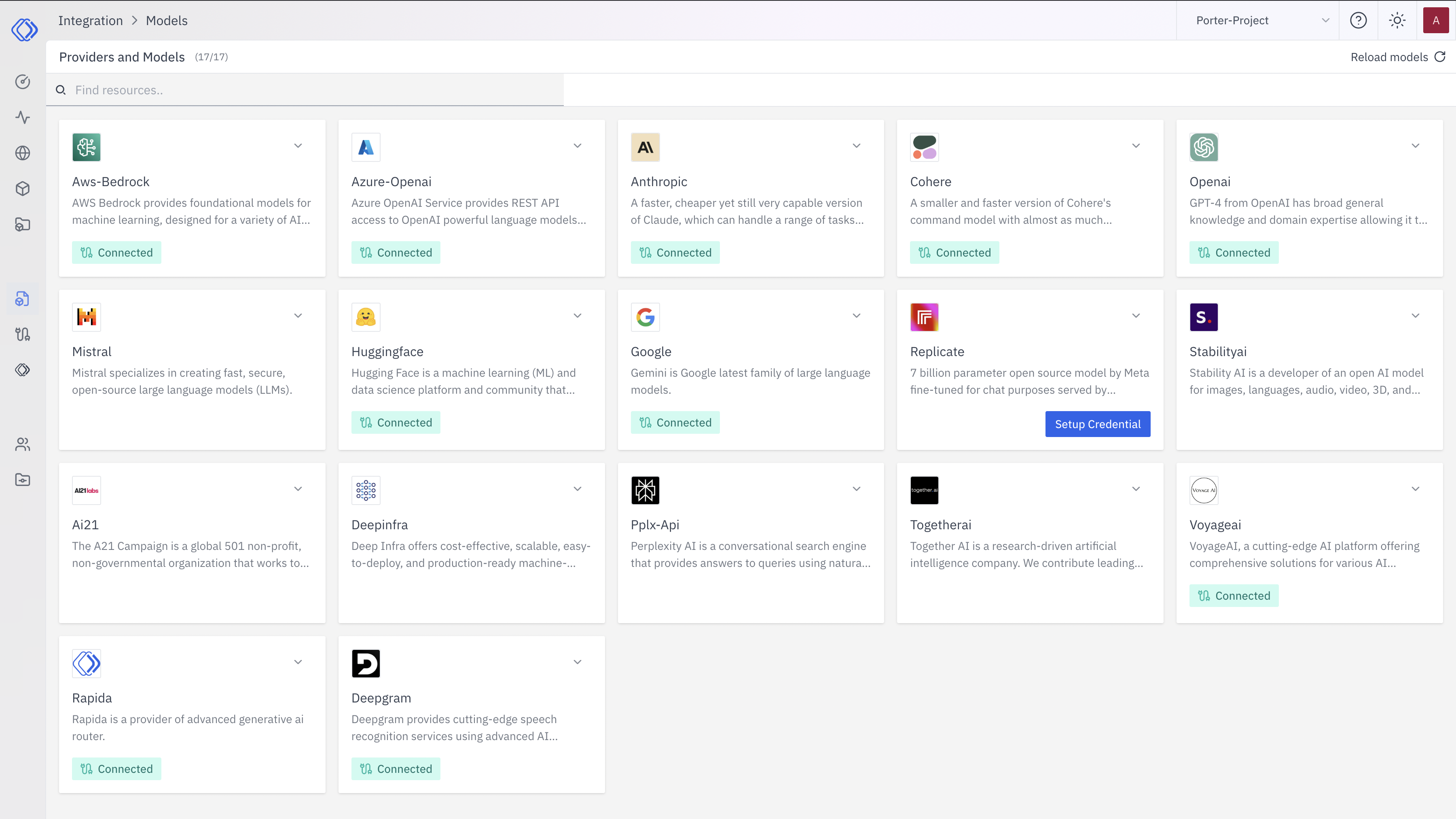
Access the Integrations Page
2
Select AWS Bedrock
On the Integrations page, find the AWS Bedrock provider card.Click the “Setup Credential” button for AWS Bedrock.
3
Create Provider Credential
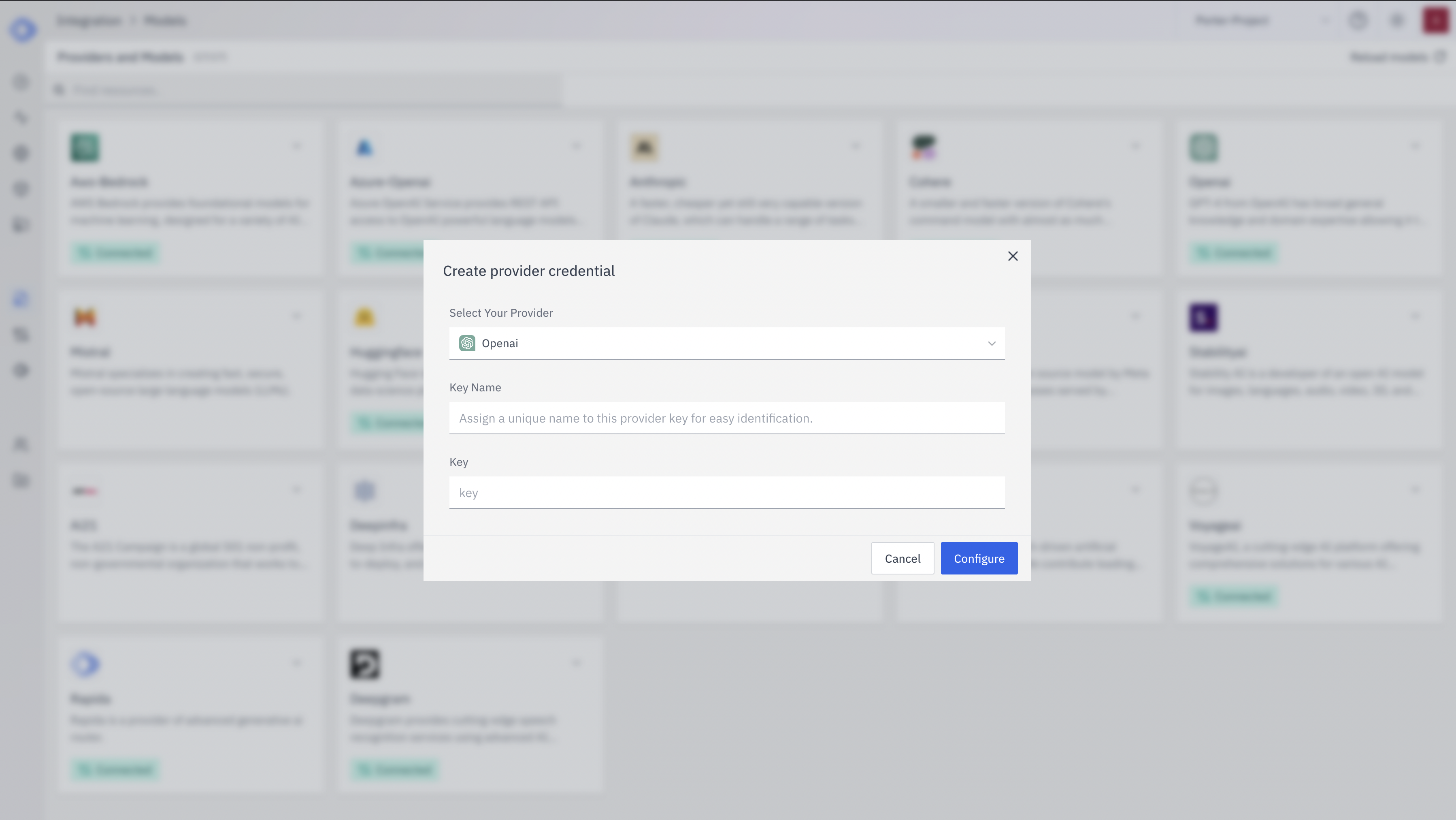
- Select “AWS Bedrock” from the dropdown (if not already selected)
- Enter a Key Name: Assign a unique name to this provider key for easy identification
- Enter the AWS Access Key ID: Input your AWS access key ID
- Enter the AWS Secret Access Key: Input your AWS secret access key
- Select the AWS Region: Choose the region where you want to use Bedrock
- Click “Configure” to save the credential
4
Verify Credential Setup
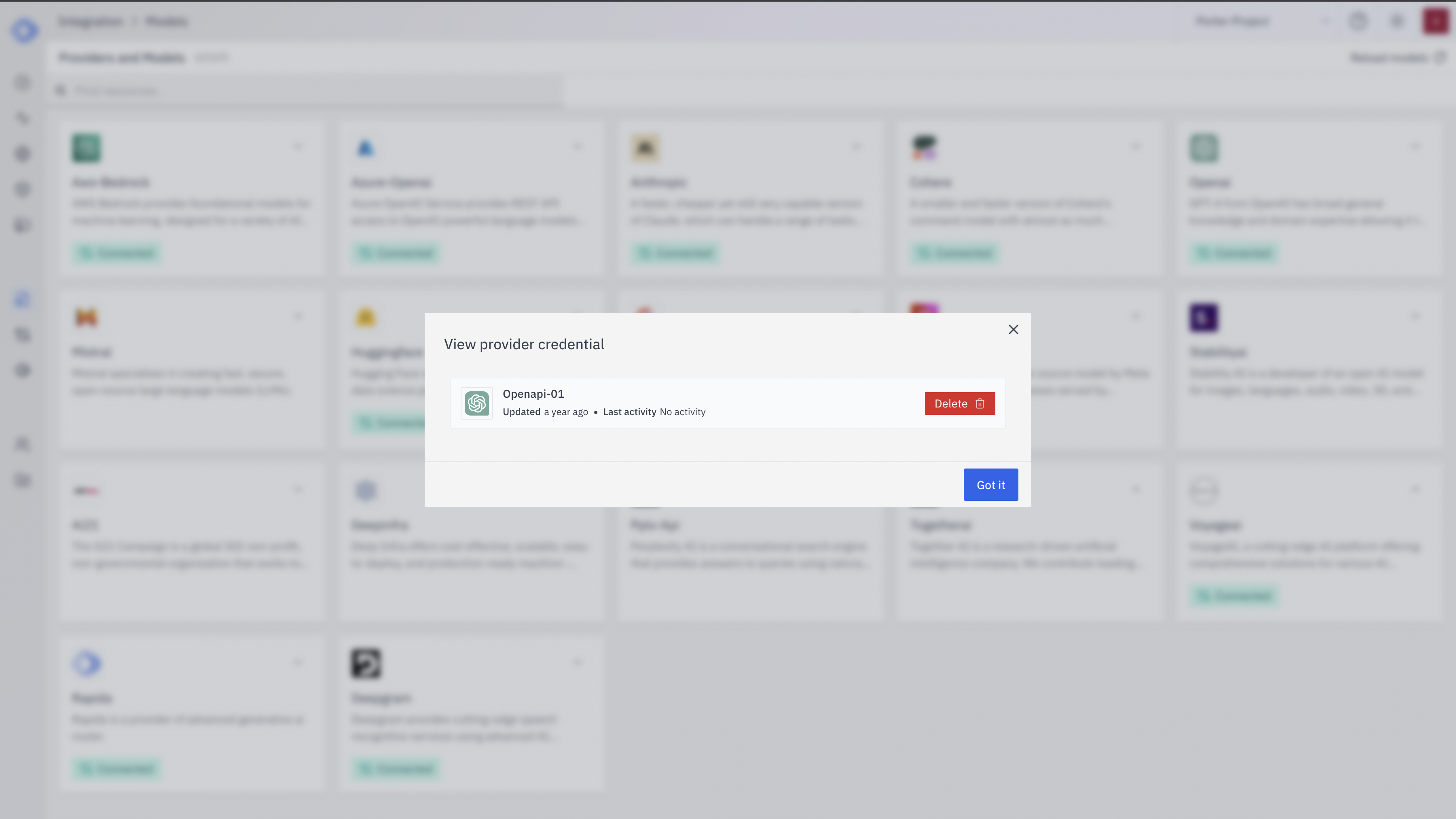
- The AWS Bedrock provider card should now show “Connected”
- If you click on the provider, you’ll see a “View provider credential” modal
- This modal displays the credential name, when it was last updated, and options to delete or close