

Getting Started
To integrate Anthropic with your Rapida application, follow these steps:Supported Models
Anthropic offers several advanced language models that can be used with this integration. Here’s a table of the supported models:
These models offer various capabilities and performance levels. Choose the appropriate model based on your specific use case and requirements.
Prerequisites
- Go to the Anthropic platform at https://www.anthropic.com.
- Sign up or log in to your Anthropic account.
- Navigate to the API section.
- Generate your API key.
- Copy the API key (make sure to save it securely, as it won’t be shown again).
Setting Up Provider Credentials
1
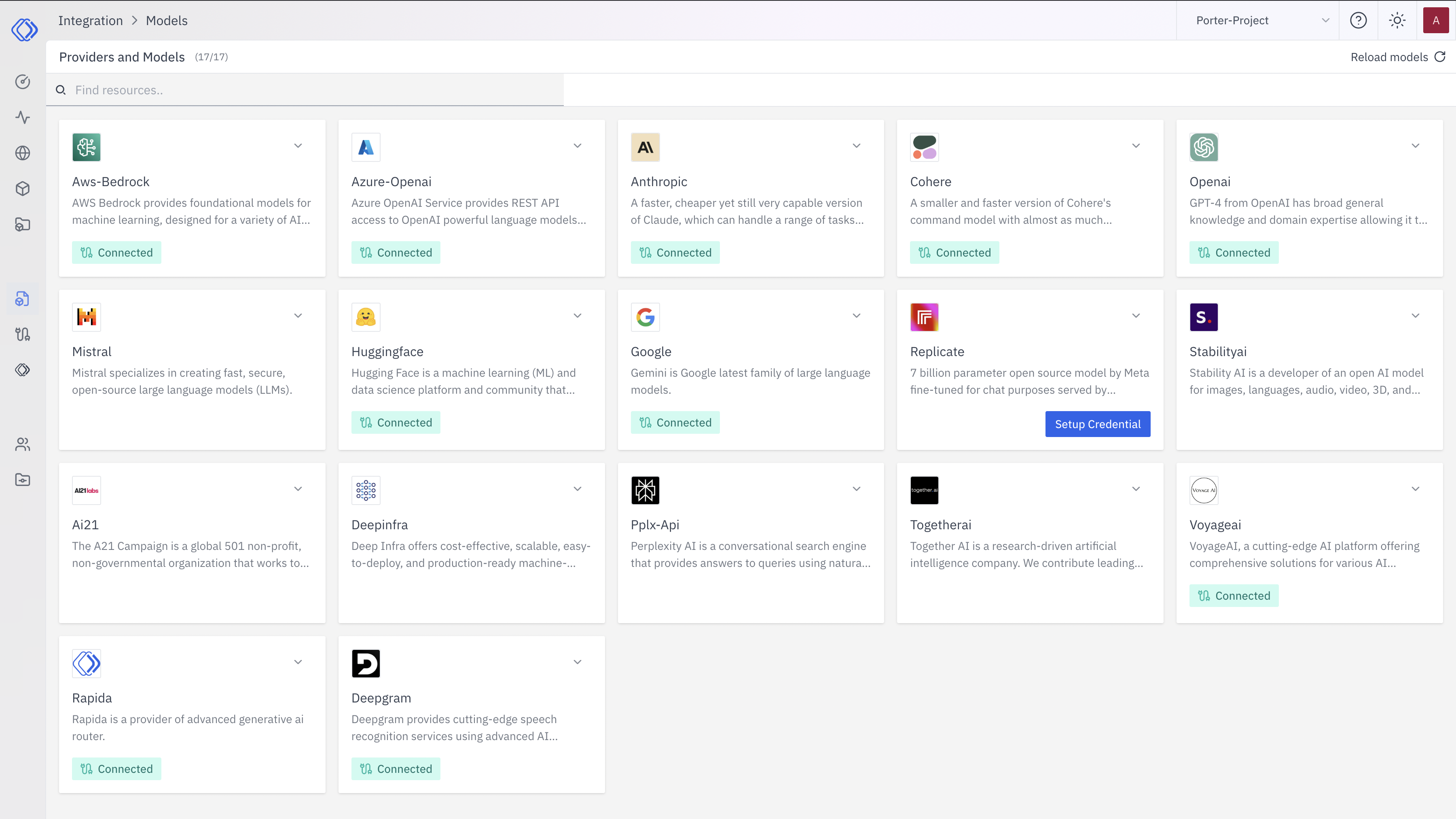
Access the Integrations Page
2
Select a Provider
On the Integrations page, find the provider you want to set up credentials for. Each provider card shows a brief description and a “Connected” or “Setup Credential” button.Click the “Setup Credential” button for your chosen provider.
3
Create Provider Credential
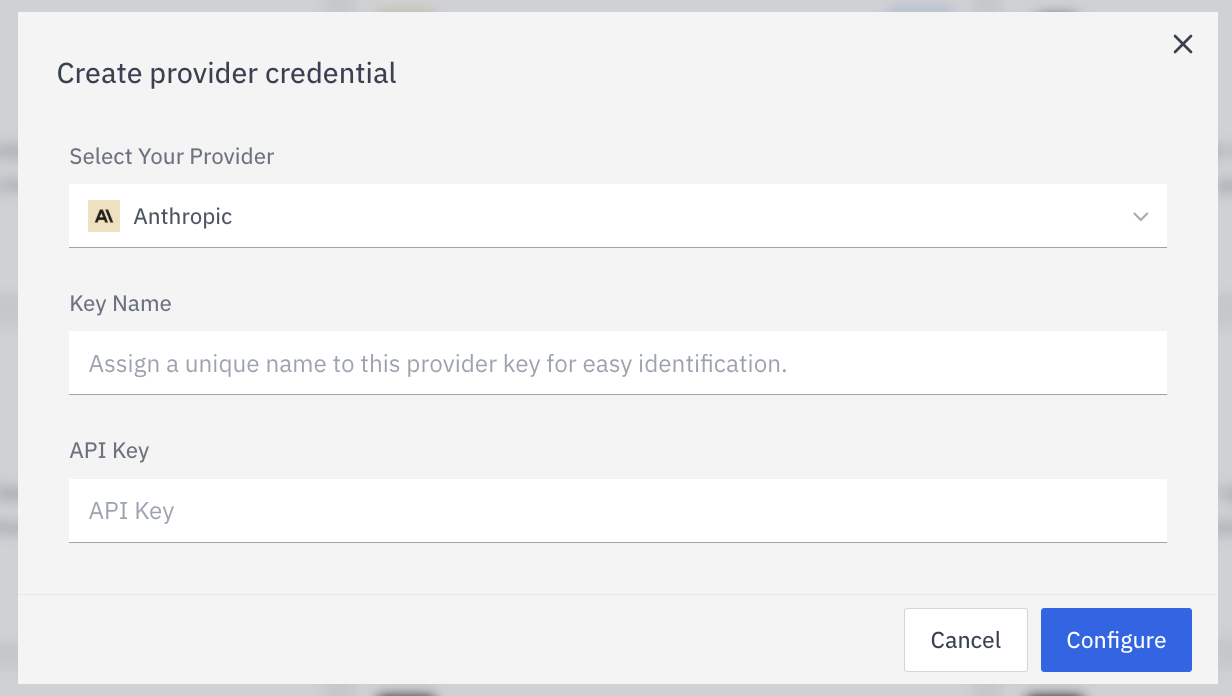
- Select Your Provider from the dropdown (if not already selected)
- Enter a Key Name: Assign a unique name to this provider key for easy identification
- Enter the Key: Input the actual API key or credential for the provider
- Click “Configure” to save the credential
4
Verify Credential Setup
After setting up the credential, you can verify it’s been added:
- The provider card should now show “Connected”
- If you click on the provider, you’ll see a “View provider credential” modal
- This modal displays the credential name, when it was last updated, and options to delete or close