

Getting Started
To integrate Gemini with your Rapida application, follow these steps:Supported Models
Google Gemini offers several advanced language models that can be used with this integration:
These models offer various capabilities and performance levels. Choose the appropriate model based on your specific use case and requirements.
Prerequisites
- Have a Google account with access to Google AI Studio
- Visit Google AI Studio to get started
- Generate your API key from the Google AI Studio dashboard
- Copy the API key (make sure to save it securely, as it won’t be shown again)
Setting Up Provider Credentials
1
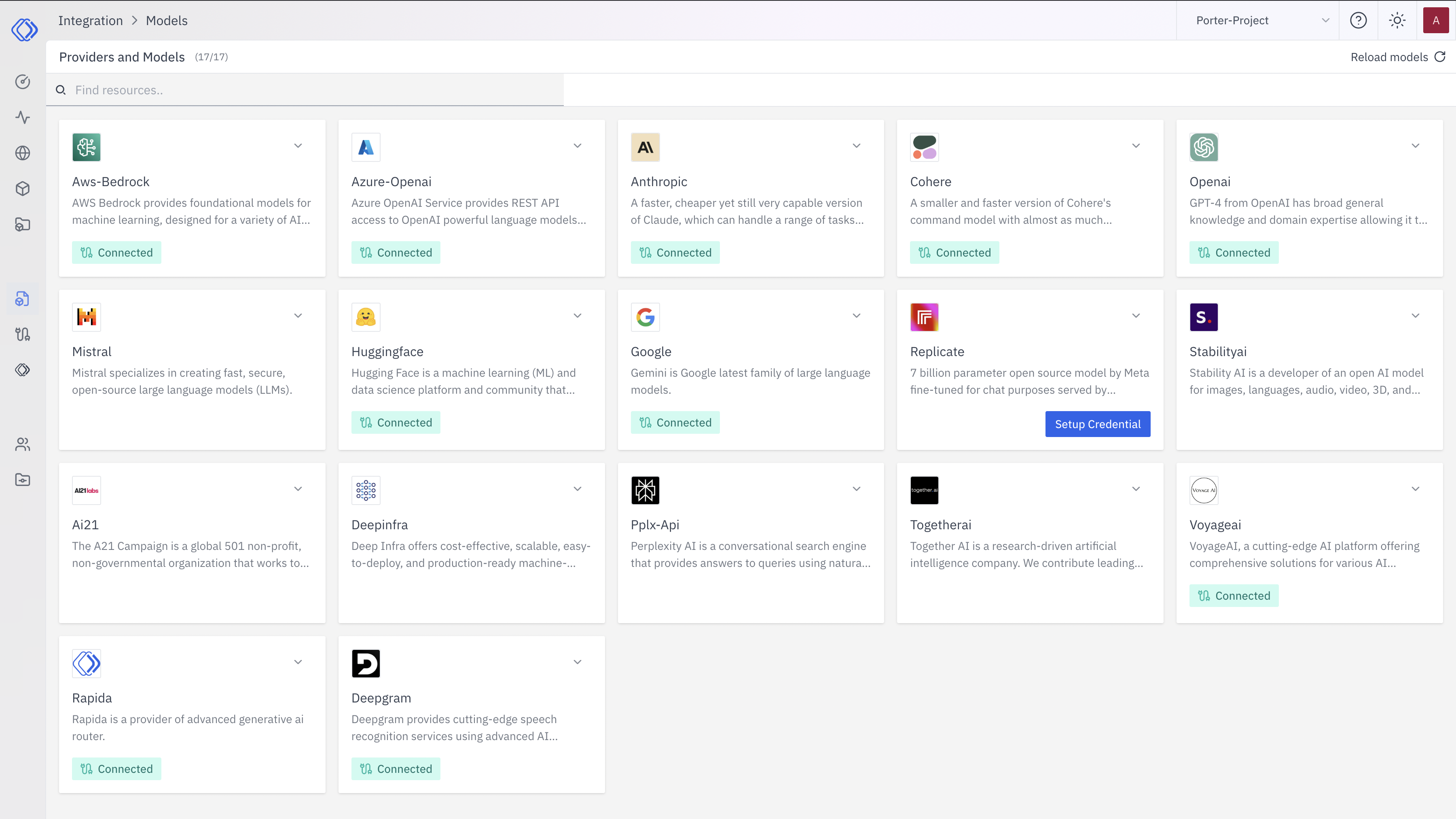
Access the Integrations Page
2
Select Gemini
On the Integrations page, find the Gemini / Google AI Studio provider card.Click the “Setup Credential” button for Gemini.
3
Create Provider Credential
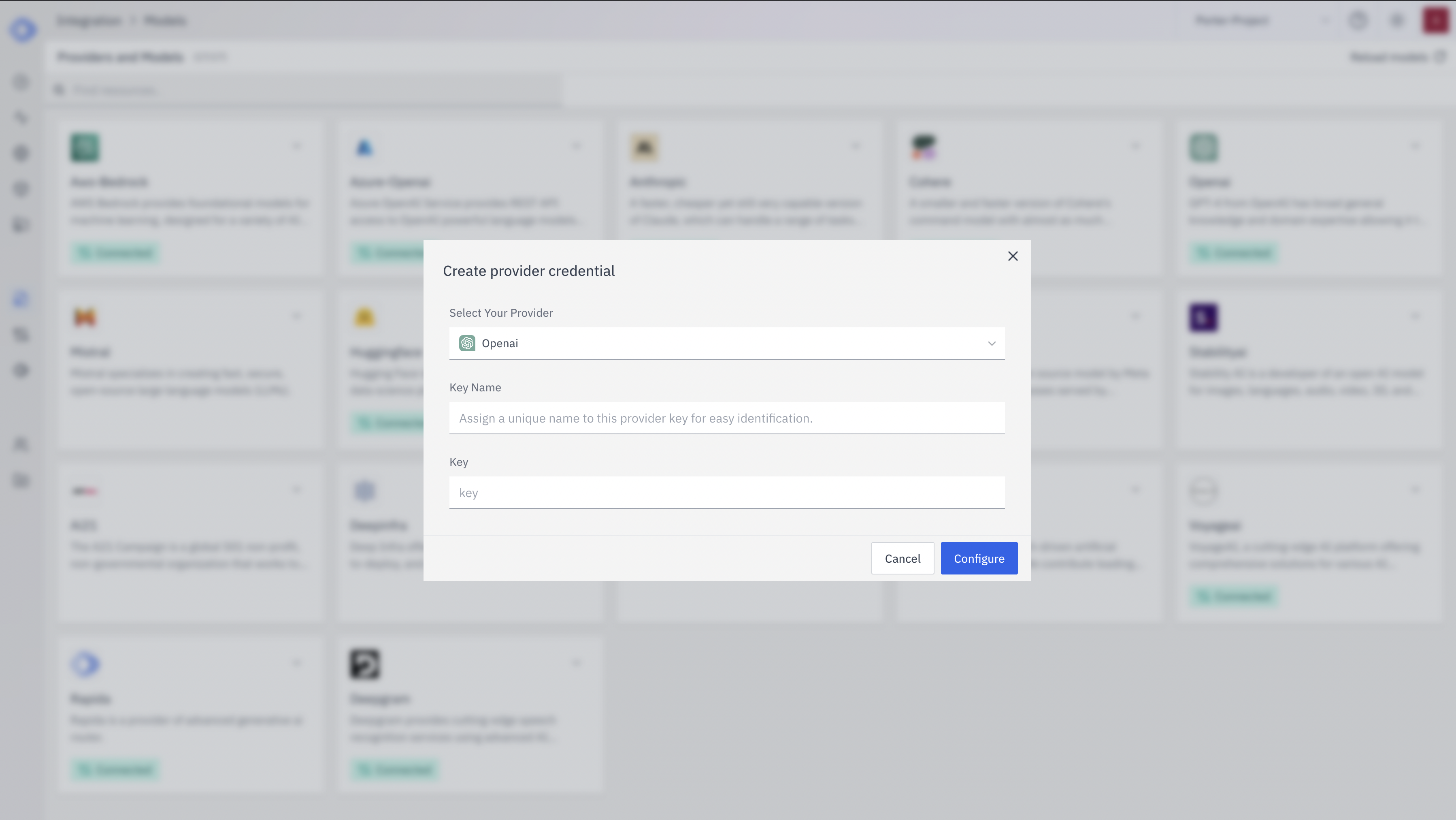
- Select “Gemini / Google AI Studio” from the dropdown (if not already selected)
- Enter a Key Name: Assign a unique name to this provider key for easy identification
- Enter the API Key: Input your Gemini API key from Google AI Studio
- Click “Configure” to save the credential
4
Verify Credential Setup
After setting up the credential, you can verify it’s been added:
- The Gemini provider card should now show “Connected”
- If you click on the provider, you’ll see a “View provider credential” modal
- This modal displays the credential name, when it was last updated, and options to delete or close
Integration Features
- Multimodal Capabilities: Process text and images
- Advanced Reasoning: Powerful reasoning capabilities for complex tasks
- Fast Processing: Optimized models for quick response times
- Free Tier Available: Get started with Google AI Studio’s free tier