

Getting Started
To integrate Google Speech Service with your Rapida application for speech-to-text (STT) capabilities, follow these steps:Supported Models
Google Speech Service offers various models optimized for different use cases:Speech-to-Text Models
Languages Supported
Google Speech Service supports 125+ languages. Some popular ones include:- English (US, UK, Australia, etc.)
- Spanish, French, German, Italian
- Mandarin, Cantonese, Japanese, Korean
- Hindi, Portuguese, Russian, Arabic
Prerequisites
- Have a Google Cloud account
- Create a new Google Cloud Project or use an existing one
- Enable the Speech-to-Text API in your Google Cloud Project
- Create a service account with Speech-to-Text permissions
- Download the service account key (JSON file)
Setting Up Provider Credentials
1
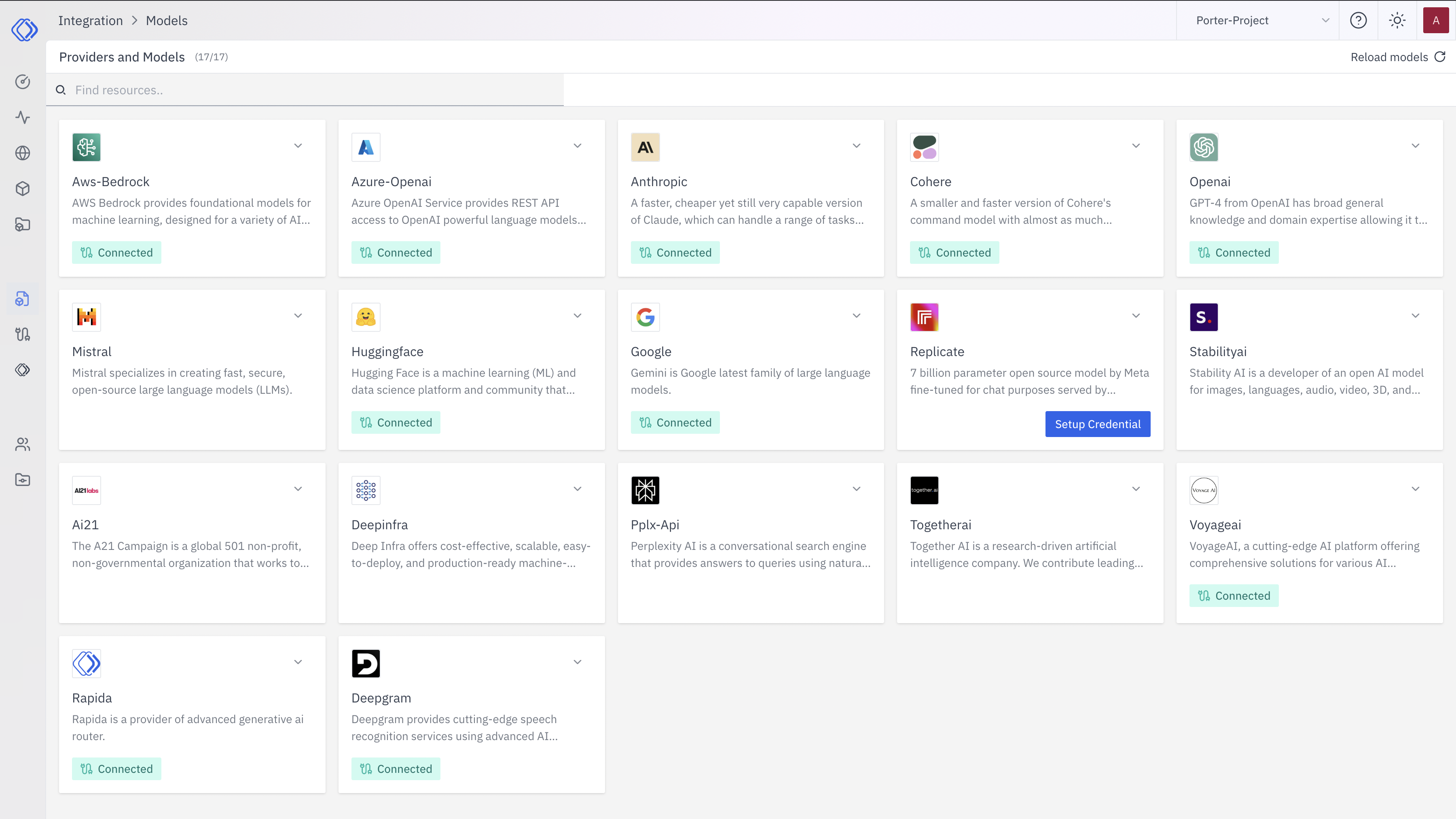
Access the Integrations Page
2
Select Google Speech Service
On the Integrations page, find the Google Speech Service provider card.Click the “Setup Credential” button for Google Speech Service.
3
Create Provider Credential
A modal window will appear titled “Create provider credential”. Follow these steps:
- Select “Google Speech Service” from the dropdown (if not already selected)
- Enter a Key Name: Assign a unique name to this provider key for easy identification
- Enter Project ID: Input your Google Cloud Project ID
- Enter Service Account Key: Paste the entire JSON content of your service account key
- Click “Configure” to save the credential
4
Verify Credential Setup
After setting up the credential, you can verify it’s been added:
- The Google Speech Service provider card should now show “Connected”
- If you click on the provider, you’ll see a “View provider credential” modal
- This modal displays the credential name, when it was last updated, and options to delete or close
Integration Features
- High Accuracy: Industry-leading speech recognition accuracy
- Multiple Languages: Support for 125+ languages and variants
- Real-time Streaming: Stream audio for real-time transcription
- Speaker Diarization: Identify different speakers in audio
- Word-level Confidence: Get confidence scores for transcribed words
- Custom Vocabularies: Define custom words and phrases