

Documentation Index
Fetch the complete documentation index at: https://doc.rapida.ai/llms.txt
Use this file to discover all available pages before exploring further.
How to Obtain Twilio Credentials
To integrate your Rapida AI Assistant with Twilio for phone capabilities, you’ll need the following credentials from your Twilio account:Finding Your Twilio Account SID and Auth Token
- Log in to your Twilio account at https://www.twilio.com/login
- Once logged in, navigate to the Twilio Console dashboard
-
Find your Account SID and Auth Token in the dashboard’s main view:
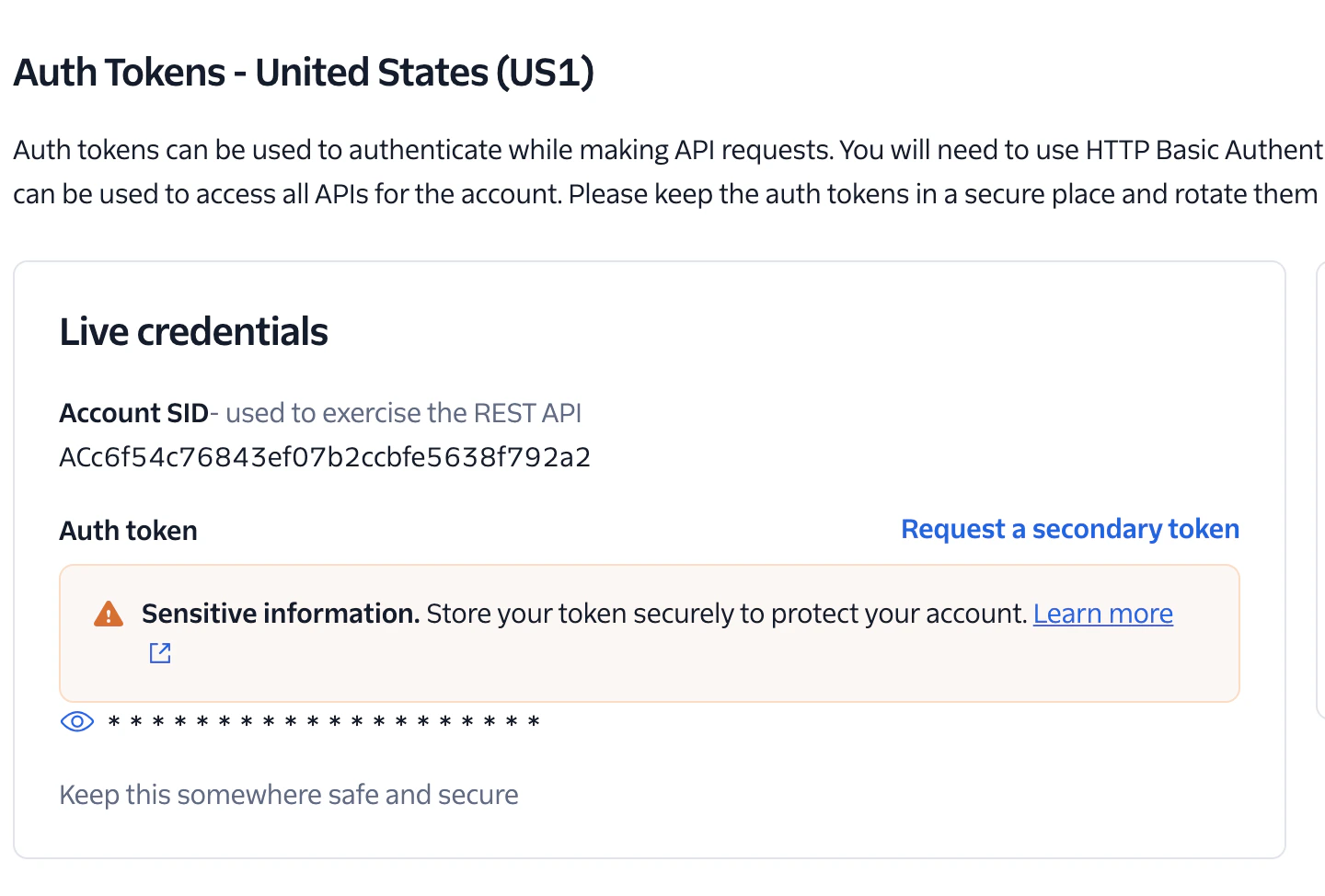
- Account SID: This is your account identifier (a 34-character string starting with “AC”)
- Auth Token: This functions as your account password (initially hidden for security)
- Click on the 👁️ icon next to your Auth Token to reveal it
- Copy both the Account SID and Auth Token for use in Rapida
Obtaining a Twilio Phone Number
To make or receive calls, you’ll need a Twilio phone number:- In the Twilio Console, navigate to “Phone Numbers” → “Manage” → “Active numbers”
- If you don’t have a number yet, click “Buy a number”
- Select a number that supports voice capabilities
- Complete the purchase process
- Copy the phone number (in E.164 format, e.g., +1XXXXXXXXXX) for use in Rapida
Using Test Credentials (Optional)
If you’re testing your integration before going live:- In the Twilio Console, go to “Project Settings” → “API Credentials”
- Find the “Test Credentials” section
- Note the Test Account SID and Test Auth Token
- When configuring in Rapida, check the “Using Test Credentials” option if applicable
Important: Test credentials work only with test phone numbers and have limited functionality. For production deployment, use your live credentials.
Security Best Practices
- Never share your Auth Token publicly
- Consider using environment variables to store credentials in your development environment
- Rotate your Auth Token periodically for enhanced security
- Use Twilio’s API Key feature for more granular access control when possible