

Getting Started
To integrate Azure Cognitive Services with your Rapida application for text-to-speech (TTS) capabilities, follow these steps:Supported Models
Text-to-Speech Voices
Azure Cognitive Services supports 400+ voices across multiple languages. Some popular voices include:English Voices
Supported Languages
Azure supports text-to-speech in 50+ languages including:- English (US, UK, Australian, Indian variants)
- Spanish, French, German, Italian, Dutch
- Mandarin, Cantonese, Japanese, Korean
- Hindi, Portuguese, Russian, Arabic, Hebrew
- Thai, Vietnamese, Polish, Swedish, and more
Features
- Neural Voices: High-quality neural network-powered voices
- Speaking Styles: Different emotional tones (cheerful, empathetic, calm, etc.)
- Pitch & Rate Control: Fine-tune pitch and speaking rate
- SSML Support: Full SSML markup support for advanced control
- Audio Formats: Support for multiple audio formats and sample rates
Prerequisites
- Have an Azure account
- Create an Azure Cognitive Services Speech resource
- Get your Subscription Key and Endpoint URL
- Note your resource region
Setting Up Provider Credentials
1
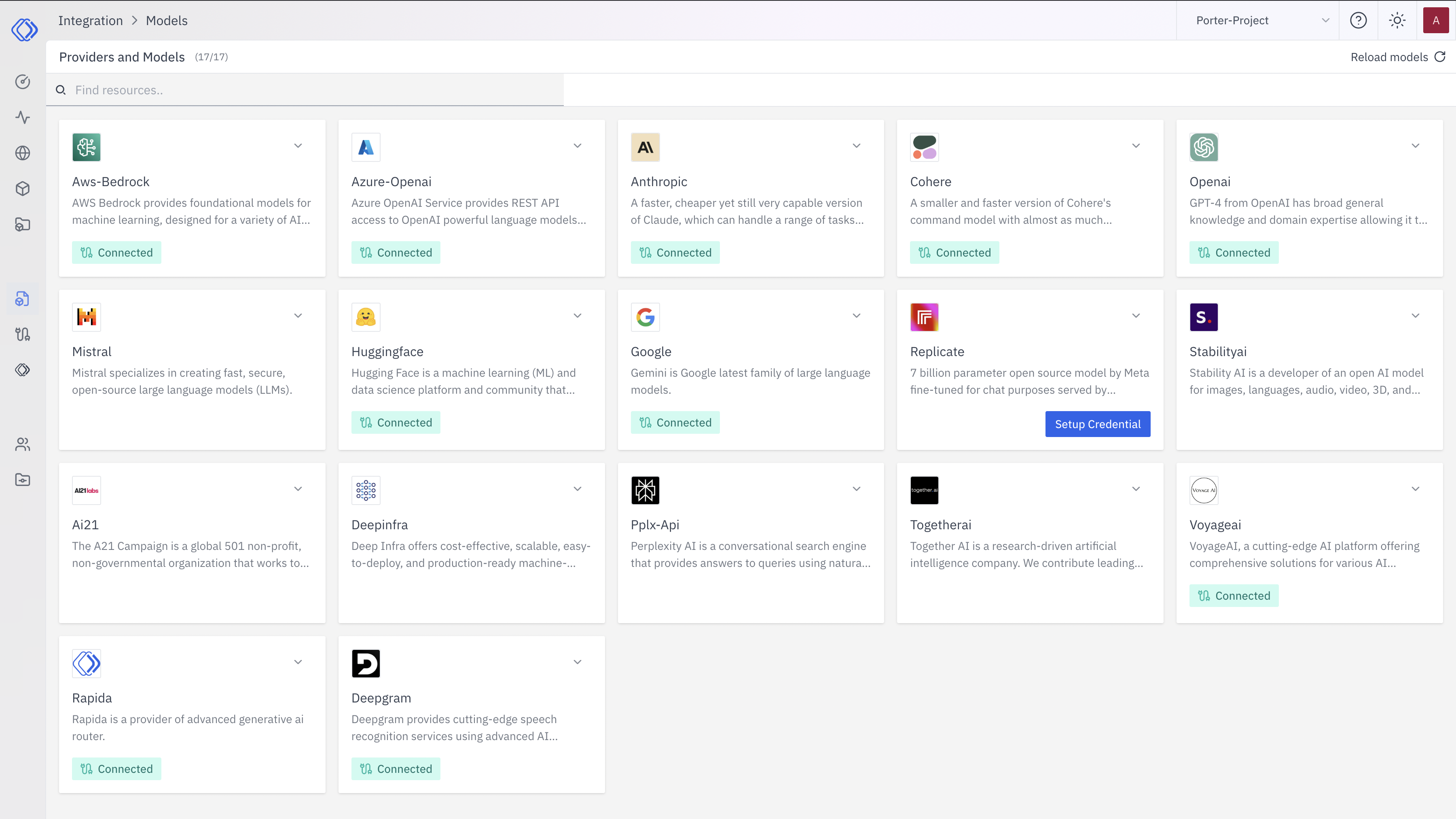
Access the Integrations Page
2
Select Azure Cognitive Services
On the Integrations page, find the Azure Cognitive Services provider card.Click the “Setup Credential” button for Azure Cognitive Services.
3
Create Provider Credential
A modal window will appear titled “Create provider credential”. Follow these steps:
- Select “Azure Cognitive Services” from the dropdown (if not already selected)
- Enter a Key Name: Assign a unique name to this provider key for easy identification
- Enter Subscription Key: Input your Azure Subscription Key
- Enter Endpoint: Input your Azure Cognitive Services endpoint URL
- Click “Configure” to save the credential
4
Verify Credential Setup
After setting up the credential, you can verify it’s been added:
- The Azure Cognitive Services provider card should now show “Connected”
- If you click on the provider, you’ll see a “View provider credential” modal
- This modal displays the credential name, when it was last updated, and options to delete or close
Integration Features
- 400+ Neural Voices: Extensive voice selection across multiple languages
- Natural Quality: High-quality neural speech synthesis
- Multiple Languages: Support for 50+ languages
- Emotional Expression: Different speaking styles and emotions
- SSML Support: Advanced markup language for precise control
- Cost-Effective: Pay-as-you-go pricing model
- Enterprise Ready: Compliance and security certifications