> ## Documentation Index
> Fetch the complete documentation index at: https://doc.rapida.ai/llms.txt
> Use this file to discover all available pages before exploring further.
# Manage Document Chunks
> Learn how to manage and enhance document chunks for improved knowledge base performance
## Understanding Document Chunks
When you upload a document to your knowledge base, the system automatically divides it into smaller segments called "chunks." This chunking process is crucial for:
* **Improved LLM Processing**: Allows large language models to process manageable portions of text.
* **Enhanced Retrieval**: Enables more precise information retrieval by pinpointing relevant sections.
* **Optimized Performance**: Reduces computational load and improves response times.
## Accessing Document Chunks
Go to the Knowledge section in the main navigation menu.
Choose the specific knowledge base containing your document.
Click on the document you want to manage to view its chunks.
 You'll see a list of
chunks derived from the original document.
## Enhancing Document Chunks
Improve the quality of your chunks for better matching by enriching their metadata:
You'll see a list of
chunks derived from the original document.
## Enhancing Document Chunks
Improve the quality of your chunks for better matching by enriching their metadata:
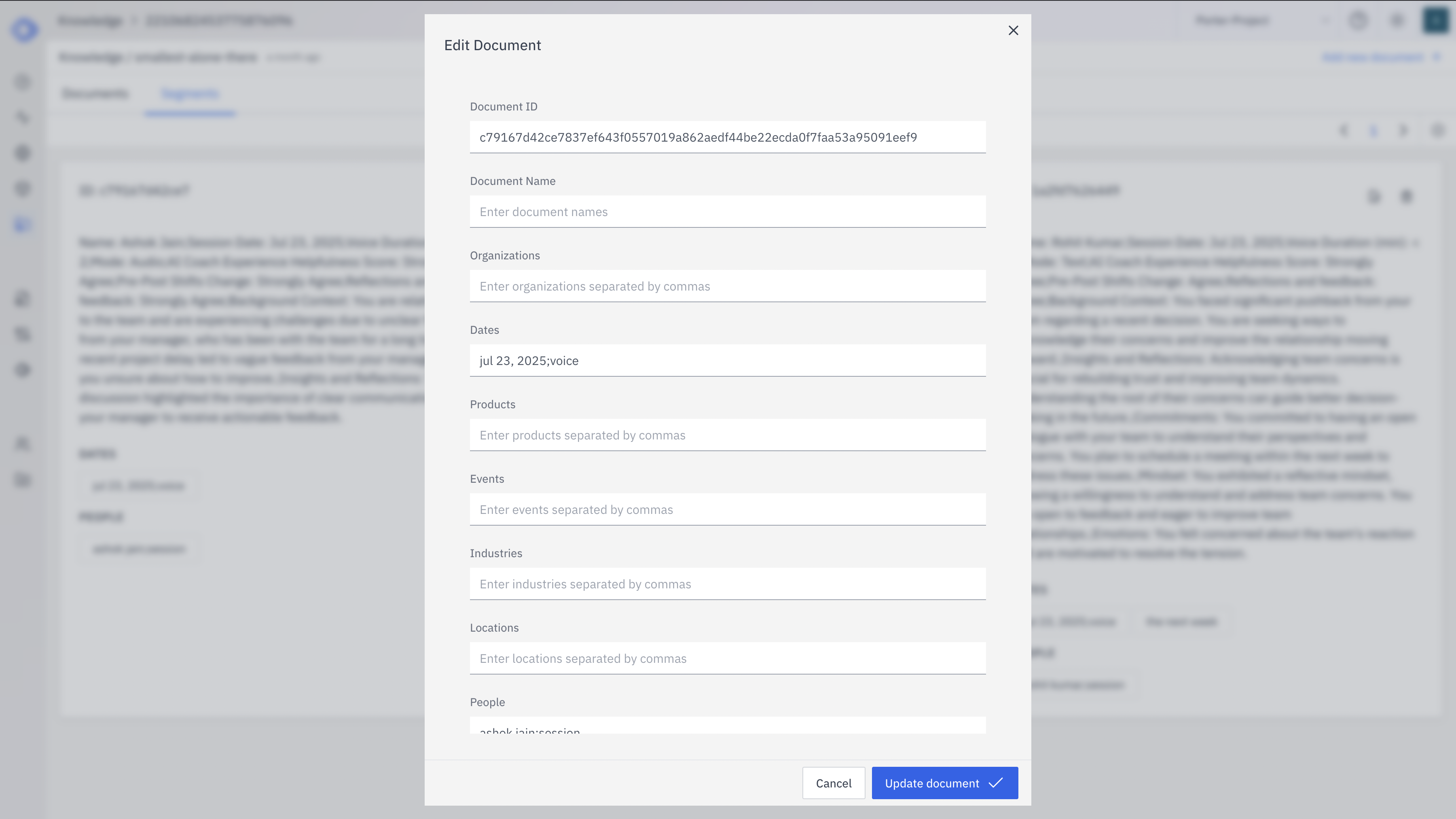 Click on a specific chunk to open the editing interface.
Examine the automatically generated metadata fields.
Update or add details to enhance searchability and context.
Click "Update document" to apply your modifications.
### Metadata Fields
The title or identifier for this chunk
Relevant company or group names
Important dates mentioned in the content
Product names or types discussed
Significant events referenced
Related industry sectors
Geographic locations mentioned
Names of individuals relevant to the content
## Search Types
When querying your knowledge base, you can utilize different search methods:
Combines semantic understanding with keyword matching. Ideal for balancing
context-aware results with exact matches.
Focuses on exact keyword matches within the text. Best for finding specific
terms or phrases.
Emphasizes understanding the meaning and context of the query. Excellent for
natural language queries and user intent.
Choose the search type that best fits your specific use case and the nature of your queries to optimize your knowledge base performance.
Click on a specific chunk to open the editing interface.
Examine the automatically generated metadata fields.
Update or add details to enhance searchability and context.
Click "Update document" to apply your modifications.
### Metadata Fields
The title or identifier for this chunk
Relevant company or group names
Important dates mentioned in the content
Product names or types discussed
Significant events referenced
Related industry sectors
Geographic locations mentioned
Names of individuals relevant to the content
## Search Types
When querying your knowledge base, you can utilize different search methods:
Combines semantic understanding with keyword matching. Ideal for balancing
context-aware results with exact matches.
Focuses on exact keyword matches within the text. Best for finding specific
terms or phrases.
Emphasizes understanding the meaning and context of the query. Excellent for
natural language queries and user intent.
Choose the search type that best fits your specific use case and the nature of your queries to optimize your knowledge base performance.