> ## Documentation Index
> Fetch the complete documentation index at: https://doc.rapida.ai/llms.txt
> Use this file to discover all available pages before exploring further.
# Rime
> Rime offers ultra-low-latency text-to-speech with natural-sounding voices via WebSocket streaming.
## Getting Started
To integrate Rime with your Rapida application for text-to-speech (TTS) capabilities, follow these steps:
## Supported Models
### Text-to-Speech Models
| Model Name | Model ID | Best For |
| ---------- | -------- | ---------------------------------- |
| Mist | `mist` | Fast, lightweight speech synthesis |
| Mist v2 | `mistv2` | Improved quality with low latency |
| Arcana | `arcana` | Highest quality flagship voices |
### Supported Languages
Rime supports the following languages:
* English (`eng`)
* Spanish (`spa`)
* Hindi (`hin`)
* French (`fra`)
* German (`ger`)
### Voice Library
Rime provides two voice families:
* **Arcana Voices**: Premium flagship voices — Luna, Celeste, Orion, Ursa, Astra, Esther, Estelle, Andromeda
* **Mist Voices**: Fast low-latency voices — River, Cove, Peak, Colby, Tibur, Ana, Vespera
* **Custom Voices**: You can also use custom voice IDs created through the Rime platform
## Prerequisites
* Have a Rime account (sign up at [https://rime.ai](https://rime.ai))
* Navigate to your account dashboard
* Generate a new API key
* Copy the API key (make sure to save it securely)
# Setting Up Provider Credentials
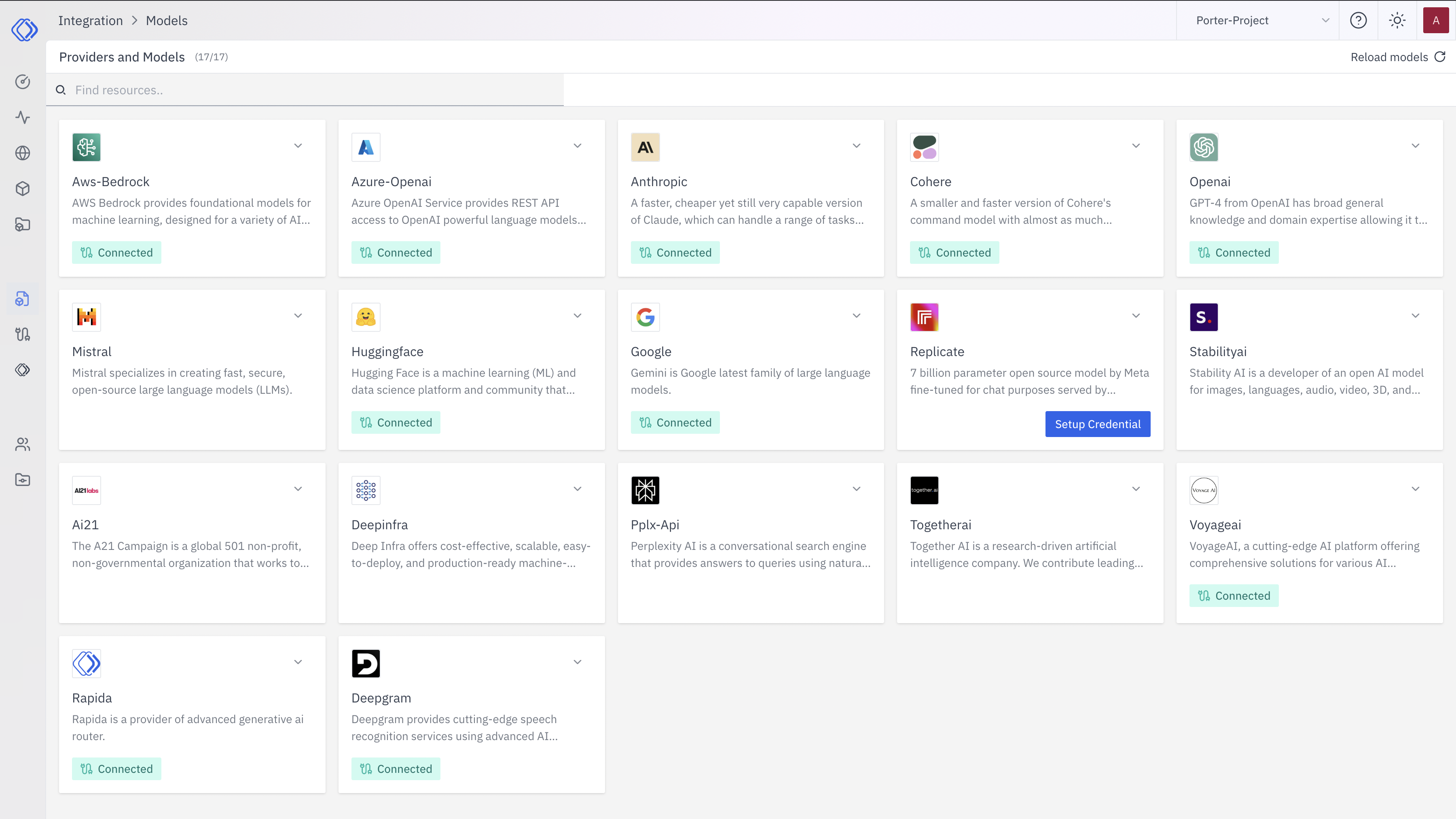 Navigate to the "Integration > Models" page to access TTS providers.
On the Integrations page, find the Rime provider card.
Click the "Setup Credential" button for Rime.
A modal window will appear titled "Create provider credential". Follow these steps:
1. Select "Rime" from the dropdown (if not already selected)
2. Enter a Key Name: Assign a unique name to this provider key for easy identification
3. Enter the API Key: Input your Rime API key
4. Click "Configure" to save the credential
After setting up the credential, you can verify it's been added:
1. The Rime provider card should now show "Connected"
2. If you click on the provider, you'll see a "View provider credential" modal
3. This modal displays the credential name, when it was last updated, and options to delete or close
Your Rime provider credential is now set up for text-to-speech integration.
## Integration Features
* **Ultra-Low Latency**: WebSocket streaming for real-time voice synthesis
* **Multiple Model Tiers**: Choose between Mist (fast) and Arcana (premium quality)
* **Multilingual Support**: 5 languages with natural pronunciation
* **Speed Control**: Adjustable speech speed via the speed alpha parameter
* **Custom Pauses**: Insert custom pauses using `` syntax (e.g., `<500>` for 500ms)
* **PCM Audio Output**: Direct PCM streaming at 16kHz for seamless pipeline integration
## Configuration Options
| Option | Key | Description |
| ----------- | ------------------- | ---------------------------------------------- |
| Model | `speak.model` | TTS model: `mist`, `mistv2`, or `arcana` |
| Voice | `speak.voice.id` | Voice identifier (e.g., `river`, `luna`) |
| Language | `speak.language` | Language code (e.g., `eng`, `spa`) |
| Speed Alpha | `speak.speed_alpha` | Speech speed multiplier (0.1–3.0, default 1.0) |
For more information, visit the [Rime documentation](https://rime.ai/docs).
Navigate to the "Integration > Models" page to access TTS providers.
On the Integrations page, find the Rime provider card.
Click the "Setup Credential" button for Rime.
A modal window will appear titled "Create provider credential". Follow these steps:
1. Select "Rime" from the dropdown (if not already selected)
2. Enter a Key Name: Assign a unique name to this provider key for easy identification
3. Enter the API Key: Input your Rime API key
4. Click "Configure" to save the credential
After setting up the credential, you can verify it's been added:
1. The Rime provider card should now show "Connected"
2. If you click on the provider, you'll see a "View provider credential" modal
3. This modal displays the credential name, when it was last updated, and options to delete or close
Your Rime provider credential is now set up for text-to-speech integration.
## Integration Features
* **Ultra-Low Latency**: WebSocket streaming for real-time voice synthesis
* **Multiple Model Tiers**: Choose between Mist (fast) and Arcana (premium quality)
* **Multilingual Support**: 5 languages with natural pronunciation
* **Speed Control**: Adjustable speech speed via the speed alpha parameter
* **Custom Pauses**: Insert custom pauses using `` syntax (e.g., `<500>` for 500ms)
* **PCM Audio Output**: Direct PCM streaming at 16kHz for seamless pipeline integration
## Configuration Options
| Option | Key | Description |
| ----------- | ------------------- | ---------------------------------------------- |
| Model | `speak.model` | TTS model: `mist`, `mistv2`, or `arcana` |
| Voice | `speak.voice.id` | Voice identifier (e.g., `river`, `luna`) |
| Language | `speak.language` | Language code (e.g., `eng`, `spa`) |
| Speed Alpha | `speak.speed_alpha` | Speech speed multiplier (0.1–3.0, default 1.0) |
For more information, visit the [Rime documentation](https://rime.ai/docs).