> ## Documentation Index
> Fetch the complete documentation index at: https://doc.rapida.ai/llms.txt
> Use this file to discover all available pages before exploring further.
# Exotel
> Connect your Exotel phone numbers to Rapida AI for inbound and outbound voice AI conversations.
Exotel is a cloud telephony platform widely used across India and Southeast Asia, offering programmable voice and messaging APIs. Rapida integrates with Exotel to enable AI-powered phone conversations using Exotel's media streaming capabilities.
Exotel is particularly well-suited for businesses operating in India and SEA, offering local virtual numbers, regulatory compliance, and reliable connectivity in those regions.
## How It Works
```mermaid theme={null}
sequenceDiagram
participant Caller
participant Exotel as Exotel Cloud
participant API as Rapida Webhook API
participant WS as Rapida Media Stream
participant AI as AI Pipeline (STT → LLM → TTS)
Caller->>Exotel: Dials your Exotel number
Exotel->>API: POST /v1/talk/exotel/call/{assistantId}
API->>API: Create conversation + save call context
API-->>Exotel: Response with stream instructions
rect rgb(230, 255, 230)
Note over Exotel,AI: Media Streaming
Exotel->>WS: Audio stream (bidirectional)
WS->>AI: Audio → STT → LLM → TTS
AI->>WS: TTS audio
WS->>Exotel: Audio frames
Exotel->>Caller: AI speaks
end
Caller->>Exotel: Hangup
Exotel->>API: Status callback
```
***
## Prerequisites
An active Exotel account with at least one virtual number and an Exotel App (applet)
An active Rapida account with a configured voice assistant
You will need your **Account SID**, **Client ID**, and **Client Secret**, which you can find in the [Exotel Dashboard](https://my.exotel.com/).
***
## Step 1: Set Up Provider Credentials
Store your Exotel API credentials in Rapida so the platform can authenticate with Exotel for outbound calls and webhook handling.
Go to **Integration > Tools** in the Rapida dashboard. You will see a grid of available external integrations.
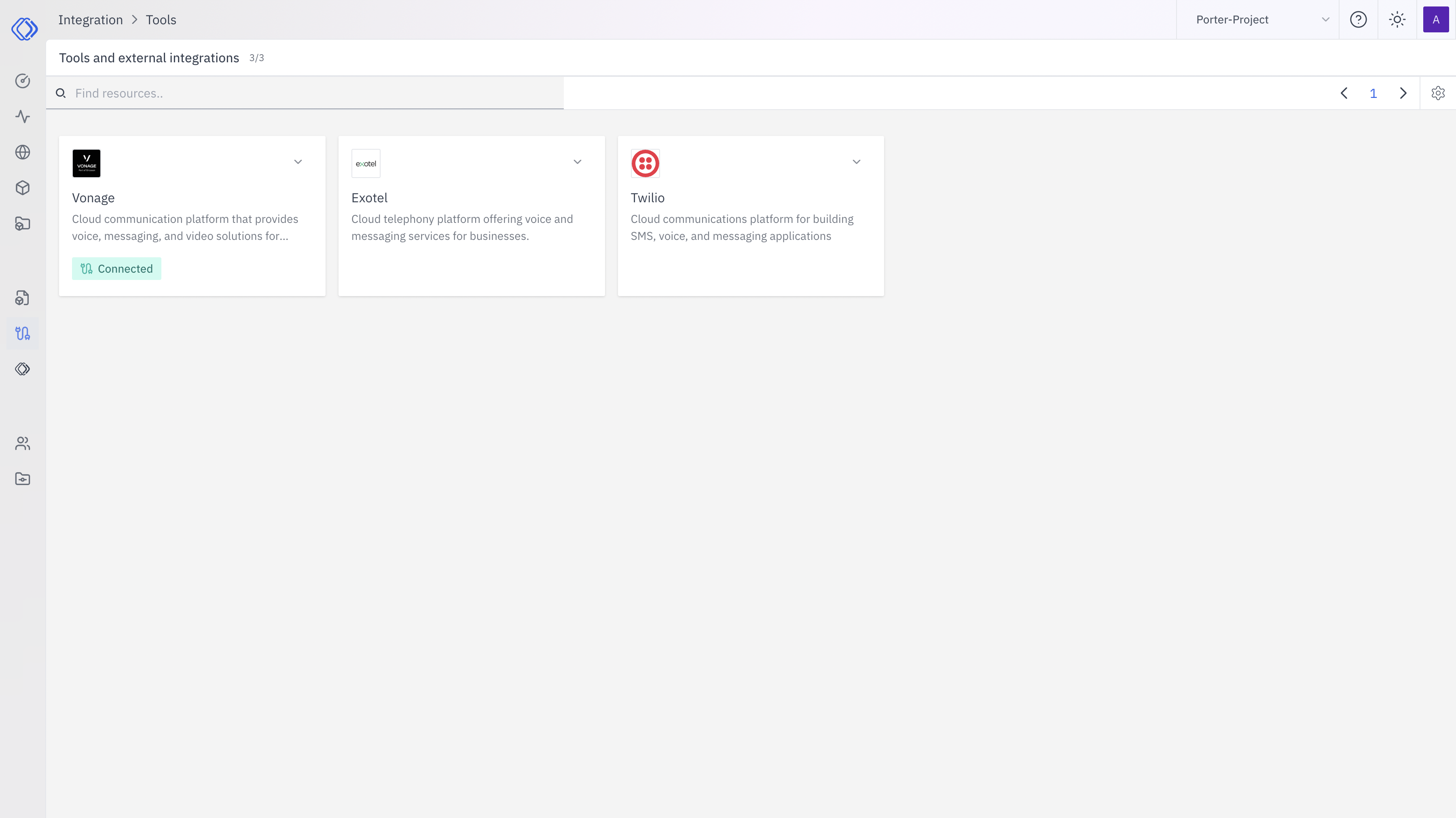 Find the **Exotel** card and click **"Setup Credential"**.
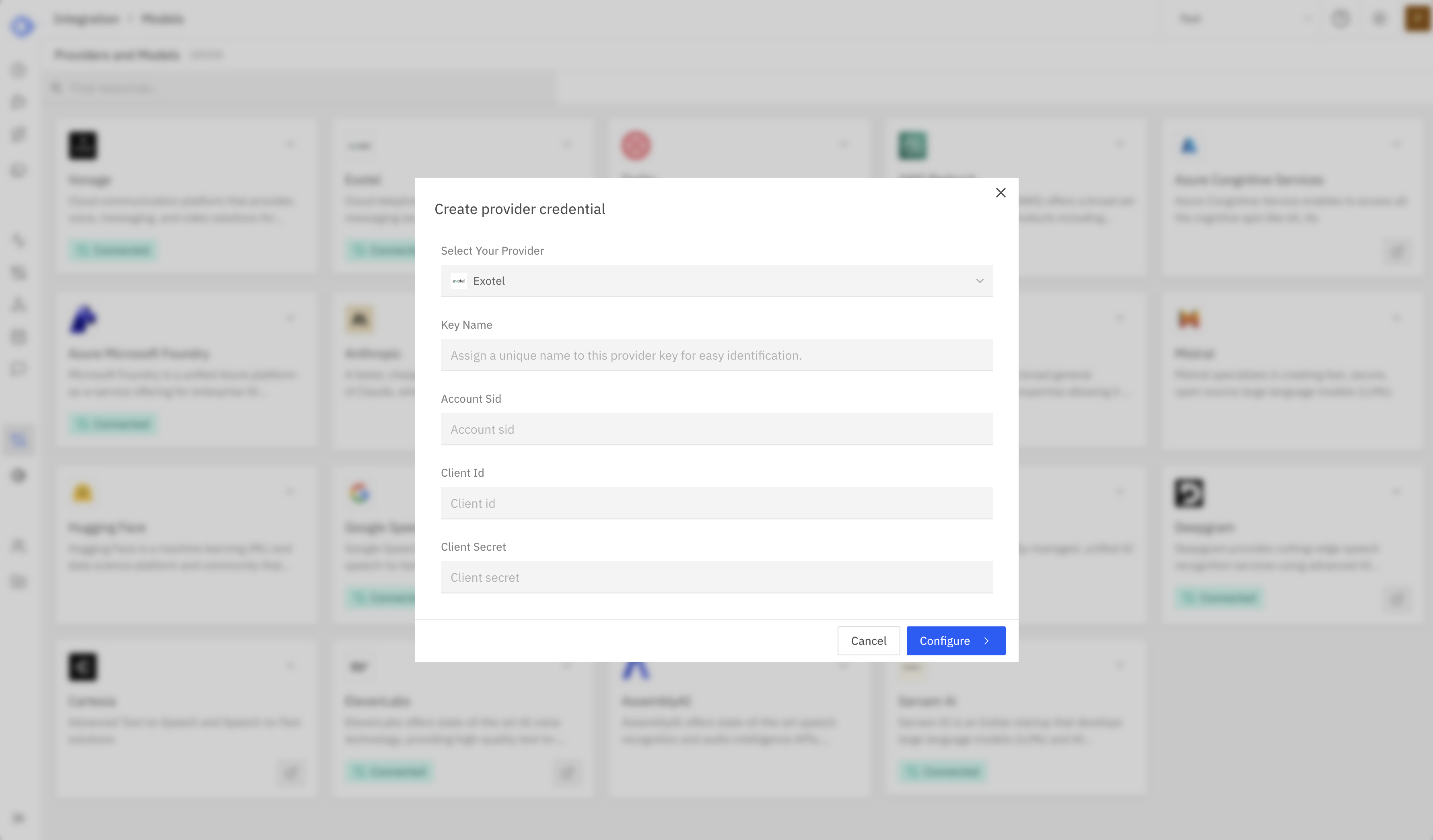 A modal will appear. Fill in the following fields:
| Field | Description | Where to Find |
| ----------------- | --------------------------------------------------------------- | ----------------------------------------------------------- |
| **Key Name** | A friendly name for this credential (e.g., "Production Exotel") | Your choice |
| **Account SID** | Your Exotel Account SID | [Exotel Dashboard](https://my.exotel.com/) → Settings → API |
| **Client ID** | Your Exotel API Client ID | Exotel Dashboard → Settings → API Credentials |
| **Client Secret** | Your Exotel API Client Secret | Exotel Dashboard → Settings → API Credentials |
Click **"Configure"** to save.
Keep your Client Secret secure. It is used for API authentication and should not be shared publicly.
After saving, the Exotel card should display **"Connected"**. Click on it to see credential details, last updated time, and management options.
***
## Step 2: Configure Phone Deployment
With credentials saved, configure your assistant's phone deployment to use Exotel.
Navigate to **Assistants** and select the assistant you want to deploy via phone.
Click **"Deploy"** → **"Phone"** to open the phone deployment configuration page.
In the **Telephony** section:
1. Select **Exotel** from the telephony provider dropdown
2. Choose the Exotel credential you created in Step 1 from the **Credential** dropdown
3. Enter your **Phone** number — the Exotel virtual number for inbound calls and outbound caller ID
4. Enter the **App ID** — your Exotel applet identifier that routes calls to Rapida
The **App ID** is the Exotel applet (flow) identifier. You create this in the Exotel dashboard and configure it to forward calls to Rapida's webhook URL.
Set up the conversation experience:
| Setting | Description | Default |
| ------------------------ | ---------------------------------------------- | ------------------ |
| **Greeting** | The first message the AI speaks when answering | *(optional)* |
| **Error Message** | Message spoken when an error occurs | *(optional)* |
| **Idle Timeout** | Seconds before prompting an idle caller | `30` |
| **Idle Message** | Message spoken when caller is idle | `"Are you there?"` |
| **Idle Timeout Retries** | How many times to retry before ending call | `2` |
| **Max Call Duration** | Maximum call length in seconds | `300` |
Select your **Speech-to-Text** (STT) and **Text-to-Speech** (TTS) providers. These determine how audio is transcribed and synthesized during the call.
Click **"Deploy"** to save. Your assistant is now ready to handle phone calls via Exotel.
***
## Step 3: Configure Your Exotel App
Point your Exotel app (applet) to Rapida so incoming calls are routed to your AI assistant.
Go to the [Exotel Dashboard](https://my.exotel.com/) and navigate to **App Bazaar** or **Flows**.
Create a new app or edit an existing one. Configure the app to connect incoming calls to an external URL.
Set the **webhook URL** to:
```
https://websocket-01.in.rapida.ai/v1/talk/exotel/call/{your-assistant-id}?x-api-key={your-api-key}
```
Replace `{your-assistant-id}` with your Rapida assistant ID.
Assign your Exotel virtual number to this app so inbound calls are routed through it.
Save the app configuration. Your Exotel number is now connected to Rapida.
***
## Making Outbound Calls
Once your phone deployment is configured, you can initiate outbound calls using the Rapida API or SDKs.
```python theme={null}
from rapida import Rapida
client = Rapida(api_key="rpd-xxx-your-key")
call = client.calls.create(
assistant_id=123456789,
to_number="+919876543210",
from_number="+911234567890", # optional, uses deployment default
metadata={"campaign": "follow-up"},
)
print(f"Call queued: conversation_id={call.conversation.id}")
```
```typescript theme={null}
import { Rapida } from 'rapida';
const client = new Rapida({ apiKey: 'rpd-xxx-your-key' });
const call = await client.calls.create({
assistantId: 123456789,
toNumber: '+919876543210',
fromNumber: '+911234567890',
metadata: { campaign: 'follow-up' },
});
console.log(`Call queued: ${call.conversation.id}`);
```
```bash theme={null}
curl -X POST https://api.rapida.ai/v1/talk/call \
-H "Authorization: Bearer rpd-xxx-your-key" \
-H "Content-Type: application/json" \
-d '{
"assistant": { "assistant_id": 123456789 },
"to_number": "+919876543210",
"from_number": "+911234567890",
"metadata": { "campaign": "follow-up" }
}'
```
***
## Features
| Feature | Description |
| ------------------------- | ------------------------------------------------------------------ |
| **Inbound Calls** | Customers call your Exotel number and speak with your AI assistant |
| **Outbound Calls** | Initiate calls programmatically via SDK or API |
| **Real-time Streaming** | Bidirectional audio via Exotel media streams |
| **Call Recording** | Automatic conversation capture for review and compliance |
| **India & SEA Numbers** | Local virtual numbers for Indian and Southeast Asian markets |
| **Number Masking** | Protect customer and agent phone numbers during calls |
| **Regulatory Compliance** | Compliant with TRAI and regional telecom regulations |
***
## Troubleshooting
* Verify the webhook URL in your Exotel App configuration
* Ensure the URL uses `https://` and the correct assistant ID
* Confirm the phone number is assigned to the correct Exotel App
* Verify your Exotel credential (Account SID, Client ID, Client Secret) is correct in Rapida
* Check that your STT and TTS providers are configured in the phone deployment
* Ensure the App ID in your phone deployment matches the Exotel app
* Verify the Exotel credential is connected in **Integration > Tools**
* Ensure the `from_number` is a valid Exotel number assigned to your account
* Check that the phone deployment is configured and saved with the correct App ID
* The App ID should match the Exotel applet/flow identifier exactly
* Verify the app is active and not paused in the Exotel dashboard
* Ensure the app has the correct webhook URL configured
***
## Related Resources
Build your voice AI assistant
Overview of phone deployment options
API reference for creating calls
View call history and transcripts
For more information on Exotel's platform, visit the [Exotel Developer Documentation](https://developer.exotel.com/).
A modal will appear. Fill in the following fields:
| Field | Description | Where to Find |
| ----------------- | --------------------------------------------------------------- | ----------------------------------------------------------- |
| **Key Name** | A friendly name for this credential (e.g., "Production Exotel") | Your choice |
| **Account SID** | Your Exotel Account SID | [Exotel Dashboard](https://my.exotel.com/) → Settings → API |
| **Client ID** | Your Exotel API Client ID | Exotel Dashboard → Settings → API Credentials |
| **Client Secret** | Your Exotel API Client Secret | Exotel Dashboard → Settings → API Credentials |
Click **"Configure"** to save.
Keep your Client Secret secure. It is used for API authentication and should not be shared publicly.
After saving, the Exotel card should display **"Connected"**. Click on it to see credential details, last updated time, and management options.
***
## Step 2: Configure Phone Deployment
With credentials saved, configure your assistant's phone deployment to use Exotel.
Navigate to **Assistants** and select the assistant you want to deploy via phone.
Click **"Deploy"** → **"Phone"** to open the phone deployment configuration page.
In the **Telephony** section:
1. Select **Exotel** from the telephony provider dropdown
2. Choose the Exotel credential you created in Step 1 from the **Credential** dropdown
3. Enter your **Phone** number — the Exotel virtual number for inbound calls and outbound caller ID
4. Enter the **App ID** — your Exotel applet identifier that routes calls to Rapida
The **App ID** is the Exotel applet (flow) identifier. You create this in the Exotel dashboard and configure it to forward calls to Rapida's webhook URL.
Set up the conversation experience:
| Setting | Description | Default |
| ------------------------ | ---------------------------------------------- | ------------------ |
| **Greeting** | The first message the AI speaks when answering | *(optional)* |
| **Error Message** | Message spoken when an error occurs | *(optional)* |
| **Idle Timeout** | Seconds before prompting an idle caller | `30` |
| **Idle Message** | Message spoken when caller is idle | `"Are you there?"` |
| **Idle Timeout Retries** | How many times to retry before ending call | `2` |
| **Max Call Duration** | Maximum call length in seconds | `300` |
Select your **Speech-to-Text** (STT) and **Text-to-Speech** (TTS) providers. These determine how audio is transcribed and synthesized during the call.
Click **"Deploy"** to save. Your assistant is now ready to handle phone calls via Exotel.
***
## Step 3: Configure Your Exotel App
Point your Exotel app (applet) to Rapida so incoming calls are routed to your AI assistant.
Go to the [Exotel Dashboard](https://my.exotel.com/) and navigate to **App Bazaar** or **Flows**.
Create a new app or edit an existing one. Configure the app to connect incoming calls to an external URL.
Set the **webhook URL** to:
```
https://websocket-01.in.rapida.ai/v1/talk/exotel/call/{your-assistant-id}?x-api-key={your-api-key}
```
Replace `{your-assistant-id}` with your Rapida assistant ID.
Assign your Exotel virtual number to this app so inbound calls are routed through it.
Save the app configuration. Your Exotel number is now connected to Rapida.
***
## Making Outbound Calls
Once your phone deployment is configured, you can initiate outbound calls using the Rapida API or SDKs.
```python theme={null}
from rapida import Rapida
client = Rapida(api_key="rpd-xxx-your-key")
call = client.calls.create(
assistant_id=123456789,
to_number="+919876543210",
from_number="+911234567890", # optional, uses deployment default
metadata={"campaign": "follow-up"},
)
print(f"Call queued: conversation_id={call.conversation.id}")
```
```typescript theme={null}
import { Rapida } from 'rapida';
const client = new Rapida({ apiKey: 'rpd-xxx-your-key' });
const call = await client.calls.create({
assistantId: 123456789,
toNumber: '+919876543210',
fromNumber: '+911234567890',
metadata: { campaign: 'follow-up' },
});
console.log(`Call queued: ${call.conversation.id}`);
```
```bash theme={null}
curl -X POST https://api.rapida.ai/v1/talk/call \
-H "Authorization: Bearer rpd-xxx-your-key" \
-H "Content-Type: application/json" \
-d '{
"assistant": { "assistant_id": 123456789 },
"to_number": "+919876543210",
"from_number": "+911234567890",
"metadata": { "campaign": "follow-up" }
}'
```
***
## Features
| Feature | Description |
| ------------------------- | ------------------------------------------------------------------ |
| **Inbound Calls** | Customers call your Exotel number and speak with your AI assistant |
| **Outbound Calls** | Initiate calls programmatically via SDK or API |
| **Real-time Streaming** | Bidirectional audio via Exotel media streams |
| **Call Recording** | Automatic conversation capture for review and compliance |
| **India & SEA Numbers** | Local virtual numbers for Indian and Southeast Asian markets |
| **Number Masking** | Protect customer and agent phone numbers during calls |
| **Regulatory Compliance** | Compliant with TRAI and regional telecom regulations |
***
## Troubleshooting
* Verify the webhook URL in your Exotel App configuration
* Ensure the URL uses `https://` and the correct assistant ID
* Confirm the phone number is assigned to the correct Exotel App
* Verify your Exotel credential (Account SID, Client ID, Client Secret) is correct in Rapida
* Check that your STT and TTS providers are configured in the phone deployment
* Ensure the App ID in your phone deployment matches the Exotel app
* Verify the Exotel credential is connected in **Integration > Tools**
* Ensure the `from_number` is a valid Exotel number assigned to your account
* Check that the phone deployment is configured and saved with the correct App ID
* The App ID should match the Exotel applet/flow identifier exactly
* Verify the app is active and not paused in the Exotel dashboard
* Ensure the app has the correct webhook URL configured
***
## Related Resources
Build your voice AI assistant
Overview of phone deployment options
API reference for creating calls
View call history and transcripts
For more information on Exotel's platform, visit the [Exotel Developer Documentation](https://developer.exotel.com/).