> ## Documentation Index
> Fetch the complete documentation index at: https://doc.rapida.ai/llms.txt
> Use this file to discover all available pages before exploring further.
# Rapida Credentials
> Rapida offers two types of credentials: Project Credentials and Personal Tokens, each serving different purposes for authentication and access to Rapida platform services.
## Types of Rapida Credentials
Rapida provides two distinct types of credentials:
1. **Project Credentials**: These are project-specific keys used to authenticate and interact with the Rapida service for a particular project.
2. **Personal Tokens**: These are personal access tokens used to authenticate and interact with the Rapida service across all your projects.
## Project Credentials
Project Developer Keys are used to authenticate and interact with the Rapida service for a specific project. They are essential for SDK integration, widget implementation, and certain API calls.
### Accessing and Managing Project Credentials
Go to the "Integration > Project-Credential" page in your Rapida dashboard.
You'll see a list of existing Project Developer Keys, each labeled as a
"Publishable Key" with its expiration date.
To generate a new key: - Look for the "Create new credential +" button at the
top right of the page. - Click this button to automatically generate a new
Publishable Key. - The new key will appear in the list with its expiration
date.
For each Publishable Key, you can:
* View the partially hidden key (click the eye icon to reveal)
* Copy the key (click the copy icon)
* See the expiration date
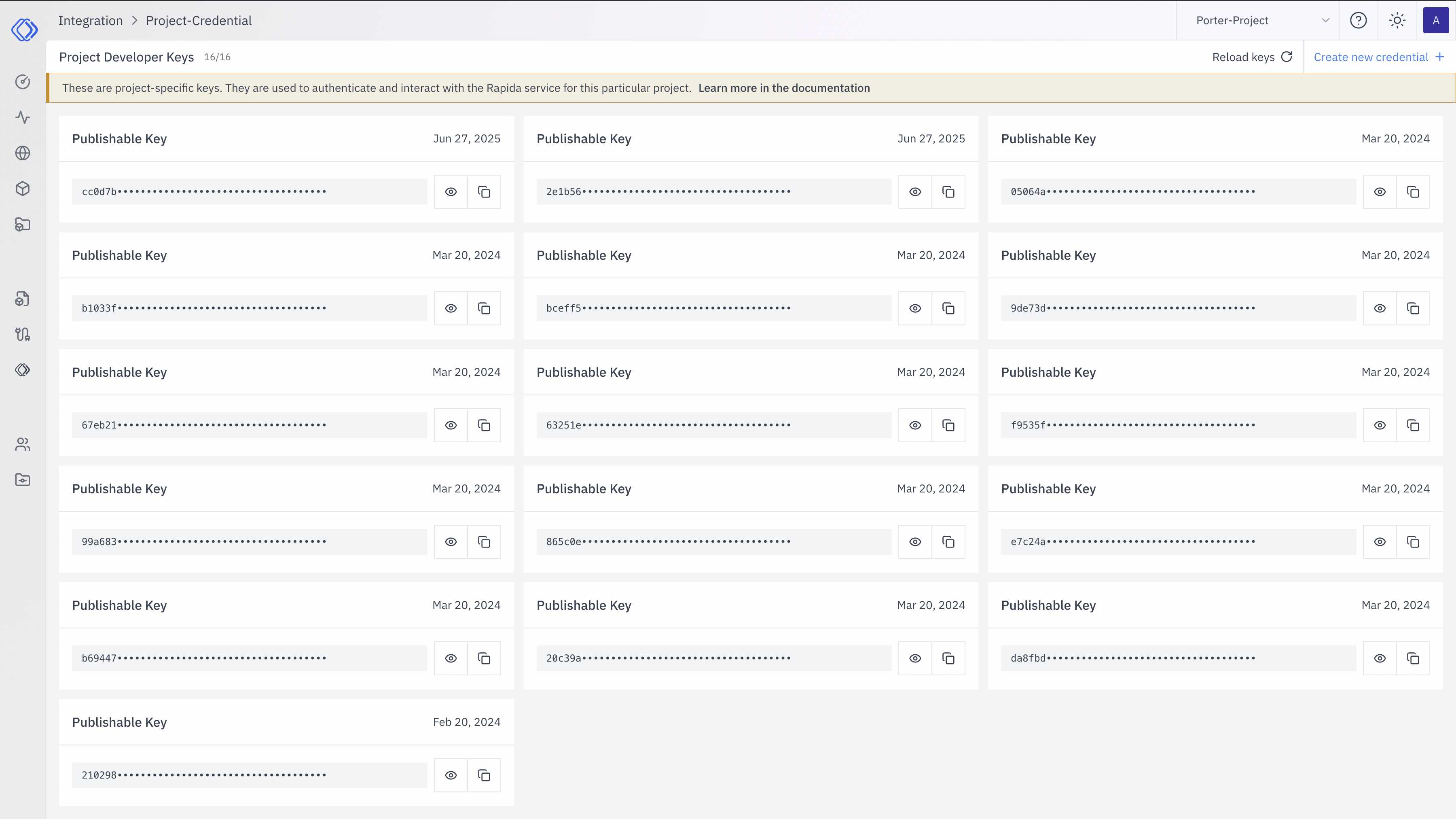 Note: These are project-specific keys. They are used to authenticate and interact with the Rapida service for this particular project, as stated in the information banner at the top of the page.
## Personal Tokens
Personal Tokens are used to authenticate and interact with the Rapida service across all your projects. They provide broader access and are typically used for administrative tasks or when working across multiple projects.
### Accessing Personal Tokens
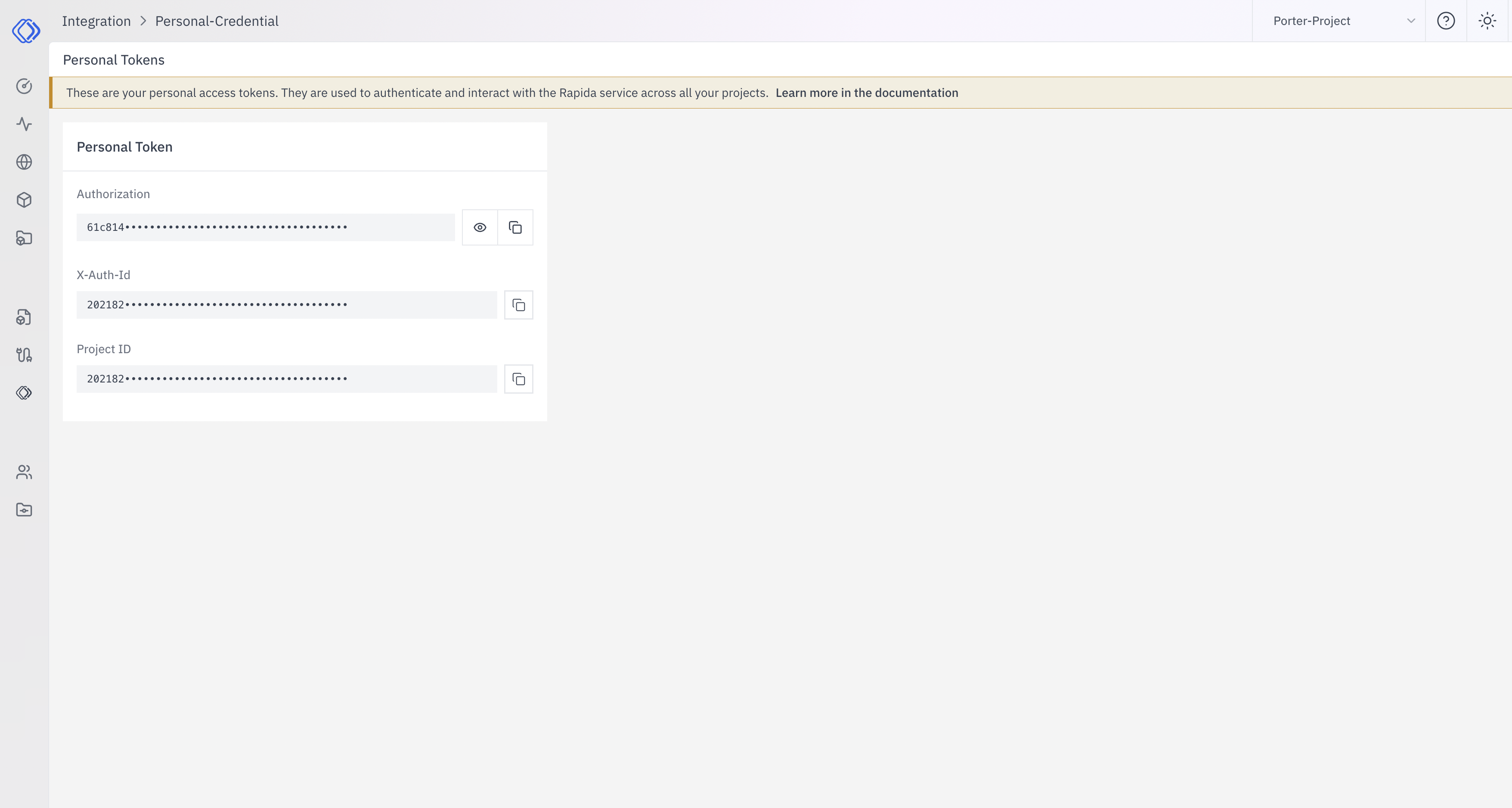
Go to the "Integration > Personal-Credential" page in your Rapida dashboard.
You'll see your personal access token, which includes:
* Authorization
* X-Auth-Id
* Project ID
Note: These are project-specific keys. They are used to authenticate and interact with the Rapida service for this particular project, as stated in the information banner at the top of the page.
## Personal Tokens
Personal Tokens are used to authenticate and interact with the Rapida service across all your projects. They provide broader access and are typically used for administrative tasks or when working across multiple projects.
### Accessing Personal Tokens
Go to the "Integration > Personal-Credential" page in your Rapida dashboard.
You'll see your personal access token, which includes:
* Authorization
* X-Auth-Id
* Project ID
 ## Security Best Practices
* Keep all credentials (both Project Credentials and Personal Tokens) secure and never share them publicly.
* Use different Project Credentials for different environments (development, staging, production).
* Regularly rotate your credentials, especially if you suspect they may have been compromised.
* Use Personal Tokens cautiously, as they provide broader access across your projects.
By understanding and properly utilizing both types of Rapida credentials, you can ensure secure and efficient integration with the Rapida platform across various use cases and projects.
## Security Best Practices
* Keep all credentials (both Project Credentials and Personal Tokens) secure and never share them publicly.
* Use different Project Credentials for different environments (development, staging, production).
* Regularly rotate your credentials, especially if you suspect they may have been compromised.
* Use Personal Tokens cautiously, as they provide broader access across your projects.
By understanding and properly utilizing both types of Rapida credentials, you can ensure secure and efficient integration with the Rapida platform across various use cases and projects.