> ## Documentation Index
> Fetch the complete documentation index at: https://doc.rapida.ai/llms.txt
> Use this file to discover all available pages before exploring further.
# Put On Hold Tool
> Configure and use the Put On Hold Tool to pause phone calls for a specified duration
The Put On Hold Tool allows your assistant to temporarily pause or put a phone call on hold for a specified number of minutes. This guide will walk you through the process of adding and configuring this tool for your assistant.
## Prerequisites
Before adding the Put On Hold Tool, ensure that you have:
* [Created an assistant](/assistants/create-assistant)
## Adding the Put On Hold Tool
1. Go to the Assistants section in the main navigation menu.
2. Select the assistant you want to configure.
3. Click "Configure assistant" in the top right corner.
4. Select "Tools and MCP" from the left sidebar menu.
5. Click on **Add Tools**.
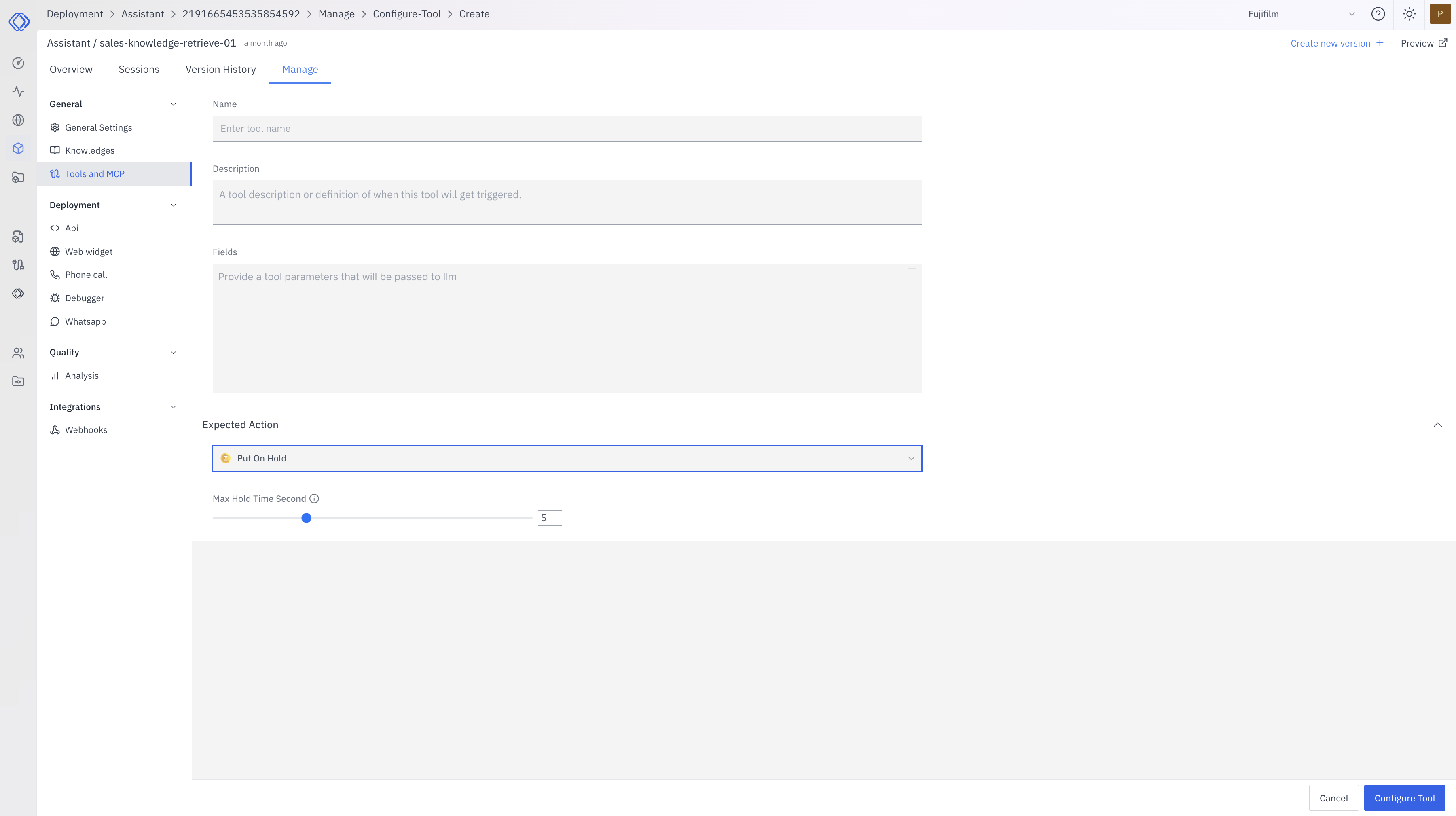
When configuring a Put On Hold tool, you'll need to provide several key elements:
1. **Name**: A unique identifier for your tool
* Example: "put\_on\_hold"
* Use descriptive names that indicate the tool's purpose
2. **Description**: Details on when and how to use the function
* Example: "Call this tool to when user asks to hold."
* This helps the model determine when to invoke the tool
3. **Fields**: Define parameters in JSON format following the OpenAI Function Tool Call schema:
```json theme={null}
{
"type": "object",
"properties": {}
}
```
This schema follows the OpenAI Function Tool Call format where `properties` defines the parameters the tool accepts.
4. **Expected Action**: From the list select "Put On Hold".
After configuring the tool, click on the **Configure Tool** button to save your changes.
 ## Using the Put On Hold Tool
Once configured, your assistant can use the Put On Hold Tool when appropriate. The process typically follows these steps:
1. The assistant determines a need to pause the conversation or put the call on hold.
2. It calls the Put On Hold Tool with the specified duration.
3. The tool pauses the conversation for the specified number of minutes.
4. After the hold time expires, the assistant resumes the conversation.
## Managing the Put On Hold Tool
You can modify or remove the Put On Hold Tool at any time:
1. Go to your assistant's configuration page.
2. Select "Tools and MCP" from the left sidebar menu.
3. Find the Put On Hold Tool in the list.
4. Click on **Edit Tool** to modify its configuration or **Delete Tool** to delete it.
## Best Practices
* Use the Put On Hold Tool judiciously to avoid prolonged interruptions in the conversation.
* Ensure that the assistant provides a clear explanation to the user before putting the call on hold.
* Consider implementing a callback mechanism if the hold time needs to be extended.
* Regularly review the usage of this tool to optimize the user experience.
By effectively configuring and utilizing the Put On Hold Tool, your assistant can manage conversations more efficiently, allowing for necessary pauses or hold times during phone calls.
## Using the Put On Hold Tool
Once configured, your assistant can use the Put On Hold Tool when appropriate. The process typically follows these steps:
1. The assistant determines a need to pause the conversation or put the call on hold.
2. It calls the Put On Hold Tool with the specified duration.
3. The tool pauses the conversation for the specified number of minutes.
4. After the hold time expires, the assistant resumes the conversation.
## Managing the Put On Hold Tool
You can modify or remove the Put On Hold Tool at any time:
1. Go to your assistant's configuration page.
2. Select "Tools and MCP" from the left sidebar menu.
3. Find the Put On Hold Tool in the list.
4. Click on **Edit Tool** to modify its configuration or **Delete Tool** to delete it.
## Best Practices
* Use the Put On Hold Tool judiciously to avoid prolonged interruptions in the conversation.
* Ensure that the assistant provides a clear explanation to the user before putting the call on hold.
* Consider implementing a callback mechanism if the hold time needs to be extended.
* Regularly review the usage of this tool to optimize the user experience.
By effectively configuring and utilizing the Put On Hold Tool, your assistant can manage conversations more efficiently, allowing for necessary pauses or hold times during phone calls.