> ## Documentation Index
> Fetch the complete documentation index at: https://doc.rapida.ai/llms.txt
> Use this file to discover all available pages before exploring further.
# End of Conversation Tool
> Configure and use the End of Conversation Tool to signal the end of a conversation
The End of Conversation Tool allows your assistant to explicitly signal when a conversation should end. This guide will walk you through the process of adding and configuring this tool for your assistant.
## Prerequisites
Before adding the End of Conversation Tool, ensure that you have:
* [Created an assistant](/assistants/create-assistant)
## Adding the End of Conversation Tool
1. Go to the Assistants section in the main navigation menu.
2. Select the assistant you want to configure.
3. Click "Configure assistant" in the top right corner.
4. Select "Tools and MCP" from the left sidebar menu.
5. Click on **Add Tools**.
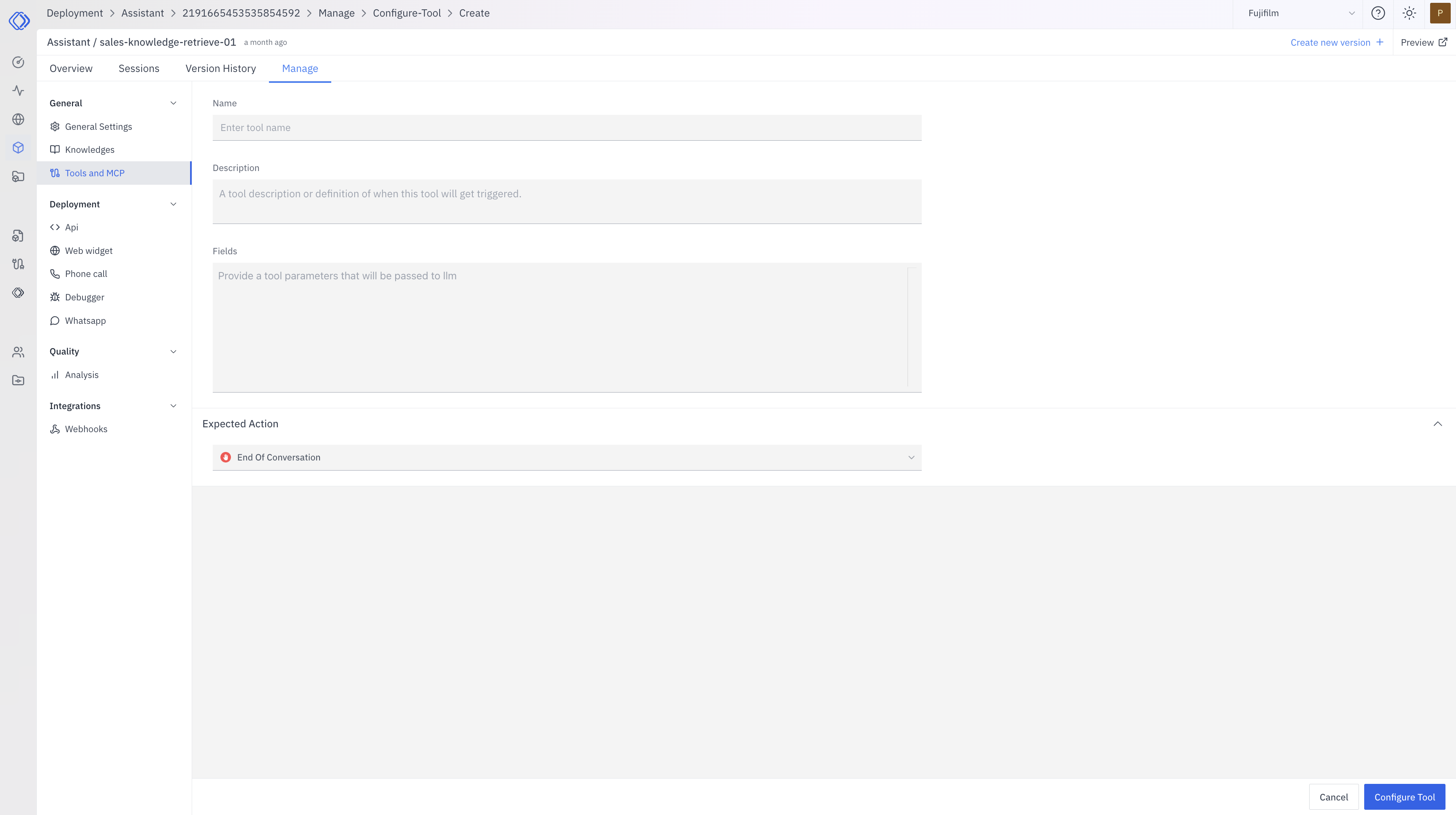
When configuring an End of Conversation tool, you'll need to provide several key elements:
1. **Name**: A unique identifier for your tool
* Example: "end\_conversation"
* Use descriptive names that indicate the tool's purpose
2. **Description**: Details on when and how to use the function
* Example: "Ends the conversation after a task is complete or the user says goodbye."
* This helps the model determine when to invoke the tool
3. **Fields**: Define parameters in JSON format following the OpenAI Function Tool Call schema:
```json theme={null}
{
"type": "object",
"properties": {}
}
```
This simple schema indicates that the tool doesn't require any specific parameters.
4. **Expected Action**: From the list select "End Of Conversation".
After configuring the tool, click on the **Configure Tool** button to apply your changes.
 ## Using the End of Conversation Tool
Once configured, your assistant can use the End of Conversation Tool when appropriate. The process typically follows these steps:
1. The assistant determines that the conversation has reached a natural conclusion.
2. It calls the End of Conversation Tool.
3. The conversation is marked as ended, and the assistant stops generating further responses.
## Managing the End of Conversation Tool
You can modify or remove the End of Conversation Tool at any time:
1. Go to your assistant's configuration page.
2. Select "Tools and MCP" from the left sidebar menu.
3. Find the End of Conversation Tool in the list.
4. Click on **Edit Tool** to modify its configuration or **Delete Tool** to delete it.
## Best Practices
* Use the tool when the conversation has reached a logical conclusion.
* Ensure the assistant provides a clear and polite closing message before ending the conversation.
* Configure the tool to align with your specific use case and conversation flow.
* Regularly review conversations to ensure the tool is being used appropriately.
By effectively configuring and utilizing the End of Conversation Tool, your assistant can gracefully conclude interactions, improving user experience and conversation management.
## Using the End of Conversation Tool
Once configured, your assistant can use the End of Conversation Tool when appropriate. The process typically follows these steps:
1. The assistant determines that the conversation has reached a natural conclusion.
2. It calls the End of Conversation Tool.
3. The conversation is marked as ended, and the assistant stops generating further responses.
## Managing the End of Conversation Tool
You can modify or remove the End of Conversation Tool at any time:
1. Go to your assistant's configuration page.
2. Select "Tools and MCP" from the left sidebar menu.
3. Find the End of Conversation Tool in the list.
4. Click on **Edit Tool** to modify its configuration or **Delete Tool** to delete it.
## Best Practices
* Use the tool when the conversation has reached a logical conclusion.
* Ensure the assistant provides a clear and polite closing message before ending the conversation.
* Configure the tool to align with your specific use case and conversation flow.
* Regularly review conversations to ensure the tool is being used appropriately.
By effectively configuring and utilizing the End of Conversation Tool, your assistant can gracefully conclude interactions, improving user experience and conversation management.