> ## Documentation Index
> Fetch the complete documentation index at: https://doc.rapida.ai/llms.txt
> Use this file to discover all available pages before exploring further.
# Adding Knowledge Sources
> Configure knowledge sources for your assistant to enhance information retrieval
This guide explains how to configure knowledge sources for your assistant, enabling it to access and utilize external information more effectively.
## Prerequisites
Before you begin, ensure you have:
Learn how to create a knowledge source in our guide.
If you haven't created an assistant yet, follow our creating an assistant
guide.
When creating or editing an assistant, navigate to the "Manage" tab and select "Knowledges" from the sidebar.
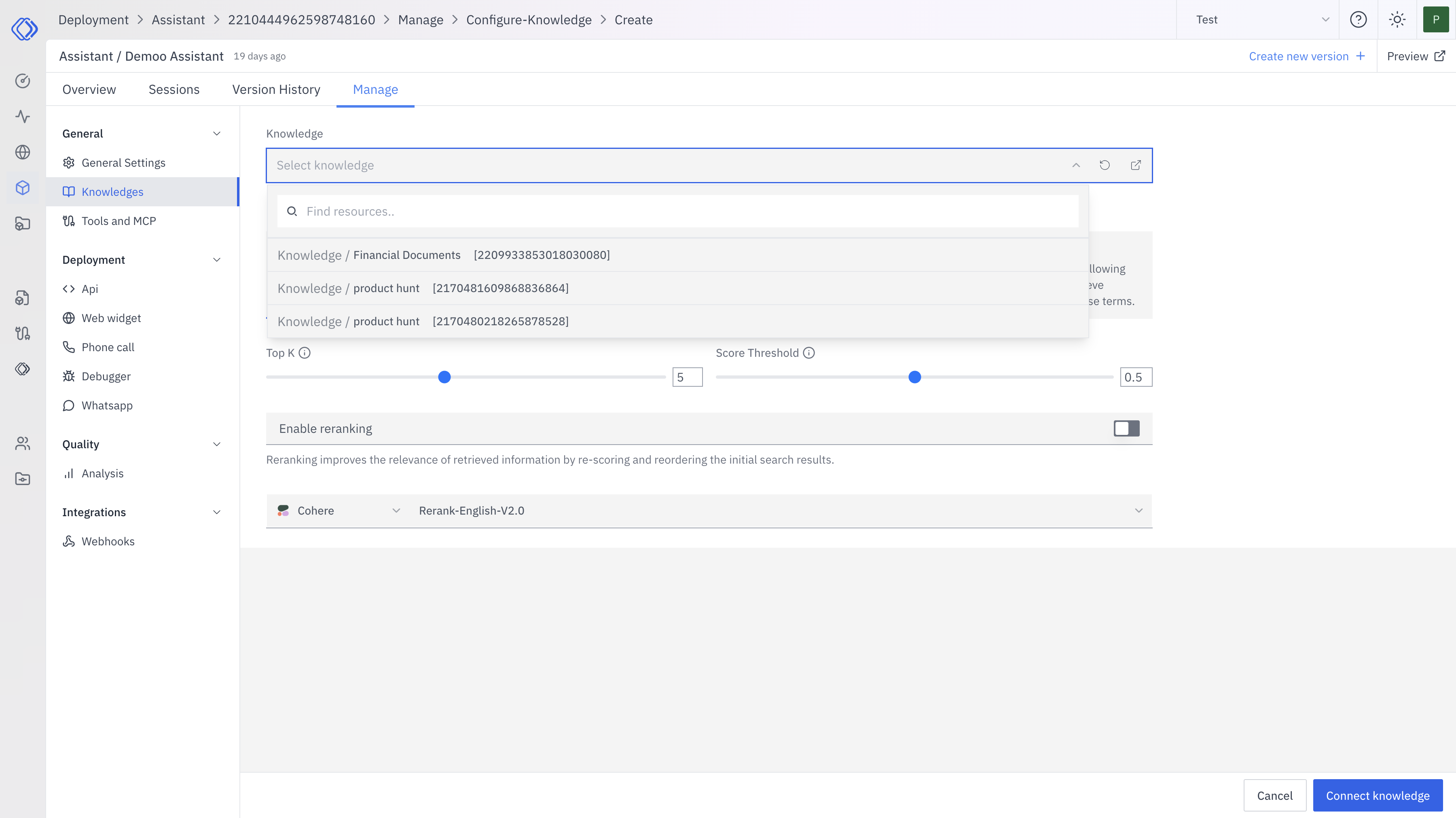 In
the "Knowledge" field, you can: - Type to search for an existing knowledge
source - Select from the dropdown list of available knowledge sources - Create
a new knowledge source if needed
In
the "Knowledge" field, you can: - Type to search for an existing knowledge
source - Select from the dropdown list of available knowledge sources - Create
a new knowledge source if needed
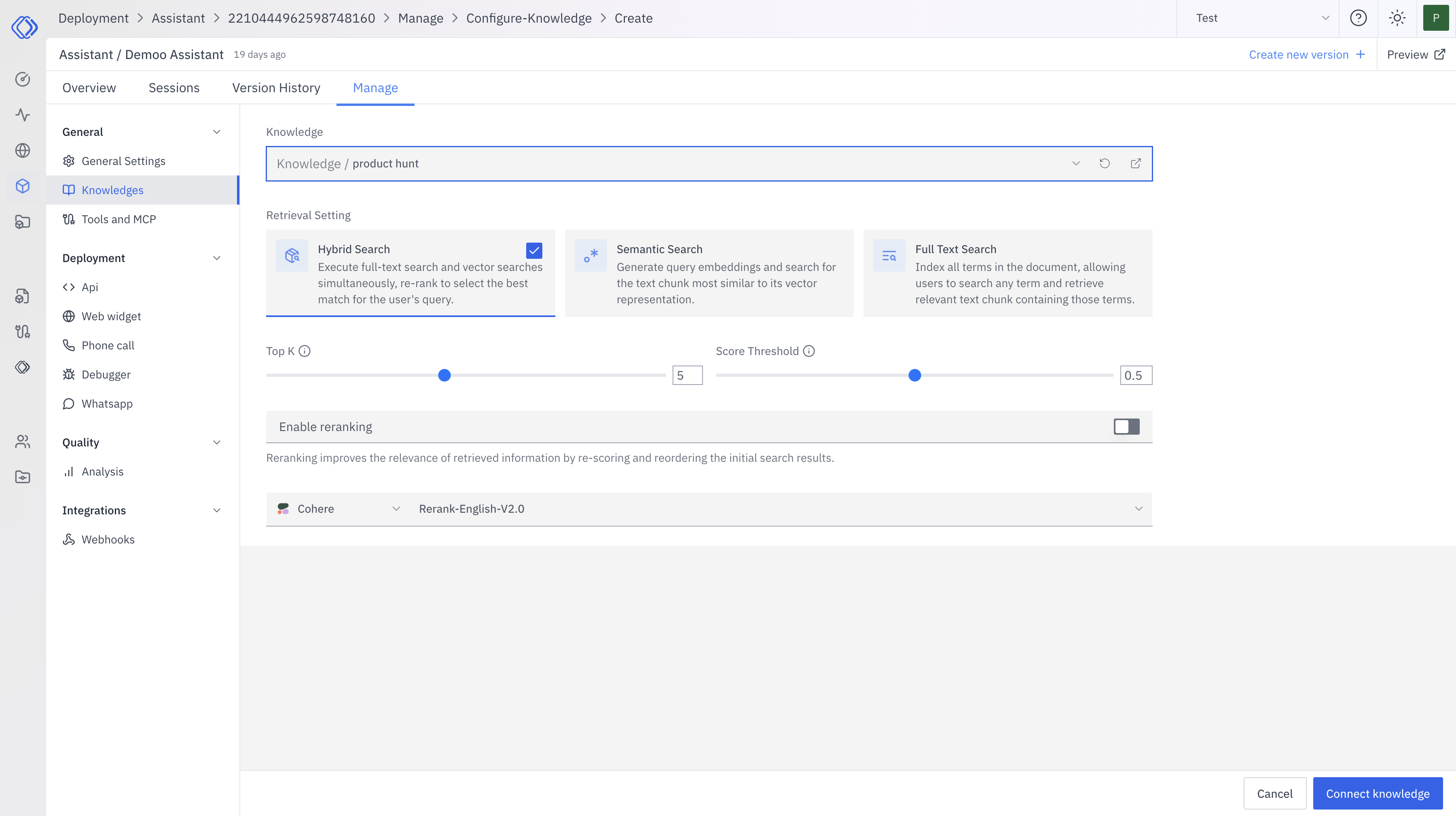 1. **Choose the search method:**
* **Hybrid Search (recommended)**: Combines full-text search and vector search for optimal results.
* **Semantic Search**: Uses query embeddings to find semantically similar content.
* **Full Text Search**: Indexes and searches all terms in the document.
2. **Adjust the "Top K" value**: This determines the number of most relevant results to retrieve. A higher value may provide more comprehensive results but could include less relevant information.
3. **Set the "Score Threshold"**: This filters results based on their relevance score. A higher threshold will only return more closely matched results.
4. **Enable "Reranking" (Optional)**: Reranking improves the relevance of retrieved information by re-evaluating the initial search results, considering additional context and nuances, and potentially reordering the results for better relevance.
5. **Select the reranking model**: If reranking is enabled, choose an appropriate model. The default "Rerank English v2.0" works well for English content.
After configuring the knowledge settings, click "Connect knowledge" to add it to your assistant.
You can add multiple knowledge sources by repeating this process, allowing your assistant to access a diverse range of information.
## Best Practices
* Start with Hybrid Search for a balance of broad coverage and semantic understanding.
* Experiment with different "Top K" and "Score Threshold" values to find the optimal balance for your use case.
* Enable reranking for more nuanced and contextually relevant results, especially for complex queries.
By carefully configuring these settings, you can significantly enhance your assistant's ability to retrieve and utilize knowledge effectively.
1. **Choose the search method:**
* **Hybrid Search (recommended)**: Combines full-text search and vector search for optimal results.
* **Semantic Search**: Uses query embeddings to find semantically similar content.
* **Full Text Search**: Indexes and searches all terms in the document.
2. **Adjust the "Top K" value**: This determines the number of most relevant results to retrieve. A higher value may provide more comprehensive results but could include less relevant information.
3. **Set the "Score Threshold"**: This filters results based on their relevance score. A higher threshold will only return more closely matched results.
4. **Enable "Reranking" (Optional)**: Reranking improves the relevance of retrieved information by re-evaluating the initial search results, considering additional context and nuances, and potentially reordering the results for better relevance.
5. **Select the reranking model**: If reranking is enabled, choose an appropriate model. The default "Rerank English v2.0" works well for English content.
After configuring the knowledge settings, click "Connect knowledge" to add it to your assistant.
You can add multiple knowledge sources by repeating this process, allowing your assistant to access a diverse range of information.
## Best Practices
* Start with Hybrid Search for a balance of broad coverage and semantic understanding.
* Experiment with different "Top K" and "Score Threshold" values to find the optimal balance for your use case.
* Enable reranking for more nuanced and contextually relevant results, especially for complex queries.
By carefully configuring these settings, you can significantly enhance your assistant's ability to retrieve and utilize knowledge effectively.