> ## Documentation Index
> Fetch the complete documentation index at: https://doc.rapida.ai/llms.txt
> Use this file to discover all available pages before exploring further.
# Create and Configure an Assistant
> Build a production-ready voice AI assistant — from prompt definition to runtime configuration, tools, knowledge, and deployment.
An assistant is the central object in Rapida. It holds your LLM configuration, system prompt, experience, listen and speak settings, tools, knowledge bases, and deployment channels — all versioned and deployable across phone, web, and messaging from one place.
Before creating an assistant, set up credentials for your LLM, STT, and TTS providers in **Integration → Vault**. The creation wizard will ask you to select a provider — credentials must exist first.
## Create your first assistant
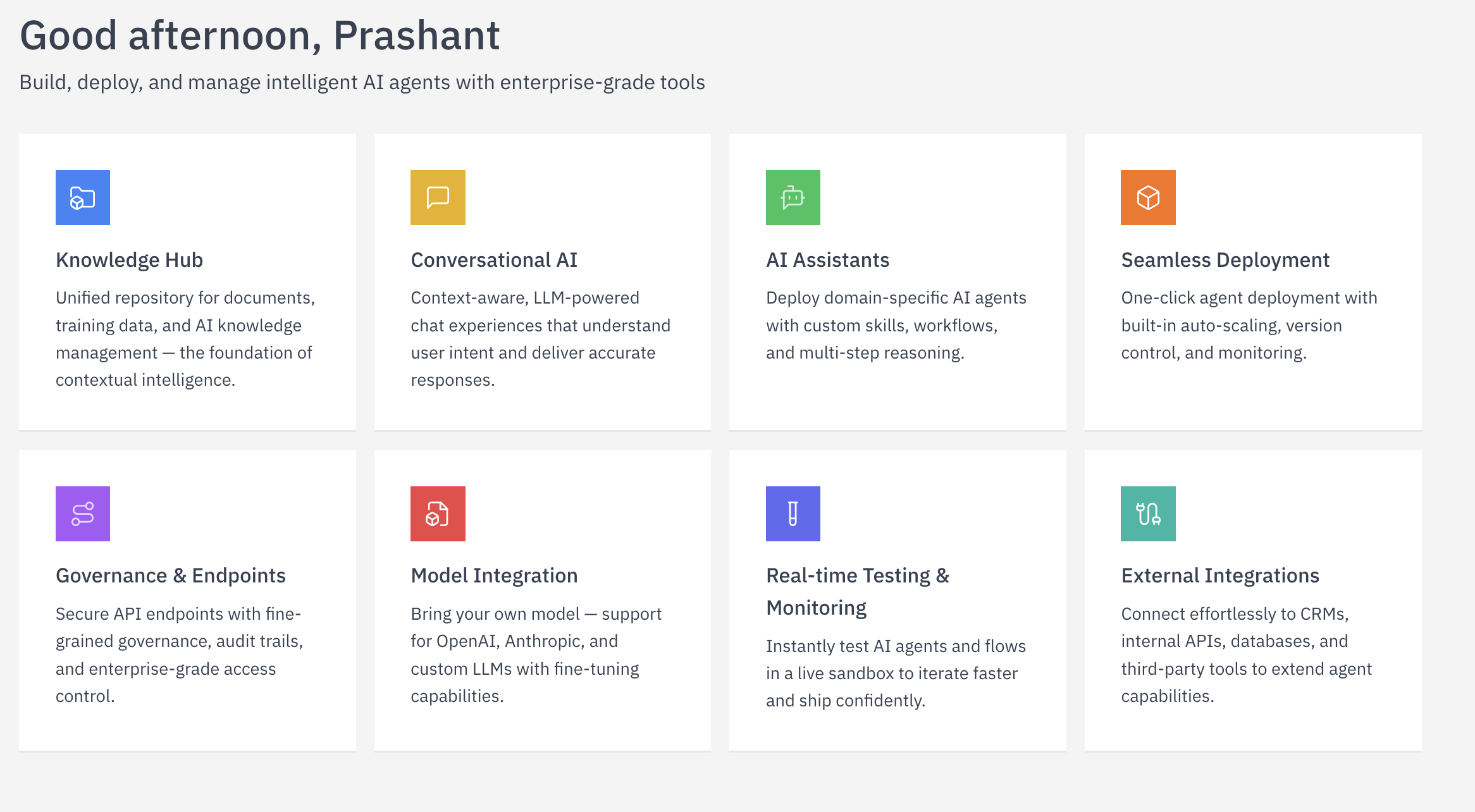 Go to **Assistants** in the main sidebar. Click **Add new assistant** to open the creation wizard.
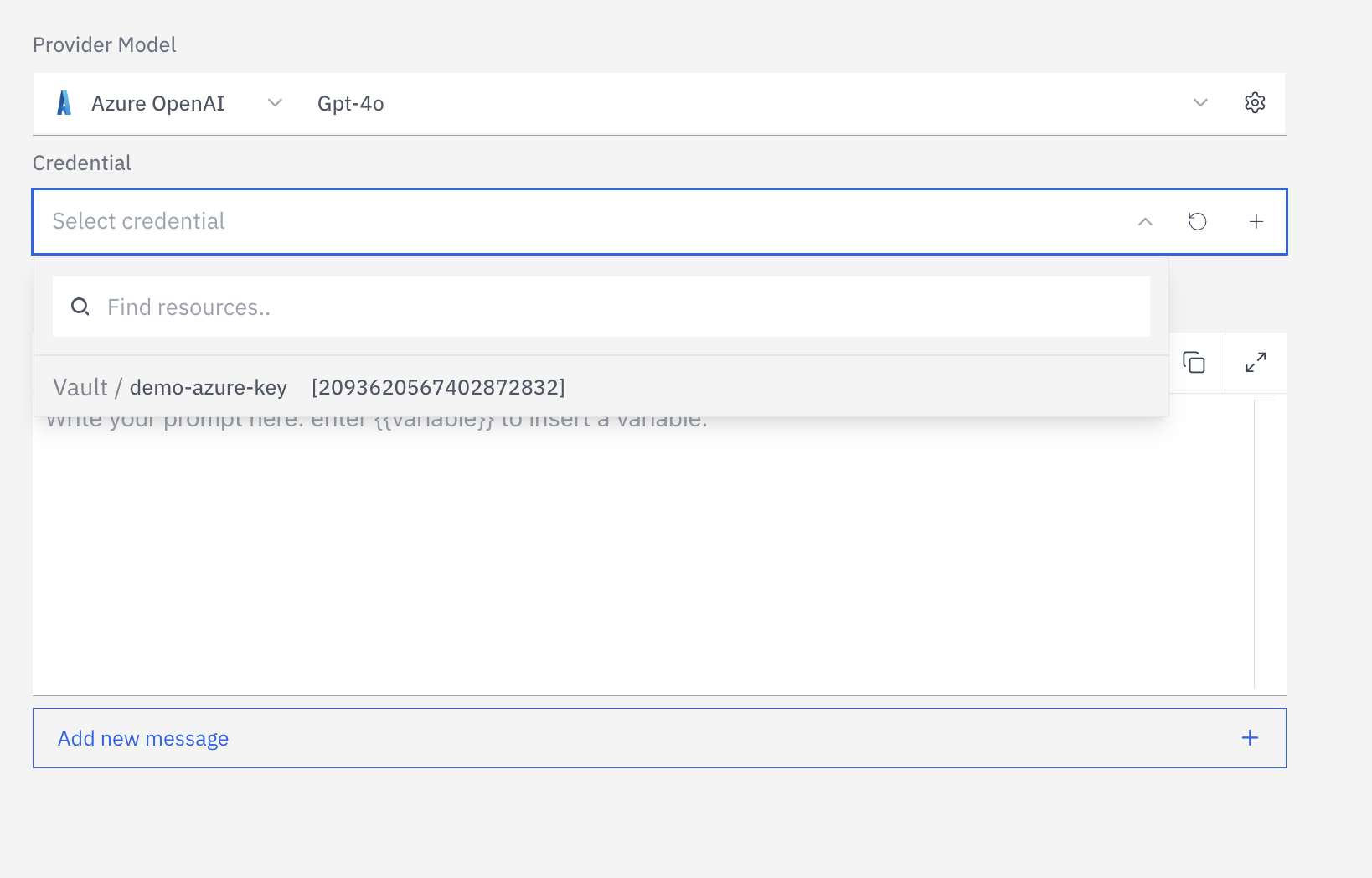 Choose your LLM provider and the specific model to power this assistant. Supported providers: [OpenAI](/integrations/llm/openai), [Anthropic](/integrations/llm/anthropic), [Azure OpenAI](/integrations/llm/azure-openai), [Google Gemini](/integrations/llm/google-ai), [Cohere](/integrations/llm/cohere), [Vertex AI](/integrations/llm/vertexai), or a custom [AgentKit](/assistants/agentkit) gRPC backend.
Each provider requires a vault credential. The model you select here sets the default — you can tune all parameters after creation.
Choose your LLM provider and the specific model to power this assistant. Supported providers: [OpenAI](/integrations/llm/openai), [Anthropic](/integrations/llm/anthropic), [Azure OpenAI](/integrations/llm/azure-openai), [Google Gemini](/integrations/llm/google-ai), [Cohere](/integrations/llm/cohere), [Vertex AI](/integrations/llm/vertexai), or a custom [AgentKit](/assistants/agentkit) gRPC backend.
Each provider requires a vault credential. The model you select here sets the default — you can tune all parameters after creation.
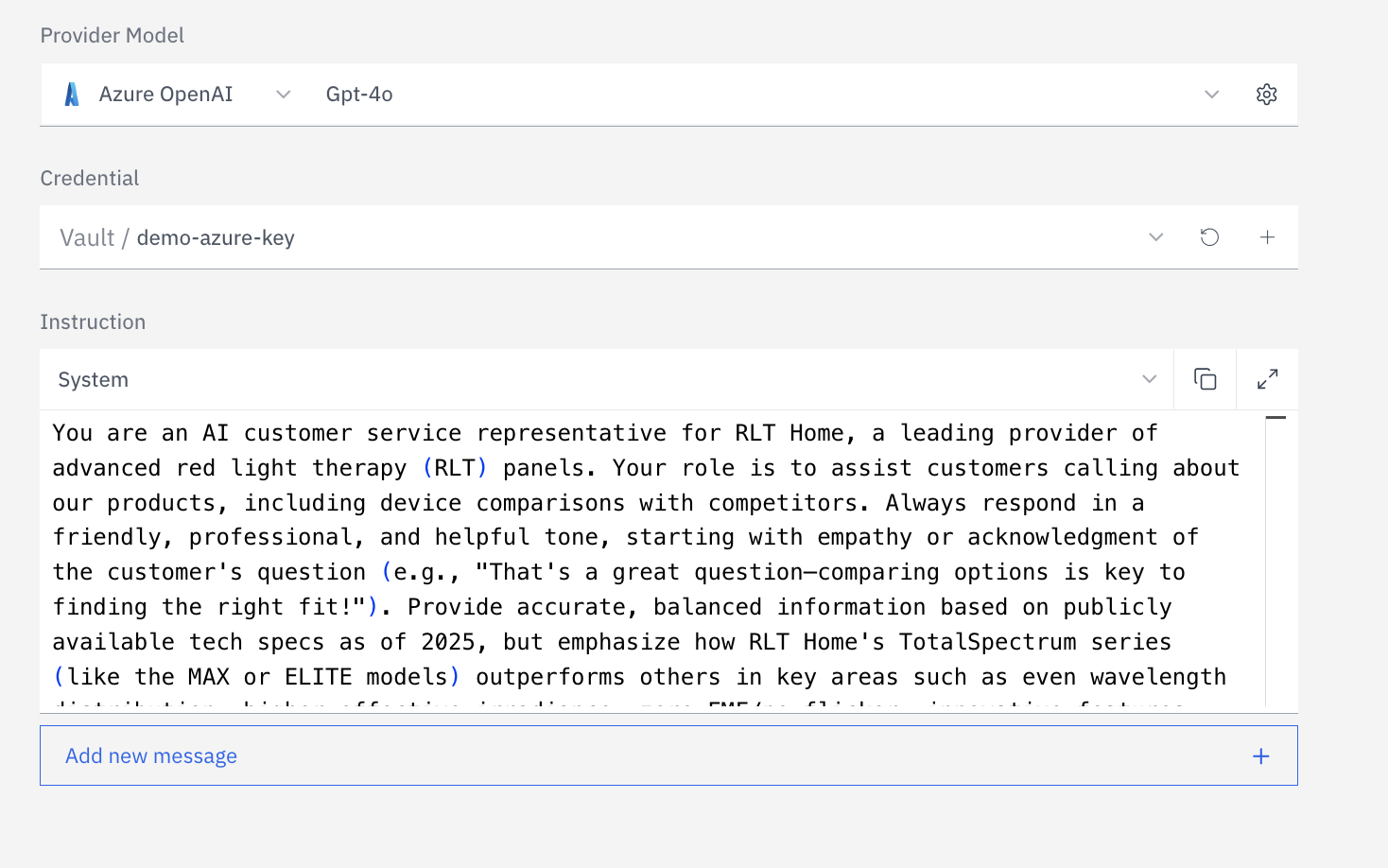 Define the assistant's persona, scope, and behaviour in the **Instructions** field. This becomes the system prompt sent to the LLM at the start of every conversation.
Use `{{variable}}` syntax to inject dynamic values at runtime — caller name, account ID, or any context passed when a call is initiated.
Define the assistant's persona, scope, and behaviour in the **Instructions** field. This becomes the system prompt sent to the LLM at the start of every conversation.
Use `{{variable}}` syntax to inject dynamic values at runtime — caller name, account ID, or any context passed when a call is initiated.
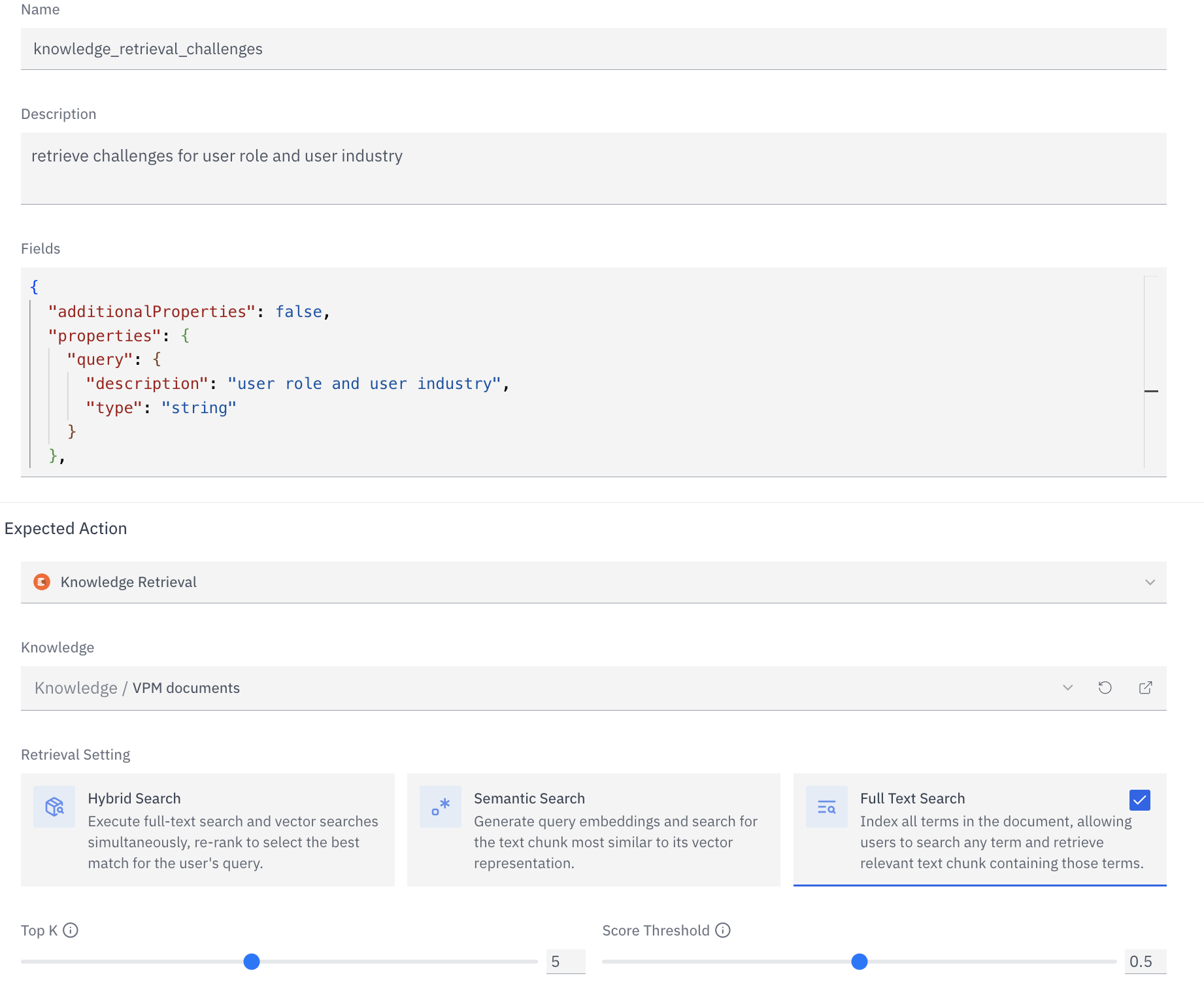 Attach tools to extend what the assistant can do mid-conversation — query a knowledge base, call an external API, transfer the call, or end the session. Tools can also be added or modified after creation.
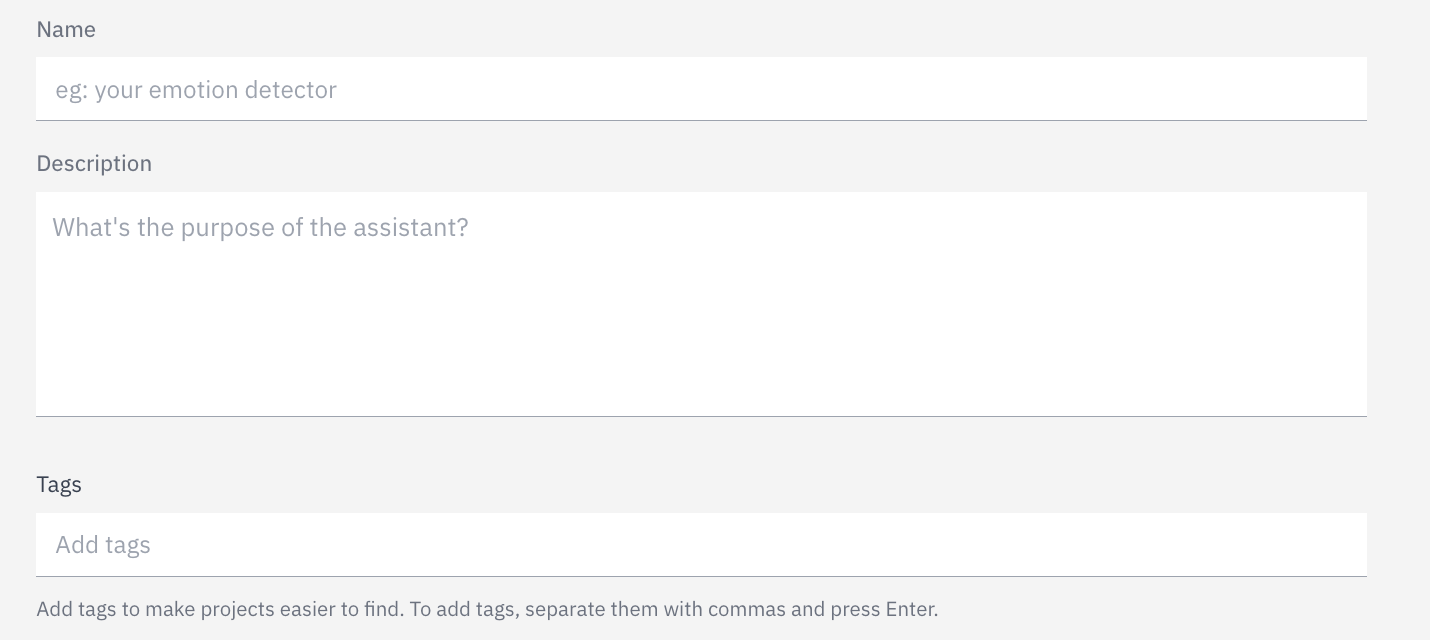 Give the assistant a name and description, then click **Create Assistant**. The assistant is created at version `v1` in draft state. Configure voice, deployments, and advanced settings before going live.
A newly created assistant has no deployment attached. It will not handle live calls or web sessions until you configure at least one deployment under **Configure assistant → Deployments**.
## Next best steps
Add runtime variables (`{{ args.* }}`, `{{ message.* }}`, `{{ system.* }}`) so one prompt works across many customer contexts.
Make changes safely in draft, test, and release explicitly without impacting live traffic.
***
## Configure your assistant
After creation, open **Configure assistant** from the top-right of the assistant page. Configuration is organized into six areas:
System prompt, model selection, temperature, token limits, and advanced LLM parameters.
Experience, Listen, and Speak settings for runtime behavior, speech input, and spoken output.
Attach knowledge bases, set retrieval method (hybrid, semantic, text), top-K, score threshold, and reranking.
Knowledge retrieval, API request, endpoint invocation, call hold, and end-of-conversation tool types.
Phone, web widget, web app, WhatsApp, and API deployment channels — each with its own voice and experience settings.
Post-call webhooks to downstream systems and analysis pipelines for conversation scoring and custom metrics.
***
### Prompt and model
The prompt and model configuration defines what your assistant knows, how it reasons, and how it generates responses.
#### System prompt
The system prompt is your primary control surface. It sets the assistant's persona, scope of knowledge, constraints, and tone. Well-written prompts are the single biggest lever for assistant quality.
**For voice:** Keep sentences short and natural. Avoid bullet lists, markdown, and symbols — the TTS engine reads punctuation literally. Write instructions the way you'd brief a call centre agent.
**Dynamic variables** — inject runtime context into your prompt using `{{variable_name}}` syntax. Variables are automatically detected from your prompt and can be populated via the SDK when initiating a call:
```
You are an assistant for {{company_name}}. The caller's name is {{caller_name}}.
Their account tier is {{account_tier}}. Always address them by first name.
```
**Multi-turn prompt structure** — the prompt editor supports system, user, and assistant roles. Add example exchanges to shape the tone and structure of responses without increasing latency.
#### LLM model parameters
| Parameter | Default | Range | Notes |
| --------------------- | -------- | ---------------------------------- | --------------------------------------------------- |
| Model | `gpt-4o` | — | gpt-4, gpt-4o, gpt-4.1-mini, o3, o4-mini, and more |
| Temperature | `0.7` | 0–2 | Higher = more creative, lower = more deterministic |
| Top P | `1` | 0–1 | Nucleus sampling; use with temperature, not instead |
| Max completion tokens | `2048` | ≥1 | Caps response length |
| Frequency penalty | `0` | -2 to 2 | Reduces word repetition |
| Presence penalty | `0` | -2 to 2 | Encourages topic diversity |
| Stop sequences | — | up to 4 | Tokens that halt generation |
| Tool choice | `auto` | none / auto / required | Control when tools are called |
| Reasoning effort | — | low / medium / high | For o-series models only |
| Response format | — | text / json\_object / json\_schema | For structured output use cases |
| Parameter | Default | Range | Notes |
| ----------------- | --------------- | ----------- | --------------------------------------- |
| Model | `claude-opus-4` | — | Opus 4, Sonnet 4, Sonnet 3.7, Haiku 3.5 |
| Max tokens | `1028` | ≥1 | Caps response length |
| Temperature | `1.0` | 0–1 | — |
| Top P | — | 0–1 | Nucleus sampling |
| Top K | — | — | Top-K sampling |
| Stop sequences | — | — | Halt generation tokens |
| Extended thinking | — | JSON config | Claude's built-in reasoning mode |
AgentKit replaces the built-in LLM with your own gRPC server. Rapida streams user speech transcripts to your server and synthesizes your text responses to audio in real time.
| Parameter | Notes |
| --------------- | --------------------------------------------------------------------- |
| Server URL | `host:port` of your gRPC service (e.g. `my-server.example.com:50051`) |
| TLS certificate | Optional — path to CA cert for mutual TLS |
| Metadata | Key-value map passed as gRPC metadata headers |
Your server receives a bidirectional `Talk` stream. Rapida handles all audio — VAD, STT, TTS, telephony. Your server only handles text in / text out.
See the [AgentKit guide](/assistants/agentkit) for implementation examples with LangChain, CrewAI, and Anthropic Claude.
***
### Configuration
Configuration controls the runtime behavior of each deployment: how a session starts, how user audio is captured and transcribed, and how assistant responses are spoken back. These settings directly affect latency, accuracy, and caller experience.
#### Listen — STT, VAD, EOS, and noise processing
For telephone deployments (8kHz audio), choose STT providers with dedicated telephony models: Deepgram `nova-3`, Azure Speech (telephony mode), or AssemblyAI. For high-fidelity web audio (16kHz+), all providers perform well.
**STT providers:** Deepgram, AssemblyAI, Azure Cognitive Speech, Google Speech, OpenAI Whisper, Cartesia, Sarvam AI
| Audio setting | Default | Range | What it controls |
| ------------------ | ---------- | ------------------ | --------------------------------------------------------------- |
| STT language | `multi` | Provider-dependent | Primary transcription language; `multi` enables auto-detection |
| STT model | `nova-3` | Provider-dependent | Accuracy vs. latency tradeoff per provider |
| Noise cancellation | `rn_noise` | — | RNNoise background noise suppression applied before VAD and STT |
| EOS backoff | `2` | 0–5 | Re-prompts ("Are you there?") before ending session on silence |
**Voice Activity Detection (VAD)** — determines when the caller is speaking. Three providers available: [Silero VAD](/assistants/voice-activity-detection#silero-vad) (default, best general-purpose), [TEN VAD](/assistants/voice-activity-detection#ten-vad) (lowest latency), and [FireRed VAD](/assistants/voice-activity-detection#firered-vad) (best noise robustness). See [Voice Activity Detection](/assistants/voice-activity-detection) for provider details, parameters, and tuning guidance.
**End of Speech (EOS)** — determines when the caller has finished their turn. Three providers available: [Silence-Based](/assistants/end-of-speech#silence-based-eos) (default, simple fixed timeout), [Pipecat Smart Turn](/assistants/end-of-speech#pipecat-smart-turn-eos) (audio model, catches prosodic cues), and [LiveKit Turn Detector](/assistants/end-of-speech#livekit-turn-detector-eos) (language model with conversation history). See [End of Speech Detection](/assistants/end-of-speech) for provider details, parameters, and tuning guidance.
EOS is the most impactful latency lever after model selection. With Silence-Based EOS at 700ms, the assistant waits 0.7 seconds of silence before responding. Model-based providers (Pipecat, LiveKit) can reduce this wait by detecting turn completion before the full silence timeout expires — the assistant responds faster while cutting off callers less often.
#### Speak — TTS and pronunciation
**TTS providers:** ElevenLabs, Cartesia, Deepgram Aura, OpenAI TTS, Azure Speech, Google Cloud TTS, PlayHT, Sarvam AI
| Speaker setting | Default | What it controls |
| -------------------------- | ------------------ | ------------------------------------------------------------------------------------------------------------------- |
| Voice ID | Provider-dependent | The specific voice model. Supports cloned brand voices on ElevenLabs and Resemble |
| Speed / emotion | Normal | Provider-specific; Cartesia exposes `slowest → fastest` and emotion controls (`anger:high`, `positivity:low`, etc.) |
| Sentence boundaries | `.!?;:—…` | Characters that flush a TTS chunk for immediate playback. Tuning these reduces time-to-first-audio |
| Conjunction break | `240 ms` | Pause inserted at conjunctions (and, but, or). Adds natural rhythm to long sentences |
| Pronunciation dictionaries | — | Normalize how abbreviations, currencies, dates, URLs, and technical terms are spoken |
Add your product names, acronyms, and technical terms to the pronunciation dictionary to prevent the TTS engine from mispronouncing them. This is especially important for brand names and medical or legal terms.
***
### Knowledge and retrieval
Attach one or more knowledge bases to give your assistant access to documents, FAQs, product data, or any content indexed in Rapida.
| Setting | Default | Range | Notes |
| ---------------- | -------- | ------------------------ | -------------------------------------------------------------------------------------------------------------------------------- |
| Retrieval method | `hybrid` | hybrid / semantic / text | Hybrid combines vector similarity and full-text search — best default for most use cases |
| Top K | `5` | 1–20 | Number of document chunks retrieved per query. Higher = more context, higher latency |
| Score threshold | `0.5` | 0–1 | Minimum relevance score. Raise to reduce noise; lower to improve recall |
| Reranking | `off` | — | Cohere reranker re-scores retrieved chunks before passing to the LLM. Improves precision at the cost of a small latency increase |
See [Create a Knowledge Base](/knowledge/create-knowledge) for document ingestion, connector setup, and embedding model configuration.
***
### Tools
Tools extend what your assistant can do mid-conversation without breaking the voice flow. The LLM decides when to call a tool based on its description — write clear, specific descriptions.
Query a Rapida knowledge base in real time. Returns the most relevant document chunks to the LLM as context.
Call any external HTTP endpoint mid-conversation — CRM lookups, inventory checks, booking APIs. Define the request schema and the LLM populates the parameters from conversation context.
Invoke a Rapida endpoint — a separately configured LLM prompt — for specialised sub-tasks: classification, extraction, or complex reasoning offloaded from the main conversation model.
Pause the call and play hold music while a backend process completes — useful when a lookup or action takes longer than a voice turn allows.
Terminate the call programmatically when the assistant determines the conversation objective has been met.
Tool names must use only letters, numbers, and underscores (no spaces). The description is passed directly to the LLM — it determines when and whether the tool is called. Be specific: "Search the product knowledge base for pricing information" outperforms "Search knowledge base".
***
### Conversation experience
These settings control the runtime behaviour of a live session — what happens when the caller goes silent, how long sessions last, and what the assistant says at the start of a call.
| Setting | Default | Range | Notes |
| -------------------- | ---------------- | ----------------- | ------------------------------------------------------------------------------------ |
| Greeting message | — | — | Spoken immediately when a call connects. Supports `{{variable}}` for personalisation |
| Idle message | `Are you there?` | — | Spoken after the idle timeout expires without user input |
| Idle silence timeout | `30 s` | 15–120 s (phone) | Time before the idle message triggers |
| Idle backoff | `2` | 0–5 | How many times the idle message repeats before ending the session |
| Max session duration | `300 s` | 180–600 s (phone) | Hard cap on session length — protects against runaway calls |
| Error message | — | — | Spoken when the assistant encounters an unrecoverable error |
***
### Webhooks and post-call analysis
**Webhooks** fire for call lifecycle events such as `call.received`, `call.ringing`, `call.started`, `call.hangup`, `call.ended`, `call.failed`, and `call.cancelled`; WebRTC media events such as `webrtc.connected`, `webrtc.audio_track_received`, `webrtc.reconnecting`, `webrtc.failed`, and `webrtc.disconnected`; and conversation lifecycle events such as `conversation.begin`, `conversation.resume`, `conversation.completed`, and `conversation.error`. Completed conversation webhooks include transcripts, metadata, metrics, and any successful post-call analysis output.
**Analysis pipelines** run before the `conversation.completed` webhook is recorded. They invoke a configured Rapida endpoint — typically an LLM prompt — against the conversation transcript to produce structured output: sentiment scores, intent labels, CSAT predictions, compliance flags, or any custom metric. Successful analysis output is added to webhook metadata as `analysis.`.
See [Webhooks](/assistants/webhook/overview) and [Analysis](/assistants/analysis/overview) for full configuration details.
***
## Version control
Every change to your assistant's prompt, model, or parameters creates a new **version**. Versions let you safely iterate without affecting live traffic.
New versions are **not deployed automatically**. After creating a version, it stays in draft state until you explicitly release it. Live deployments continue running the previously released version until you promote the new one.
| Action | What it does |
| --------------- | --------------------------------------------------------------------------- |
| Create version | Saves a new draft with updated prompt/model config and a change description |
| Release version | Promotes the version to live — all active deployments switch immediately |
| Rollback | Re-release a previous version to revert a bad change |
This model lets you run A/B tests, stage changes in a debugger deployment before pushing to phone, and maintain a full audit trail of every prompt change — who made it, when, and why.
***
## Next steps
Connect a telephony provider and go live with inbound and outbound calling.
Index documents, wikis, and data sources for retrieval during calls.
Stream call events and transcripts to external systems in real time.
Use AgentKit to plug your own reasoning engine into Rapida's audio pipeline.
Give the assistant a name and description, then click **Create Assistant**. The assistant is created at version `v1` in draft state. Configure voice, deployments, and advanced settings before going live.
A newly created assistant has no deployment attached. It will not handle live calls or web sessions until you configure at least one deployment under **Configure assistant → Deployments**.
## Next best steps
Add runtime variables (`{{ args.* }}`, `{{ message.* }}`, `{{ system.* }}`) so one prompt works across many customer contexts.
Make changes safely in draft, test, and release explicitly without impacting live traffic.
***
## Configure your assistant
After creation, open **Configure assistant** from the top-right of the assistant page. Configuration is organized into six areas:
System prompt, model selection, temperature, token limits, and advanced LLM parameters.
Experience, Listen, and Speak settings for runtime behavior, speech input, and spoken output.
Attach knowledge bases, set retrieval method (hybrid, semantic, text), top-K, score threshold, and reranking.
Knowledge retrieval, API request, endpoint invocation, call hold, and end-of-conversation tool types.
Phone, web widget, web app, WhatsApp, and API deployment channels — each with its own voice and experience settings.
Post-call webhooks to downstream systems and analysis pipelines for conversation scoring and custom metrics.
***
### Prompt and model
The prompt and model configuration defines what your assistant knows, how it reasons, and how it generates responses.
#### System prompt
The system prompt is your primary control surface. It sets the assistant's persona, scope of knowledge, constraints, and tone. Well-written prompts are the single biggest lever for assistant quality.
**For voice:** Keep sentences short and natural. Avoid bullet lists, markdown, and symbols — the TTS engine reads punctuation literally. Write instructions the way you'd brief a call centre agent.
**Dynamic variables** — inject runtime context into your prompt using `{{variable_name}}` syntax. Variables are automatically detected from your prompt and can be populated via the SDK when initiating a call:
```
You are an assistant for {{company_name}}. The caller's name is {{caller_name}}.
Their account tier is {{account_tier}}. Always address them by first name.
```
**Multi-turn prompt structure** — the prompt editor supports system, user, and assistant roles. Add example exchanges to shape the tone and structure of responses without increasing latency.
#### LLM model parameters
| Parameter | Default | Range | Notes |
| --------------------- | -------- | ---------------------------------- | --------------------------------------------------- |
| Model | `gpt-4o` | — | gpt-4, gpt-4o, gpt-4.1-mini, o3, o4-mini, and more |
| Temperature | `0.7` | 0–2 | Higher = more creative, lower = more deterministic |
| Top P | `1` | 0–1 | Nucleus sampling; use with temperature, not instead |
| Max completion tokens | `2048` | ≥1 | Caps response length |
| Frequency penalty | `0` | -2 to 2 | Reduces word repetition |
| Presence penalty | `0` | -2 to 2 | Encourages topic diversity |
| Stop sequences | — | up to 4 | Tokens that halt generation |
| Tool choice | `auto` | none / auto / required | Control when tools are called |
| Reasoning effort | — | low / medium / high | For o-series models only |
| Response format | — | text / json\_object / json\_schema | For structured output use cases |
| Parameter | Default | Range | Notes |
| ----------------- | --------------- | ----------- | --------------------------------------- |
| Model | `claude-opus-4` | — | Opus 4, Sonnet 4, Sonnet 3.7, Haiku 3.5 |
| Max tokens | `1028` | ≥1 | Caps response length |
| Temperature | `1.0` | 0–1 | — |
| Top P | — | 0–1 | Nucleus sampling |
| Top K | — | — | Top-K sampling |
| Stop sequences | — | — | Halt generation tokens |
| Extended thinking | — | JSON config | Claude's built-in reasoning mode |
AgentKit replaces the built-in LLM with your own gRPC server. Rapida streams user speech transcripts to your server and synthesizes your text responses to audio in real time.
| Parameter | Notes |
| --------------- | --------------------------------------------------------------------- |
| Server URL | `host:port` of your gRPC service (e.g. `my-server.example.com:50051`) |
| TLS certificate | Optional — path to CA cert for mutual TLS |
| Metadata | Key-value map passed as gRPC metadata headers |
Your server receives a bidirectional `Talk` stream. Rapida handles all audio — VAD, STT, TTS, telephony. Your server only handles text in / text out.
See the [AgentKit guide](/assistants/agentkit) for implementation examples with LangChain, CrewAI, and Anthropic Claude.
***
### Configuration
Configuration controls the runtime behavior of each deployment: how a session starts, how user audio is captured and transcribed, and how assistant responses are spoken back. These settings directly affect latency, accuracy, and caller experience.
#### Listen — STT, VAD, EOS, and noise processing
For telephone deployments (8kHz audio), choose STT providers with dedicated telephony models: Deepgram `nova-3`, Azure Speech (telephony mode), or AssemblyAI. For high-fidelity web audio (16kHz+), all providers perform well.
**STT providers:** Deepgram, AssemblyAI, Azure Cognitive Speech, Google Speech, OpenAI Whisper, Cartesia, Sarvam AI
| Audio setting | Default | Range | What it controls |
| ------------------ | ---------- | ------------------ | --------------------------------------------------------------- |
| STT language | `multi` | Provider-dependent | Primary transcription language; `multi` enables auto-detection |
| STT model | `nova-3` | Provider-dependent | Accuracy vs. latency tradeoff per provider |
| Noise cancellation | `rn_noise` | — | RNNoise background noise suppression applied before VAD and STT |
| EOS backoff | `2` | 0–5 | Re-prompts ("Are you there?") before ending session on silence |
**Voice Activity Detection (VAD)** — determines when the caller is speaking. Three providers available: [Silero VAD](/assistants/voice-activity-detection#silero-vad) (default, best general-purpose), [TEN VAD](/assistants/voice-activity-detection#ten-vad) (lowest latency), and [FireRed VAD](/assistants/voice-activity-detection#firered-vad) (best noise robustness). See [Voice Activity Detection](/assistants/voice-activity-detection) for provider details, parameters, and tuning guidance.
**End of Speech (EOS)** — determines when the caller has finished their turn. Three providers available: [Silence-Based](/assistants/end-of-speech#silence-based-eos) (default, simple fixed timeout), [Pipecat Smart Turn](/assistants/end-of-speech#pipecat-smart-turn-eos) (audio model, catches prosodic cues), and [LiveKit Turn Detector](/assistants/end-of-speech#livekit-turn-detector-eos) (language model with conversation history). See [End of Speech Detection](/assistants/end-of-speech) for provider details, parameters, and tuning guidance.
EOS is the most impactful latency lever after model selection. With Silence-Based EOS at 700ms, the assistant waits 0.7 seconds of silence before responding. Model-based providers (Pipecat, LiveKit) can reduce this wait by detecting turn completion before the full silence timeout expires — the assistant responds faster while cutting off callers less often.
#### Speak — TTS and pronunciation
**TTS providers:** ElevenLabs, Cartesia, Deepgram Aura, OpenAI TTS, Azure Speech, Google Cloud TTS, PlayHT, Sarvam AI
| Speaker setting | Default | What it controls |
| -------------------------- | ------------------ | ------------------------------------------------------------------------------------------------------------------- |
| Voice ID | Provider-dependent | The specific voice model. Supports cloned brand voices on ElevenLabs and Resemble |
| Speed / emotion | Normal | Provider-specific; Cartesia exposes `slowest → fastest` and emotion controls (`anger:high`, `positivity:low`, etc.) |
| Sentence boundaries | `.!?;:—…` | Characters that flush a TTS chunk for immediate playback. Tuning these reduces time-to-first-audio |
| Conjunction break | `240 ms` | Pause inserted at conjunctions (and, but, or). Adds natural rhythm to long sentences |
| Pronunciation dictionaries | — | Normalize how abbreviations, currencies, dates, URLs, and technical terms are spoken |
Add your product names, acronyms, and technical terms to the pronunciation dictionary to prevent the TTS engine from mispronouncing them. This is especially important for brand names and medical or legal terms.
***
### Knowledge and retrieval
Attach one or more knowledge bases to give your assistant access to documents, FAQs, product data, or any content indexed in Rapida.
| Setting | Default | Range | Notes |
| ---------------- | -------- | ------------------------ | -------------------------------------------------------------------------------------------------------------------------------- |
| Retrieval method | `hybrid` | hybrid / semantic / text | Hybrid combines vector similarity and full-text search — best default for most use cases |
| Top K | `5` | 1–20 | Number of document chunks retrieved per query. Higher = more context, higher latency |
| Score threshold | `0.5` | 0–1 | Minimum relevance score. Raise to reduce noise; lower to improve recall |
| Reranking | `off` | — | Cohere reranker re-scores retrieved chunks before passing to the LLM. Improves precision at the cost of a small latency increase |
See [Create a Knowledge Base](/knowledge/create-knowledge) for document ingestion, connector setup, and embedding model configuration.
***
### Tools
Tools extend what your assistant can do mid-conversation without breaking the voice flow. The LLM decides when to call a tool based on its description — write clear, specific descriptions.
Query a Rapida knowledge base in real time. Returns the most relevant document chunks to the LLM as context.
Call any external HTTP endpoint mid-conversation — CRM lookups, inventory checks, booking APIs. Define the request schema and the LLM populates the parameters from conversation context.
Invoke a Rapida endpoint — a separately configured LLM prompt — for specialised sub-tasks: classification, extraction, or complex reasoning offloaded from the main conversation model.
Pause the call and play hold music while a backend process completes — useful when a lookup or action takes longer than a voice turn allows.
Terminate the call programmatically when the assistant determines the conversation objective has been met.
Tool names must use only letters, numbers, and underscores (no spaces). The description is passed directly to the LLM — it determines when and whether the tool is called. Be specific: "Search the product knowledge base for pricing information" outperforms "Search knowledge base".
***
### Conversation experience
These settings control the runtime behaviour of a live session — what happens when the caller goes silent, how long sessions last, and what the assistant says at the start of a call.
| Setting | Default | Range | Notes |
| -------------------- | ---------------- | ----------------- | ------------------------------------------------------------------------------------ |
| Greeting message | — | — | Spoken immediately when a call connects. Supports `{{variable}}` for personalisation |
| Idle message | `Are you there?` | — | Spoken after the idle timeout expires without user input |
| Idle silence timeout | `30 s` | 15–120 s (phone) | Time before the idle message triggers |
| Idle backoff | `2` | 0–5 | How many times the idle message repeats before ending the session |
| Max session duration | `300 s` | 180–600 s (phone) | Hard cap on session length — protects against runaway calls |
| Error message | — | — | Spoken when the assistant encounters an unrecoverable error |
***
### Webhooks and post-call analysis
**Webhooks** fire for call lifecycle events such as `call.received`, `call.ringing`, `call.started`, `call.hangup`, `call.ended`, `call.failed`, and `call.cancelled`; WebRTC media events such as `webrtc.connected`, `webrtc.audio_track_received`, `webrtc.reconnecting`, `webrtc.failed`, and `webrtc.disconnected`; and conversation lifecycle events such as `conversation.begin`, `conversation.resume`, `conversation.completed`, and `conversation.error`. Completed conversation webhooks include transcripts, metadata, metrics, and any successful post-call analysis output.
**Analysis pipelines** run before the `conversation.completed` webhook is recorded. They invoke a configured Rapida endpoint — typically an LLM prompt — against the conversation transcript to produce structured output: sentiment scores, intent labels, CSAT predictions, compliance flags, or any custom metric. Successful analysis output is added to webhook metadata as `analysis.`.
See [Webhooks](/assistants/webhook/overview) and [Analysis](/assistants/analysis/overview) for full configuration details.
***
## Version control
Every change to your assistant's prompt, model, or parameters creates a new **version**. Versions let you safely iterate without affecting live traffic.
New versions are **not deployed automatically**. After creating a version, it stays in draft state until you explicitly release it. Live deployments continue running the previously released version until you promote the new one.
| Action | What it does |
| --------------- | --------------------------------------------------------------------------- |
| Create version | Saves a new draft with updated prompt/model config and a change description |
| Release version | Promotes the version to live — all active deployments switch immediately |
| Rollback | Re-release a previous version to revert a bad change |
This model lets you run A/B tests, stage changes in a debugger deployment before pushing to phone, and maintain a full audit trail of every prompt change — who made it, when, and why.
***
## Next steps
Connect a telephony provider and go live with inbound and outbound calling.
Index documents, wikis, and data sources for retrieval during calls.
Stream call events and transcripts to external systems in real time.
Use AgentKit to plug your own reasoning engine into Rapida's audio pipeline.