> ## Documentation Index
> Fetch the complete documentation index at: https://doc.rapida.ai/llms.txt
> Use this file to discover all available pages before exploring further.
# Assistant Conversation Logs
> Monitor and improve your AI assistant interactions in Rapida
Assistant Conversation Logs in Rapida help you track, analyze, and enhance your AI-powered conversations. This guide will show you how to use this feature effectively to improve your assistant's performance.
## Accessing Conversation Logs
1. Log in to your Rapida dashboard
2. Navigate to the "Logs" section in the sidebar
3. Select "Conversation" from the logs menu
## Understanding the Log Overview
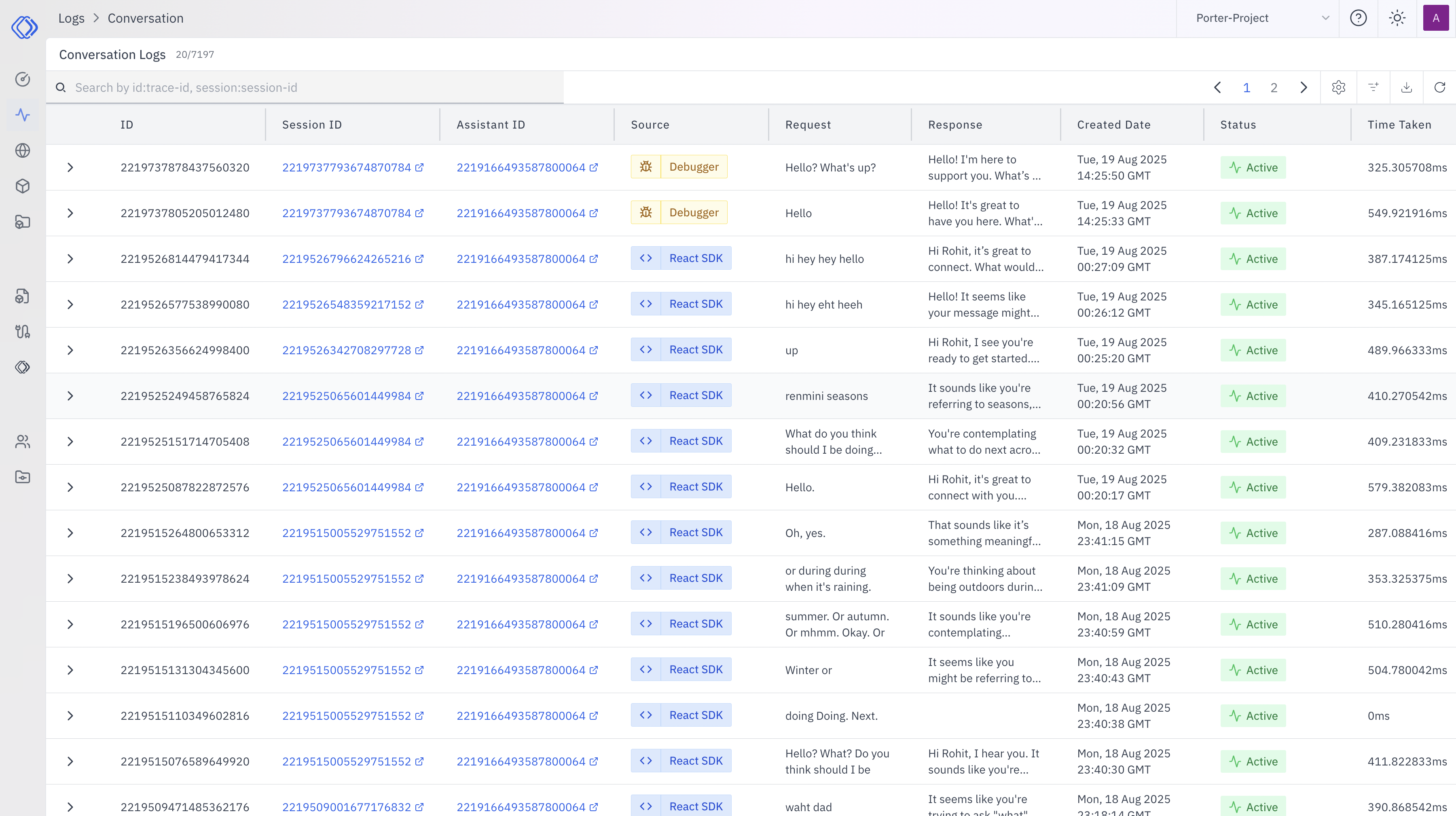 The log table provides key information at a glance:
* **ID**: Unique conversation identifier
* **Session ID**: Groups related interactions
* **Assistant ID**: Your AI assistant's identifier
* **Source**: Where the conversation originated (e.g., Debugger, React SDK)
* **Request/Response**: Quick view of user inputs and AI responses
* **Created Date**: When the interaction occurred
* **Status**: Current conversation state
* **Time Taken**: Response generation time
## Analyzing Individual Conversations
1. Click on any log entry to view full details
2. Review the complete conversation flow
3. Check for any unexpected responses or errors
4. Use this information to refine your assistant's knowledge or responses
## Leveraging Conversation Telemetry
The log table provides key information at a glance:
* **ID**: Unique conversation identifier
* **Session ID**: Groups related interactions
* **Assistant ID**: Your AI assistant's identifier
* **Source**: Where the conversation originated (e.g., Debugger, React SDK)
* **Request/Response**: Quick view of user inputs and AI responses
* **Created Date**: When the interaction occurred
* **Status**: Current conversation state
* **Time Taken**: Response generation time
## Analyzing Individual Conversations
1. Click on any log entry to view full details
2. Review the complete conversation flow
3. Check for any unexpected responses or errors
4. Use this information to refine your assistant's knowledge or responses
## Leveraging Conversation Telemetry
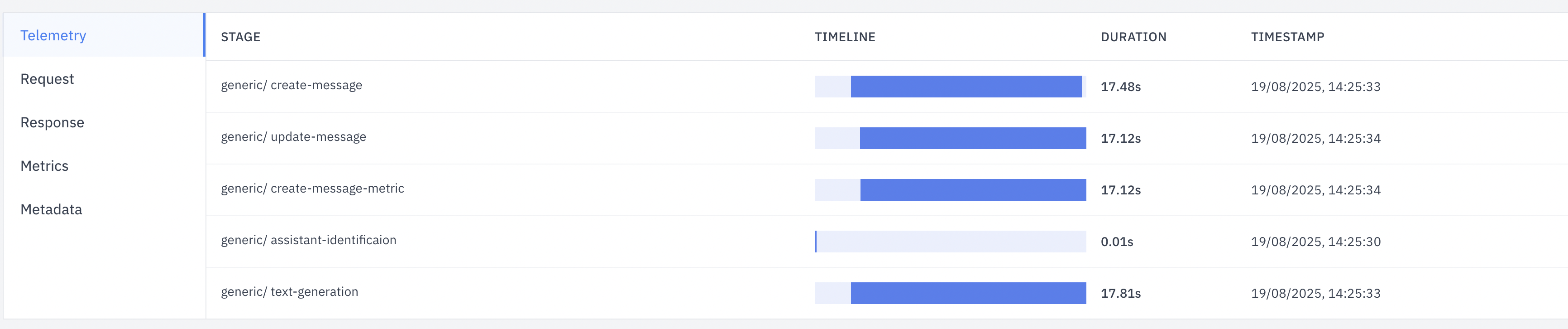 The Telemetry tab breaks down processing time for each interaction:
1. Navigate to the Telemetry tab for a selected conversation
2. Identify which stages (e.g., Request, Response, Text Generation) take the most time
3. Use this data to optimize your assistant's performance:
* If 'Text Generation' is slow, consider simplifying complex prompts
* High 'Request' times might indicate issues with user input processing
## Practical Tips for Rapida Users
1. **Regular Log Reviews**:
* Set a weekly reminder to review your latest conversation logs
* Look for patterns in user queries and assistant responses
2. **Performance Optimization**:
* Use the Time Taken column to identify slow interactions
* Investigate and optimize the slowest 10% of your conversations
3. **Improve Assistant Accuracy**:
* Note common misunderstandings or incorrect responses
* Update your assistant's training data or prompts based on these findings
4. **Enhance User Experience**:
* Look for conversations where users ask for clarification
* Refine your assistant's responses to be more clear and helpful
5. **Debug Issues Quickly**:
* When users report problems, use Session IDs to locate specific conversations
* Analyze the full interaction to understand what went wrong
6. **Monitor New Deployments**:
* After updating your assistant, closely watch logs for any changes in performance or accuracy
* Compare Time Taken metrics before and after updates
## Taking Action on Insights
Use common user queries from logs to expand your assistant's knowledge base.
If telemetry shows slow responses, consider caching frequent queries or
simplifying complex logic.
Identify where users often get stuck and add proactive guidance in those
areas.
Look for 'error' statuses in logs and implement better fallback responses.
By actively using the Conversation Logs, you'll gain valuable insights to continuously improve your AI assistant's performance and user satisfaction on the Rapida platform.
The Telemetry tab breaks down processing time for each interaction:
1. Navigate to the Telemetry tab for a selected conversation
2. Identify which stages (e.g., Request, Response, Text Generation) take the most time
3. Use this data to optimize your assistant's performance:
* If 'Text Generation' is slow, consider simplifying complex prompts
* High 'Request' times might indicate issues with user input processing
## Practical Tips for Rapida Users
1. **Regular Log Reviews**:
* Set a weekly reminder to review your latest conversation logs
* Look for patterns in user queries and assistant responses
2. **Performance Optimization**:
* Use the Time Taken column to identify slow interactions
* Investigate and optimize the slowest 10% of your conversations
3. **Improve Assistant Accuracy**:
* Note common misunderstandings or incorrect responses
* Update your assistant's training data or prompts based on these findings
4. **Enhance User Experience**:
* Look for conversations where users ask for clarification
* Refine your assistant's responses to be more clear and helpful
5. **Debug Issues Quickly**:
* When users report problems, use Session IDs to locate specific conversations
* Analyze the full interaction to understand what went wrong
6. **Monitor New Deployments**:
* After updating your assistant, closely watch logs for any changes in performance or accuracy
* Compare Time Taken metrics before and after updates
## Taking Action on Insights
Use common user queries from logs to expand your assistant's knowledge base.
If telemetry shows slow responses, consider caching frequent queries or
simplifying complex logic.
Identify where users often get stuck and add proactive guidance in those
areas.
Look for 'error' statuses in logs and implement better fallback responses.
By actively using the Conversation Logs, you'll gain valuable insights to continuously improve your AI assistant's performance and user satisfaction on the Rapida platform.